Introduction
I have written at length about how to create Power Apps embedded in Power BI / Fabric, applying write-back capabilities, and making the most of the integration:
- Combining Power Apps & Stored Procedures in Fabric Data Warehouse – Downhill Data
- Live Data Write-Back to Fabric Data Warehouse from Power BI w. Power Apps and Power Automate – Downhill Data
- Microsoft Fabric Write-Back Revisited: Maintaining RLS tables with Power Apps & Stored Procedures – Downhill Data
- Guide: Adding Write Back capabilities to your Power BI reports with Power Apps – Part 1: Getting Started – Downhill Data
- Guide: Add Write-Back to Power BI reports with Power Apps – Part 2: Display write-back data LIVE in Power BI reports – Downhill Data
- Guide: Adding Write Back capabilities to your Power BI reports with Power Apps – Part 3: Sizing your Embedded Power App – Downhill Data
- Reuse the same Power App in multiple Power BI reports with different behaviour by using Calculated Measures – Downhill Data
- Auto-Trigger OnSelect Button Actions in Power Apps when selecting data points in Power BI – Downhill Data
However, recently I was faced with a challenge I had not seen before:
A simple comment App embedded in Power BI was supposed to show all the comments in a Sharepoint List which matched the filters set in Power BI. But…. Not all comments were showing up, even though the Sharepoint List only held about 10 comments at the time!
Why you ask? Well, the issue stems from the fact that the table of data being sent from Power BI to Power Apps, the PowerBIIntegration.Data object, has a hard limitation of 1000 rows. And those 1000 rows, is all that we get to work with.

Hence, if you want to use the distinct values of one of the columns in the table as a filter in the Power App, you will also only be able to choose between the values which appear in the first 1000 rows of your table.
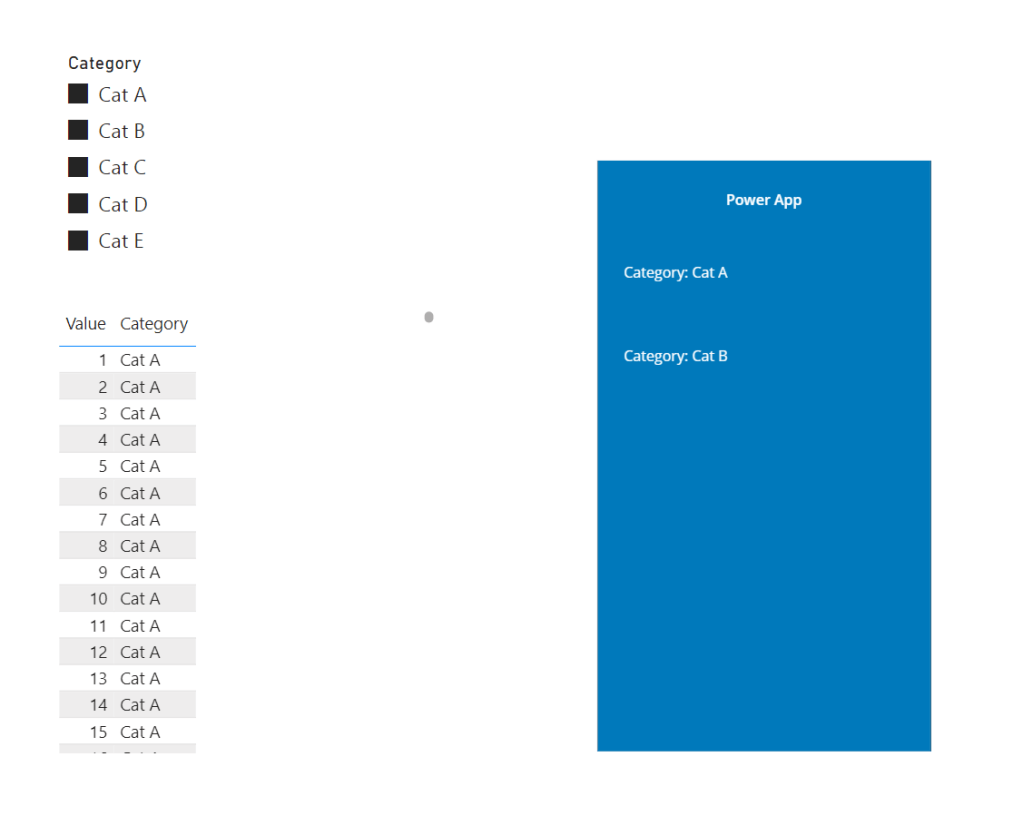
And so the question arose: How can we consistently pass all the selected filter values from Power BI to Power Apps, when the table of data being sent to Power Apps is very large?
Solution: Concatenating filter selections and returning them on all rows of the table
The solution involves creating a Calculated Measure in Power BI, using a combination of the Values(), ConcatenateX(), and AllSelected() DAX formulas, to return a concatenated string of all the selected filters for a specific column, on all rows of the table.
This allows us to pick up all the values to be used as filters in the Power App, by simply querying First(PowerBIIntegration.Data), and using a little bit of Power FX to parse out the concatenated string in Power Apps.
First, the Power BI Formula:

The formula is not very complex, and takes advantage of ALLSELECTED() to remove the filter context coming from the visual itself, while still applying the context from the outside (the slicer).
Using this in Combination with VALUES(), allows us to grab all the values picked in the slicer, and stitch them together with CONCATENATEX(). Below is another screenshot with fewer selections:

Then, the Power Apps logic and the final result:
When we put this new Measure on to the Power Apps visual, we get all the filter values in the Power App:
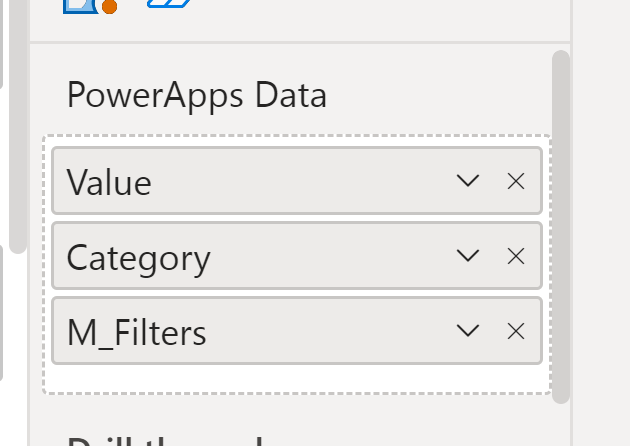

And to split up the concatenated string, so that we get a table of values we could display, and/or use in a filter, we can use a Split() function:
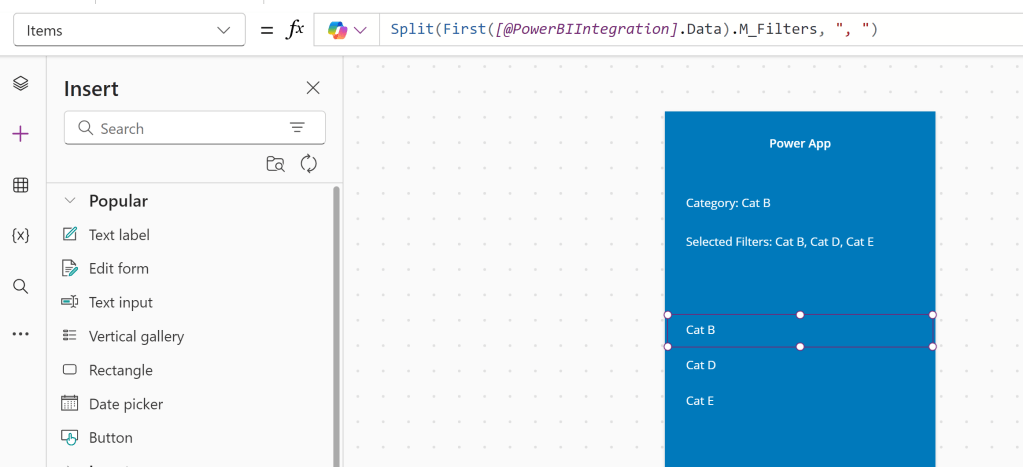
And we can use this to consistently pass all distinct values in for our filter columns in Power BI to the app, even when the underlying table exceeds 1000 rows:

I’m curious if anyone out there have other clever workarounds that they use for the embedded Power Apps limitations. Please let me know!




 Downhill Data
Leave a comment