Introduction
It’s been a while since I wrote a Power Apps article. But for my FabCon session demo I had to dig up one of my favourite tricks for embedded Power Apps: Dynamic Landing Pages for Embedded Power Apps.
Picture the scenarios below.
Scenario 1:
- You are building a Power BI report with an embedded Power App.
- The Report has only one page, but has multiple audiences, who consume the report in slightly different ways.
- The embedded Power App needs to reflect this, by having the user start their data entry on different screens of the app, depending on the user.
Scenario 2:
- You are building a Power BI report with an embedded Power App.
- The report has multiple pages.
- The embedded Power App should open on different screens, depending on which page you are accessing it from.
In either scenario, we would of course like to solve this using 1 app with multiple screens, and dynamically open up different screens depending on a parameter.
We would not want to develop two almost identical apps, with governance on each app, just to be able to present different landing pages for each scenario.
So how do you do it? Read on below for the answer…
What you hope the solution is (spoiler: it isn’t): App.StartScreen
Power Apps have the property App.StartScreen, which may be used to assign a different Start Screen for your app, than the Screen which comes first in your Tree View:
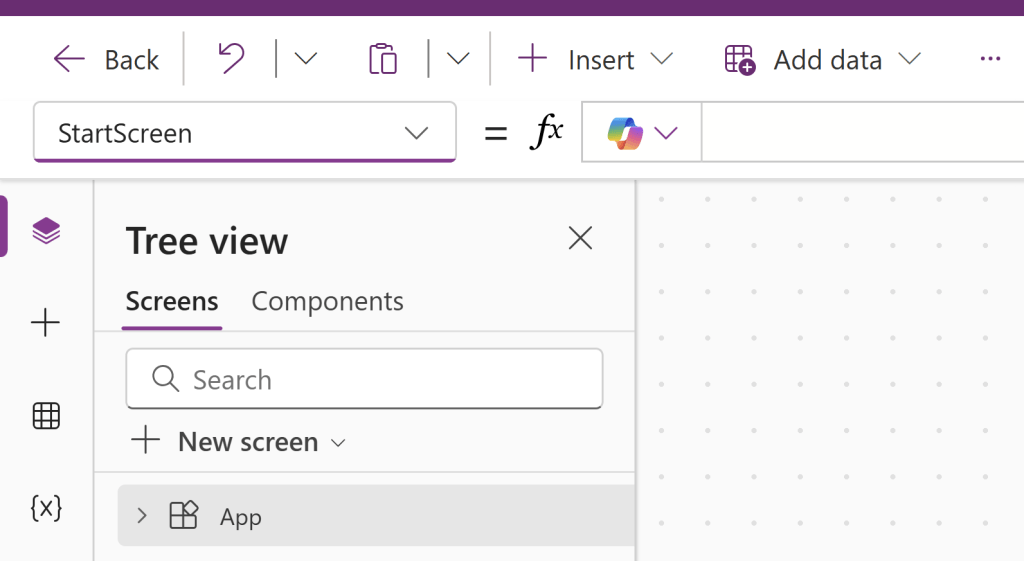
App.StartScreen is great. It even allows you to pick up values from Param(), User() or from lookups to your data sources.
Awesome, but what about PowerBIIntegration.Data? Say, if I pass a hardcoded or dynamic parameter containing e.g. audience info or page info through PowerBIIntegration.Data, can we conditionally alter our StartScreen property based on this parameter? (Check out this blog for how to that: Reuse the same Power App in multiple Power BI reports with different behaviour by using Calculated Measures – Downhill Data)
No.
While you will see no error in the code, the solution won’t work. The reason is that PowerBIIntegration.Data doesn’t behave like all other Data Sources. Data from PowerBIIntegration.Data will not be available for the app to see immediately OnStart, but rather have a small but unnoticeable delay, which simply makes the StartScreen property not fire properly.
What the actual solution is: Timer Control
Instead, we need something to trigger right after PowerBIIntegration.Data has started sending data. And for that, we can use the Timer control:
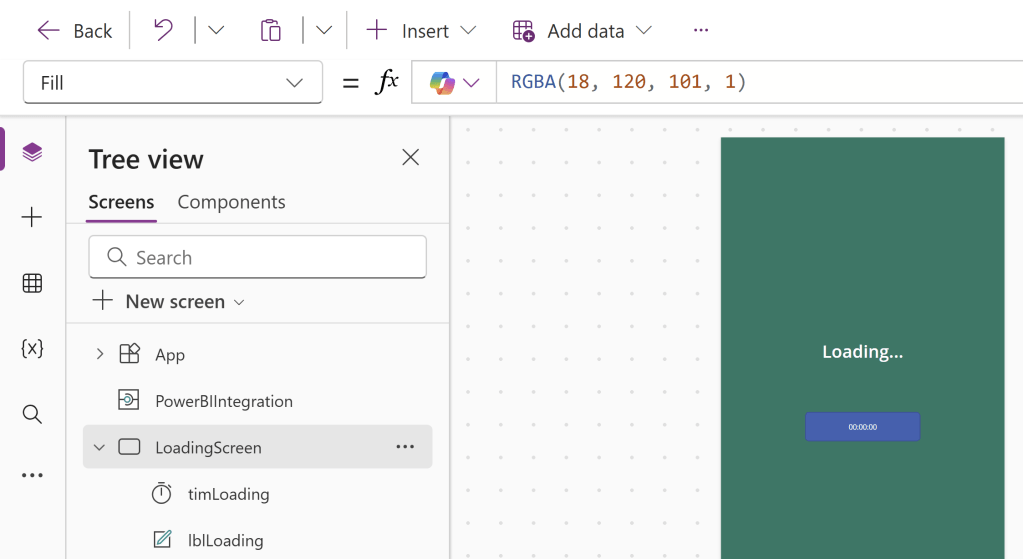
It may not be the most elegant of workaorunds, but work around it does. You need to do the following steps:
- Place a Timer Control on the first screen of your app. I prefer to create a dedicated Loading Screen, which will be visible for the end user for the duration of the timer.
- Set the timer to a duration of your choice. I prefer something negligible, but long enough for the user to see the “Loading…” label. In this case, I used 1500ms.
- Set the AutoStart property of the Timer control to True
- Define your conditional navigation on the “OnTimerEnd” property.
- Sample code:
If(First([@PowerBIIntegration].Data).M_SelectedPage = “SPROC”, Navigate(SPROCWizardryScreen,ScreenTransition.Fade), Navigate(ReviewValidatorScreen,ScreenTransition.Fade))
- Sample code:
- Set your Visible property to false (it can be a help to wait with this until you have fully tested your solution, for debugging purposes).
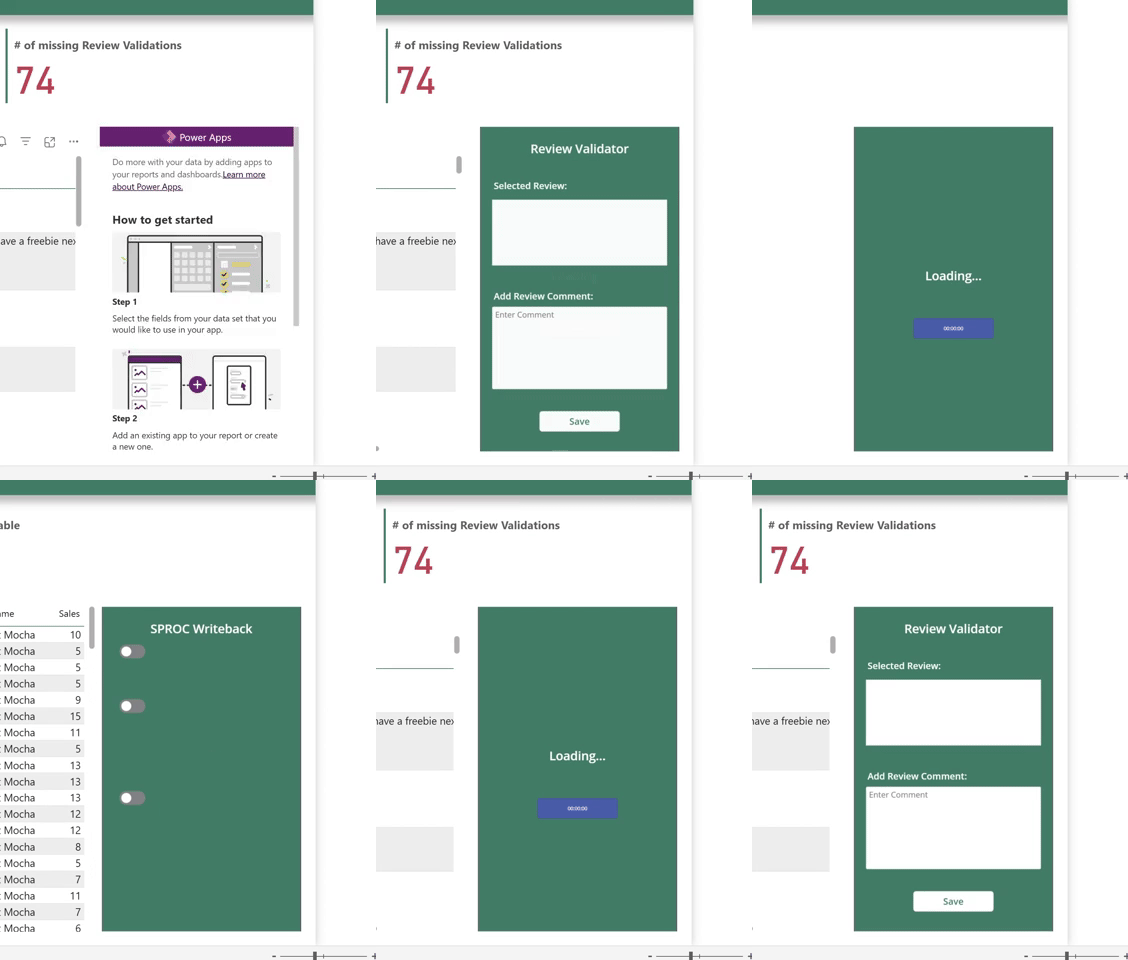
That’s all you need to do! Now my Power App dynamically opens on different screens, depending on the report page it is embedded on:






 Downhill Data
Leave a comment