
Introduction
While Microsoft Fabric promises a collaborative workspace for Data Analysts, Engineers and Scientists alike, the person with the most to gain, and the least to lose, from the data mesh-like architectural patterns in Fabric is the Data Analyst.
Do you, as a Data Analyst, recognize any of the following challenges?
- Getting your own data into an existing data model is time consuming and/or difficult to achieve (Ingest & Prepare)
- Making changes to calculations, relationships and content in data models is complex or even impossible (Store & Serve)
- Driving actions from insight is difficult due to data quality, availability or reliability issues (Consume & Act)
Then Microsoft Fabric might be the solution for you.
The first, second and third articles each tackled some of the above problems, and this fourth article will unfold the opportunities for driving concrete action through data driven alerts with the new kid on the block: Data Activator
Driving data driven insight and action with Data Activator
Once you have setup your data foundation in Fabric, created your Semantic Models, powered up your final Power BI reports and distributed them to the hands of the user, it is time to take action on the data.
But… Far too often, Reports go unused because users are not looking at them at all, or at the right time.
Data activator can alleviate this problem, by creating data driven alerts on almost any visualization in Power BI reports, and driving action through communication Email or Teams, or even by triggering Power Automate flows.
Creating your first data driven alert with Data Activator
From a simple Power BI report, go to the menu of any visualisation, and find the ‘Set alert’ option.
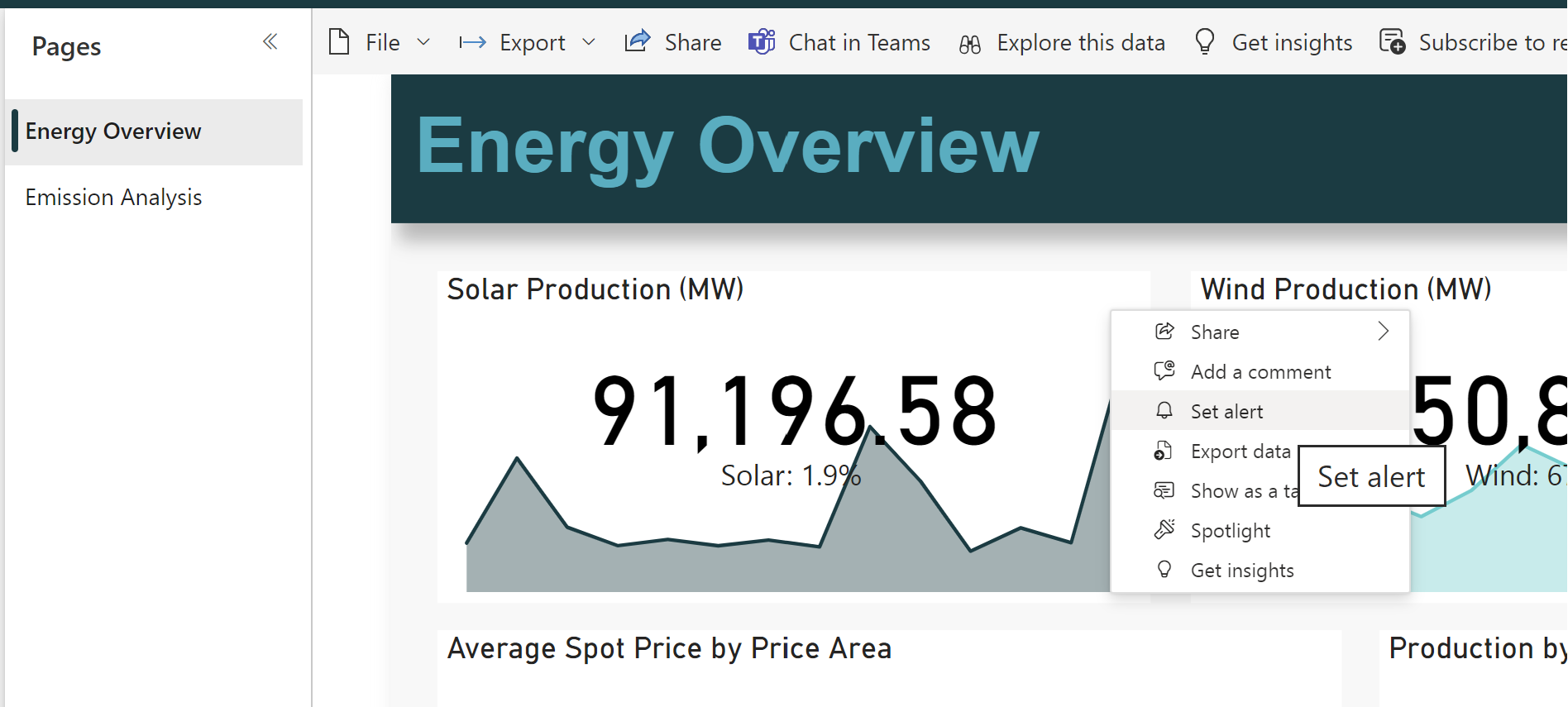
Things brings up the alert interface, letting you quickly configure an alert to be sent to you by Teams / Email, when a certain condition based on data from your visualization is met.
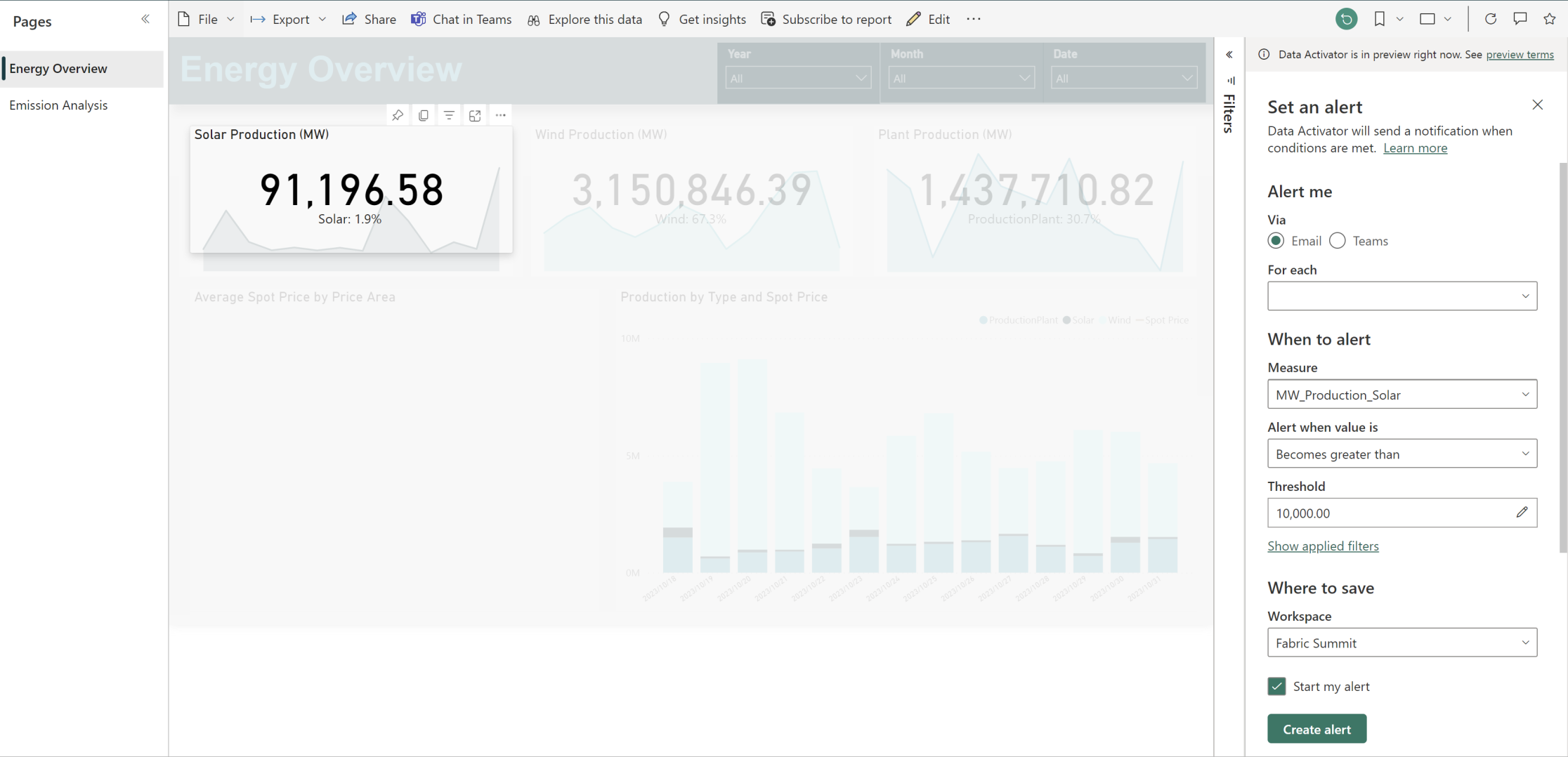
Creating alert will save a ‘Reflex’, the artifact belonging to Data Activator, in a Workspace of your choice, including storing the data object for future use in other triggers too. If you check the “Start my alert” box, you actually have a fully functioning data driven alert just like that!
It will default to send yourself an email, with details about the alert. And while that is all good, I suspect you might want to customize this a bit…
Customizing your data driven alerts with Properties, Triggers and Conditions
So away we go. Find the workspace in which your Reflex was created, and open it up, to be greeted with the following Data Activator Design page:

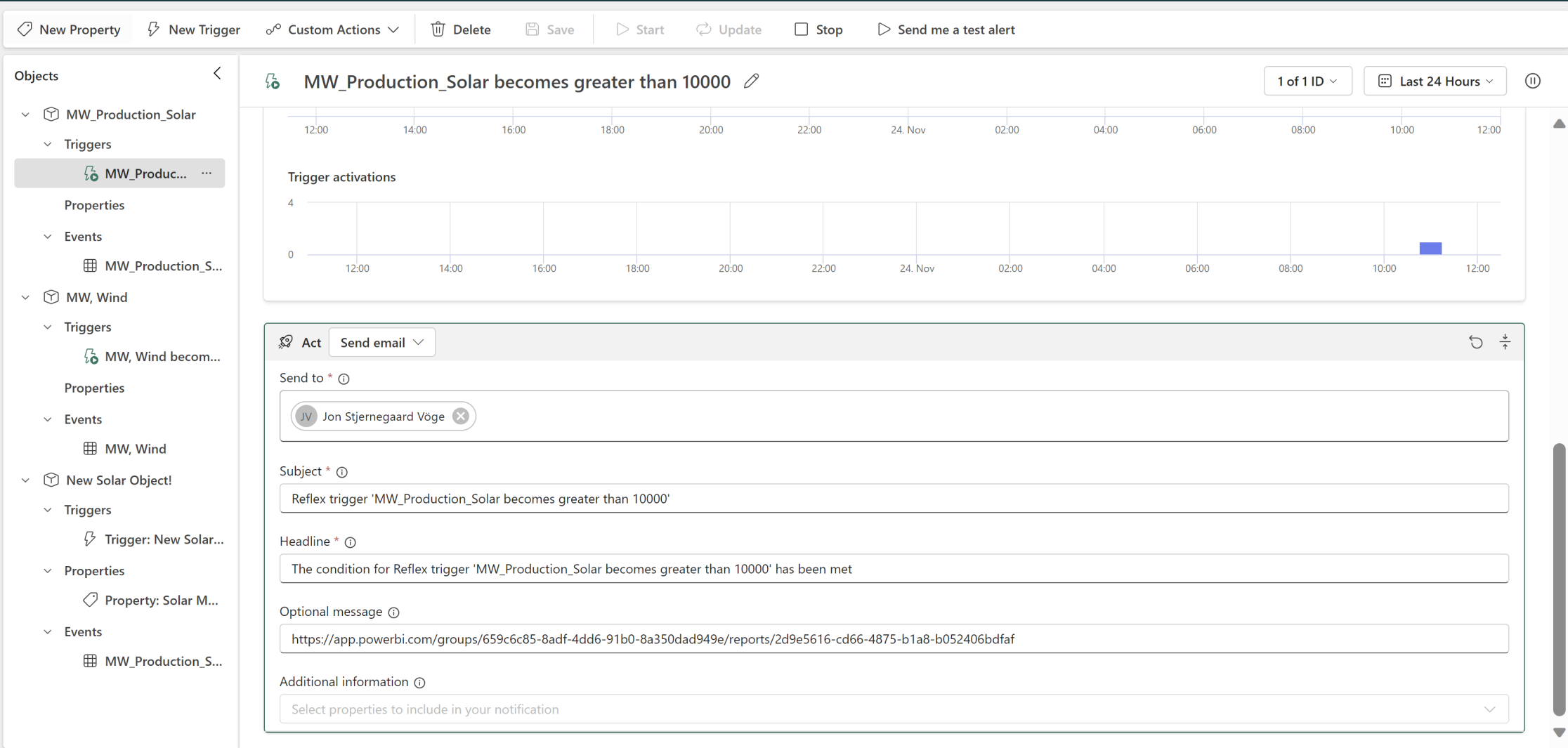
In the Objects list on the left, we see one Object, including a Trigger, a placeholder for Properties which is empty and an Event. This was all created by the setup we did before, and examining the Trigger, you will see the Trigger, Conditions and the Email to be sent out:
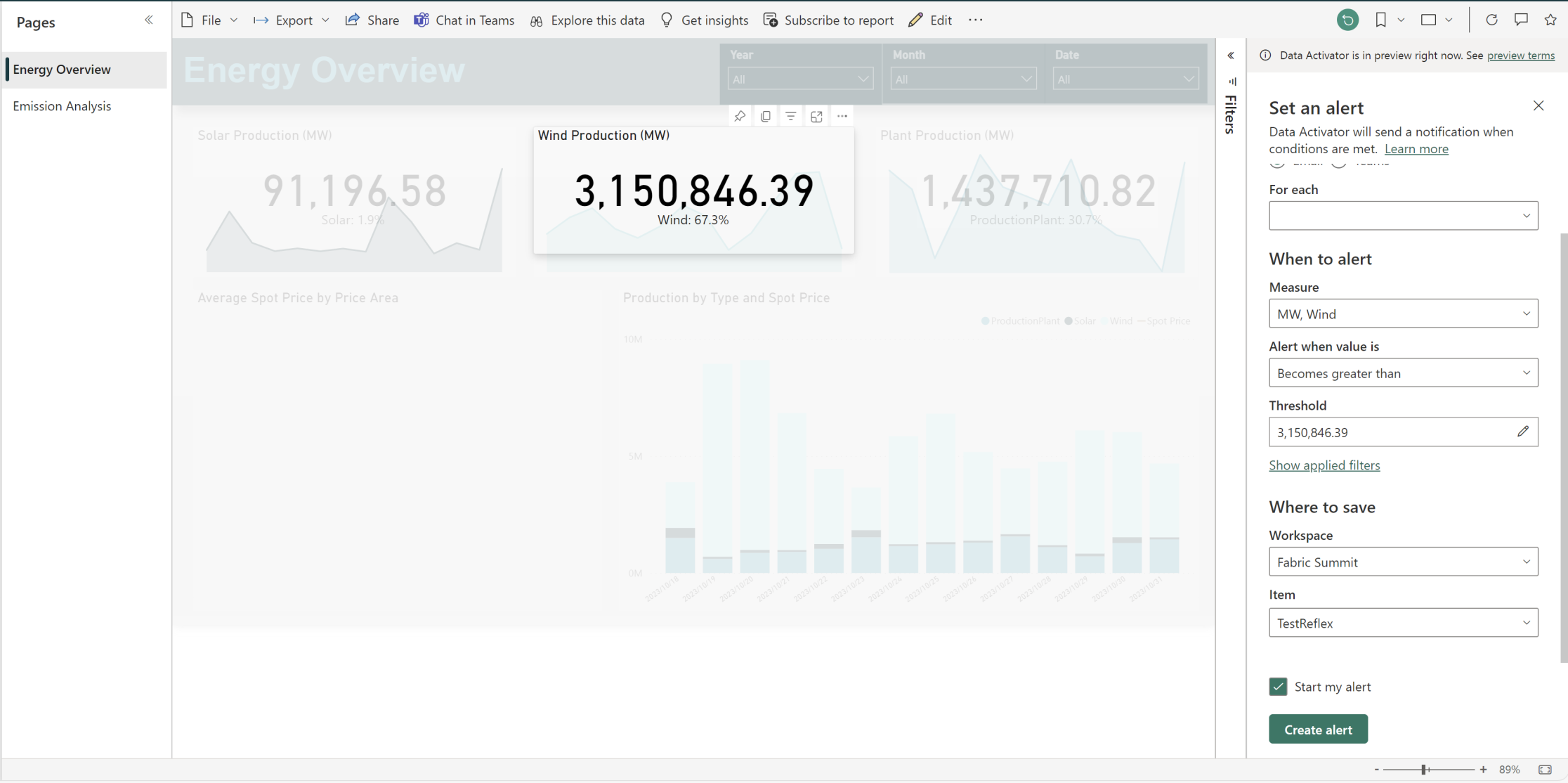
If I go back to Power BI and create another Alert from my report, and store it in the same reflex, another Object containing a new Event and Trigger will show up:

In the bottom of the screen, we can go to the Data Pane, to use the Events that have been imported to the Reflex, to create any number of new Objects, without having to go back to the Power BI Report:
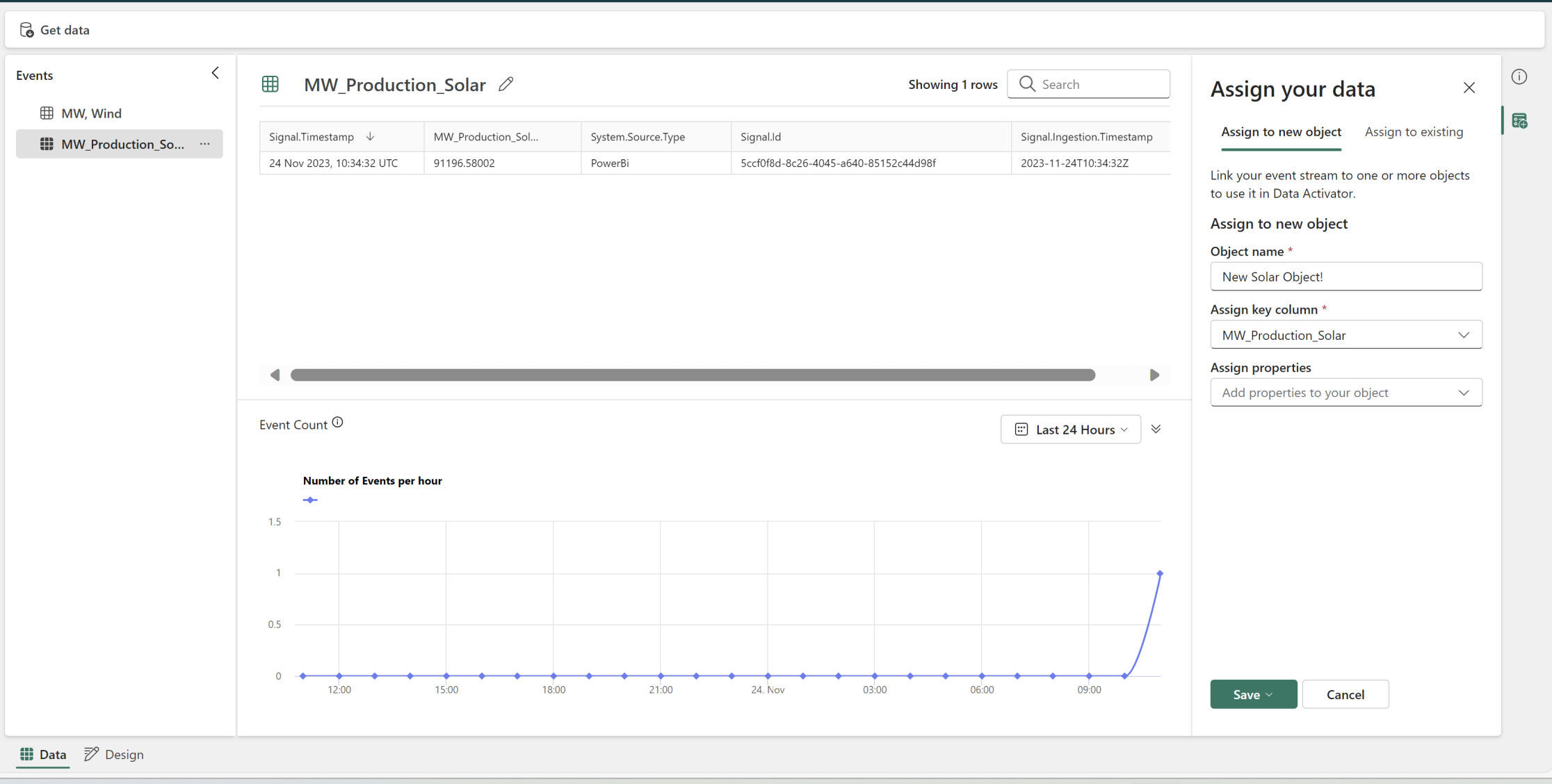
Currently the promising “Get Data” button in the top left only allows you to import Sample data, and otherwise directs you to go through a Power BI report to import new eventstreams to the reflex, but it gives hope that raw data sources/models may be monitored by reflexes in the future.
Going back to Design mode, and selecting an Object, we have the option to create Triggers, Properties and Actions from the top bar:

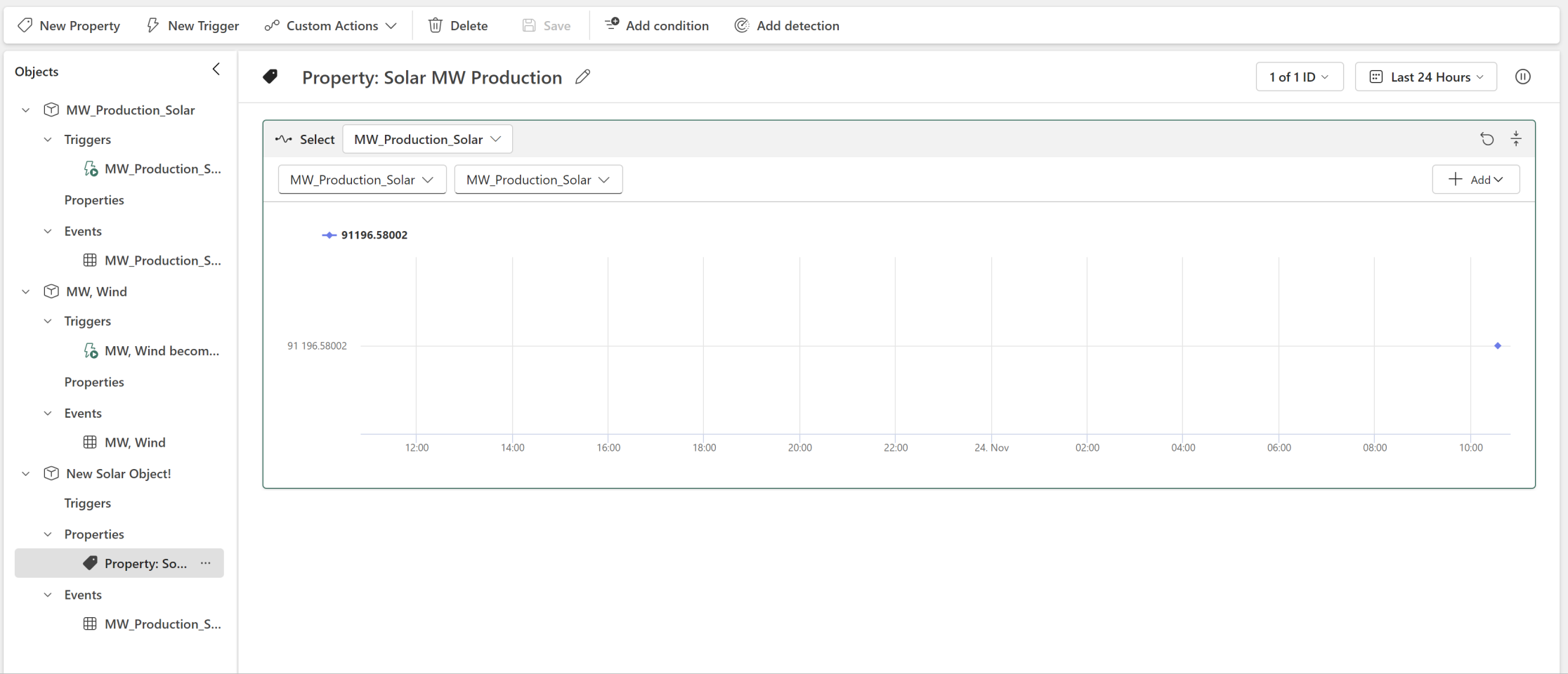
Properties are data points which we may use as foundation for Triggers, or to create dynamic actions, by feeding said properties into the actions we create:
Creating a Trigger, we can use either a Property or an Event Stream Column as the basis, and then add conditions for when to fire the trigger:
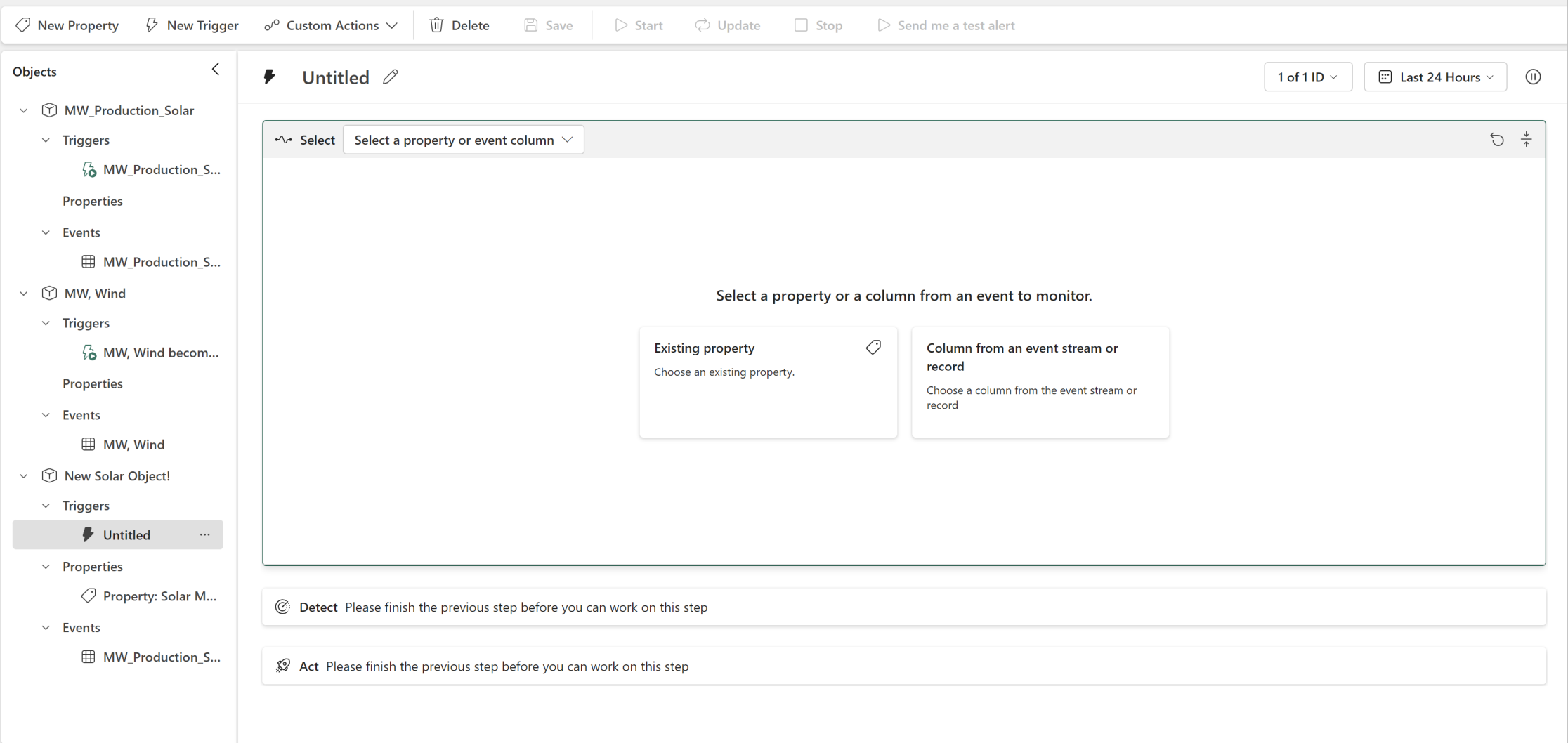

And finally decide what action to perform. The most basic actions are Teams Messages and Emails, which again may be made dynamic through the use of Properties, but you may also create Power Automate flows to be executed by the trigger, allowing for mind blowing integrations.
In this case, I’m configuring a Teams message, and adding a simple message and Property to the action. Note that I can easily put in AD groups in the Recipients field if i wanted to, allowing for dynamic mass notifications:
When fired, the trigger will deliver the following message by teams:
Turbo charge data driven actions with Power Automate and Data Activator
If instead of using the default Email and Teams actions, I instead create a custom action from the top menu:
I can setup a custom Power Automate flow to take input from the Trigger, and perform any action I want. In this case, just a slightly better formatted Email, but I could have triggered Stored Procedures, sent Slack messages, or deleted data from a SQL database, if that is what I wanted to do:
And connect the custom action to my Trigger, and test it out:
Bright minds will obviously be able to parse out the Trigger Inputs inside of Power Automate, and use this for something meaningful in the subsequent actions.
Summary
Driving action from data time and again proves one of the most difficult things when attempting to realize value from data.
Data Activator provides a low code solution for combating the timeliness challenge of data, by allowing users to:
- Setup event streams directly from Power BI to be monitored.
- Create triggers based on a multitude of conditions, to filter when actions should run.
- Configure easy to create communicative action with Teams and Email actions, or highly customized action workflows with Power Automate, to be triggered when the conditions are met.




 Downhill Data
Leave a comment