
Do you ever ask yourself: How can I display Power BI reports to people outside my organization?
The questions is complex, and has multiple different solutions. One is to use Power BI Embedded, which allow you to embed Power BI reports on websites. But… How does a low-coder go about setting up a website for embedding?
Since you are already invested in Microsoft Power Platform, you should check out Power Pages, formerly known as Power Apps Portals, which are externally facing websites developed in the Power Platform.
In this guide, you will learn the basics of setting up a website with Power Pages, as well as embedding a Power BI report, accessible for external users, on your site.
1. Getting Started with Power Pages
First, you need access to create and develop Power Pages. To get access, you can:
- Buy Power Pages for your tenant: https://powerpages.microsoft.com/en-us/pricing/
- Start a free 30-day trial from https://powerpages.microsoft.com/en-gb/
- Sign up for a Power Apps developer plan on https://powerapps.microsoft.com/en-us/developerplan/
Once you have access to Power Pages, head to the Power Pages studio on https://make.powerpages.microsoft.com/:
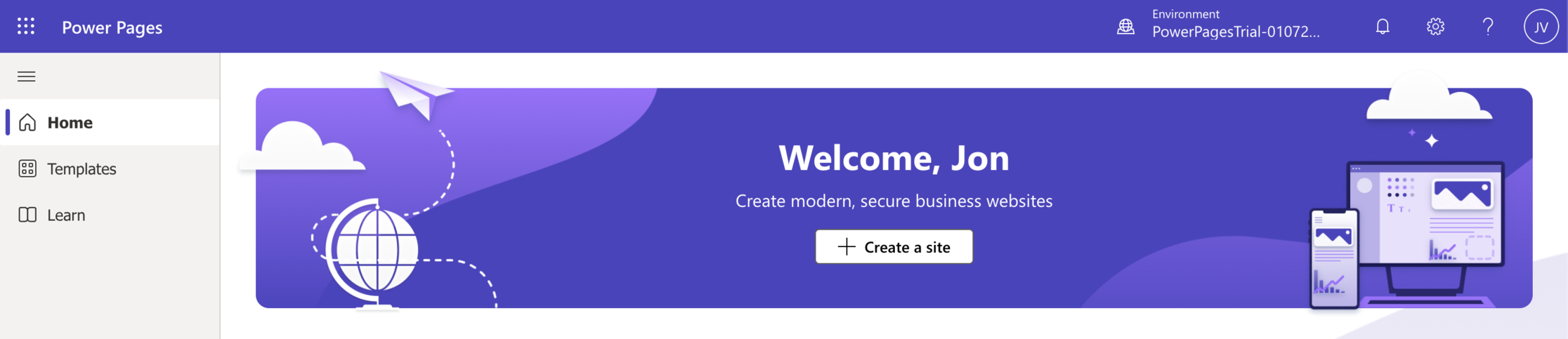
Press the button to Create a Site, and follow the wizard to create a simple Power Pages site from one of the available templates. If you dare, you can attempt starting from blank, but you will likely appreciate some of the built-in functionalities of the templates when starting out.
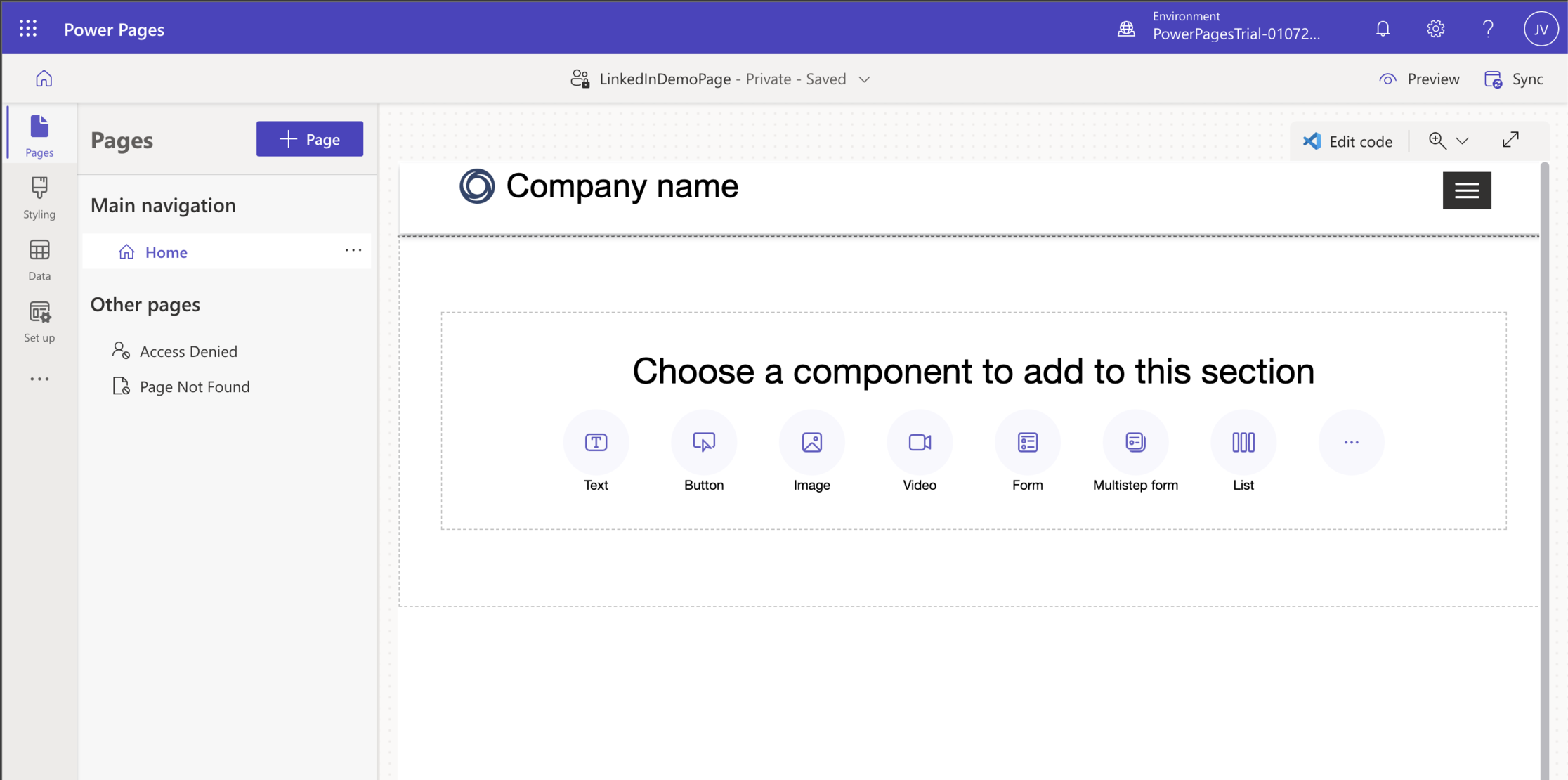
Take a moment to play around with the Power Apps like GUI of Power Pages to change the design of your Website, and add content as you see fit.

To add a Power BI Report to your Power Pages, start out by selecting the Power BI option from the content menu. Click on “Edit Power BI”, and you will most likely be greeted with a warning, telling you that Power BI is not enabled for the portal.
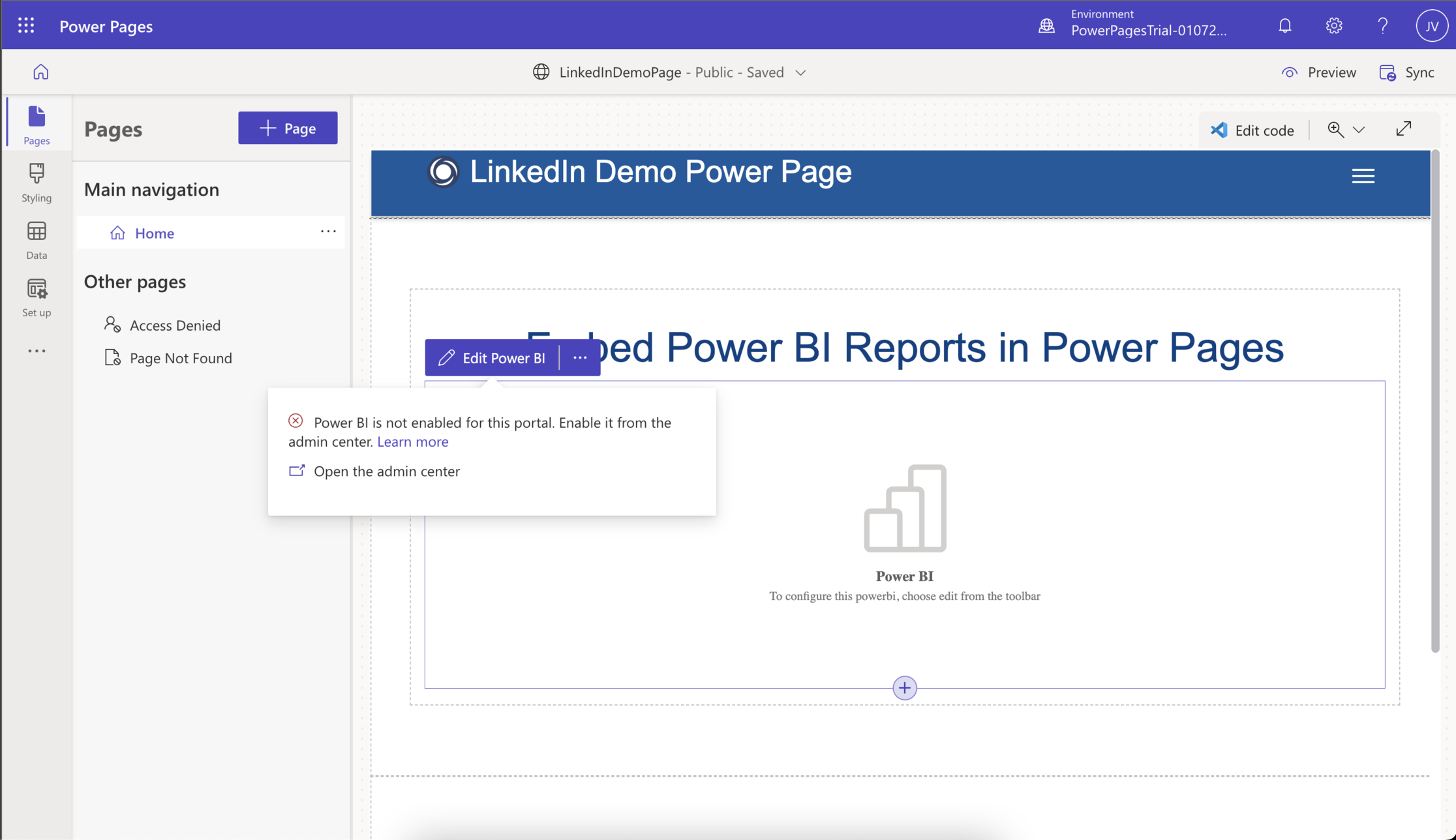
2. Setting up the relevant permissions to Embed Power BI Reports in Power Pages
The setting which fixes the error above, is one of several we need to enable, to allow Power BI Embedded in Power Pages. Altogether, we need to take a little tour through Microsofts products and:
- Change settings in the Power Apps Portals Admin center (Yes… It is still called this, despite the name change from Power Apps Portals to Power Pages)
- Register the Power Pages site as a member of a Security Group in your Azure Tenant
- Change settings in the Power BI Admin Settings to allow API calls from the above Security Group to the Power BI tenant
- (+ lastly (and optionally for this guide) create a Power BI Embed Capacity in your Azure Tenant, depending on your licensing needs, and connect it to your Power BI Workspace)
Let’s start out with the Power Pages settings.
To fix the error you saw before, follow the link in the warning to the Power Apps Portals Admin Center. Select “Set up Power BI Integration”, and enable both Power BI Visualization and Power BI Embedded Service, following the setup wizard to enable the Power BI Workspaces you want.
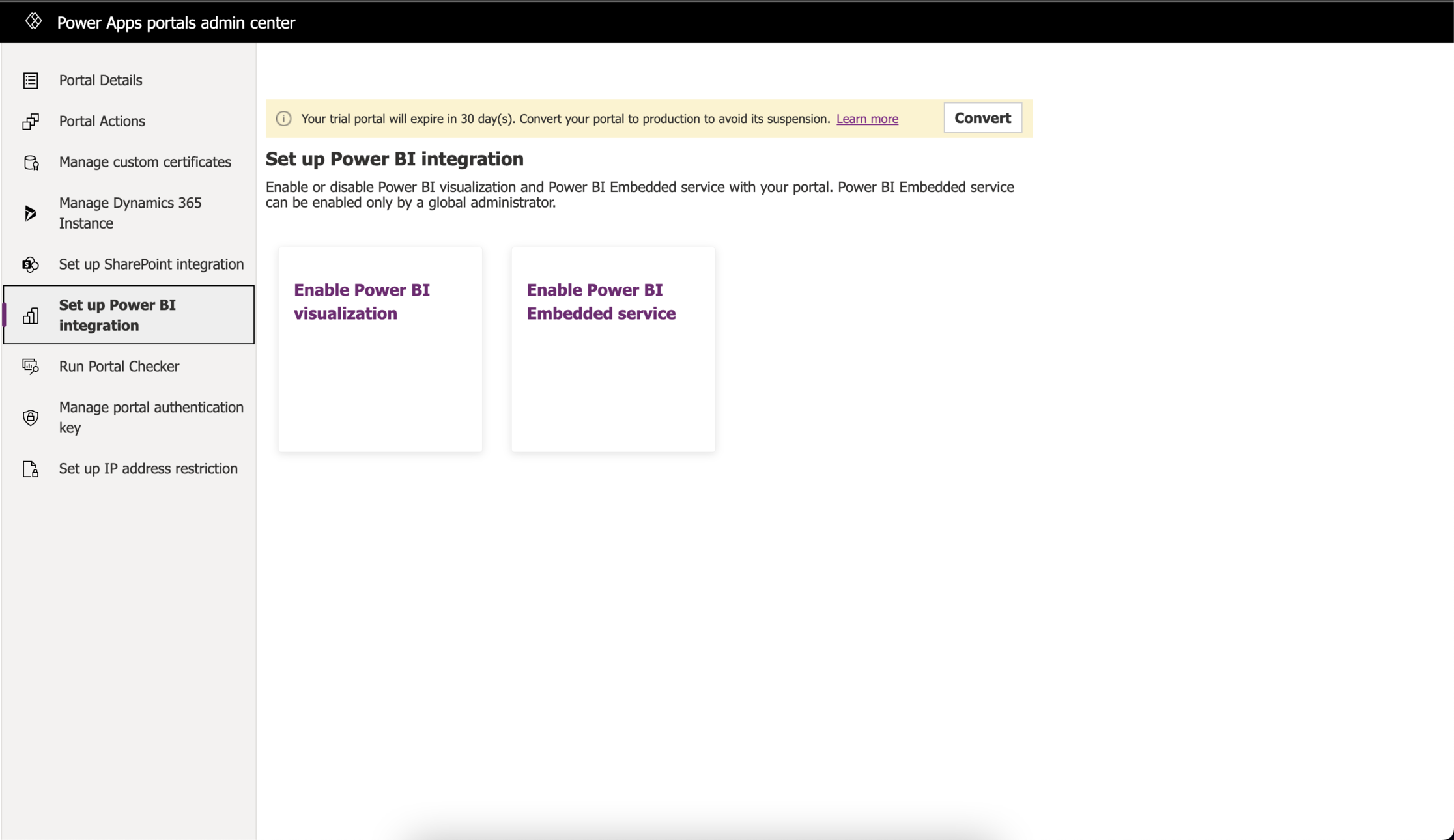
Before leaving the Power Apps Portals Admin Center, go to the “Portal Details” menu, and copy the Application ID of your Power Pages site, as we need that for the next step.
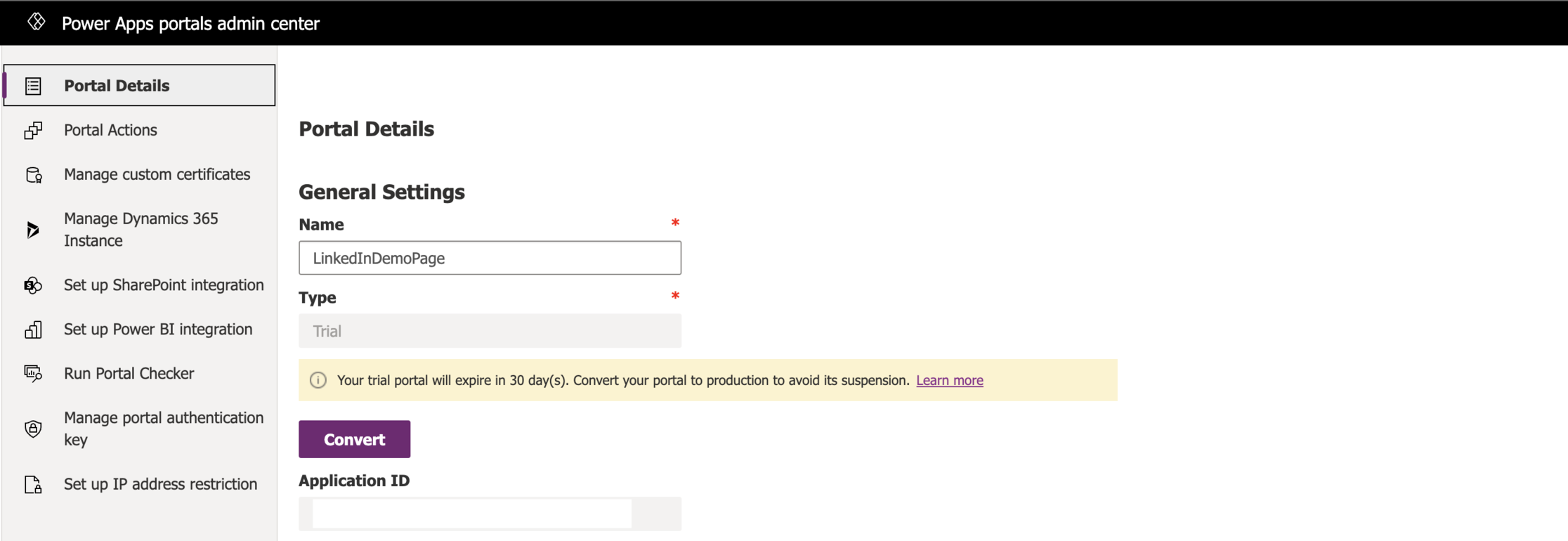
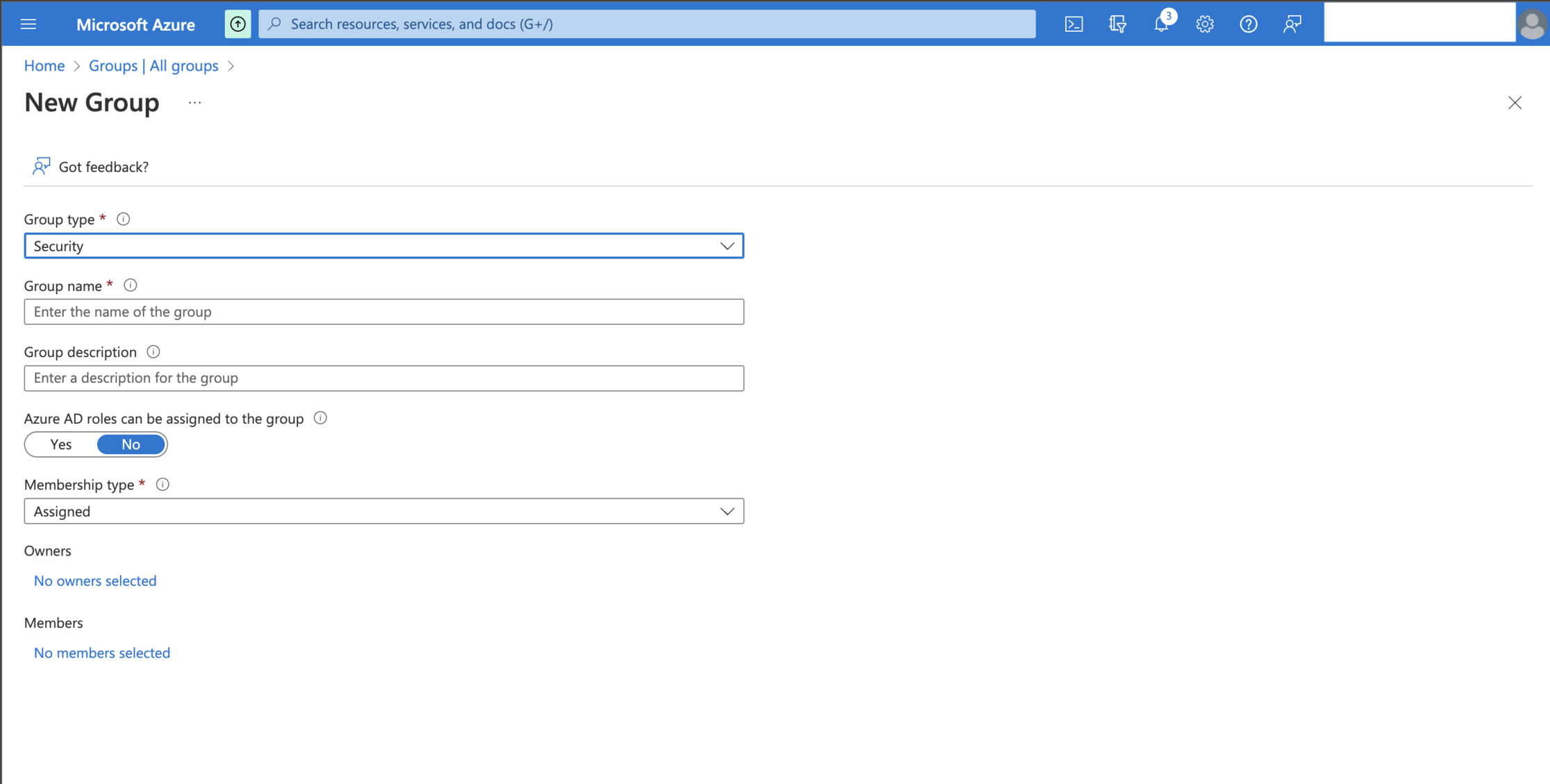
Next, head to Azure on portal.azure.com, and create a new Security Group, giving it a recognizable name.
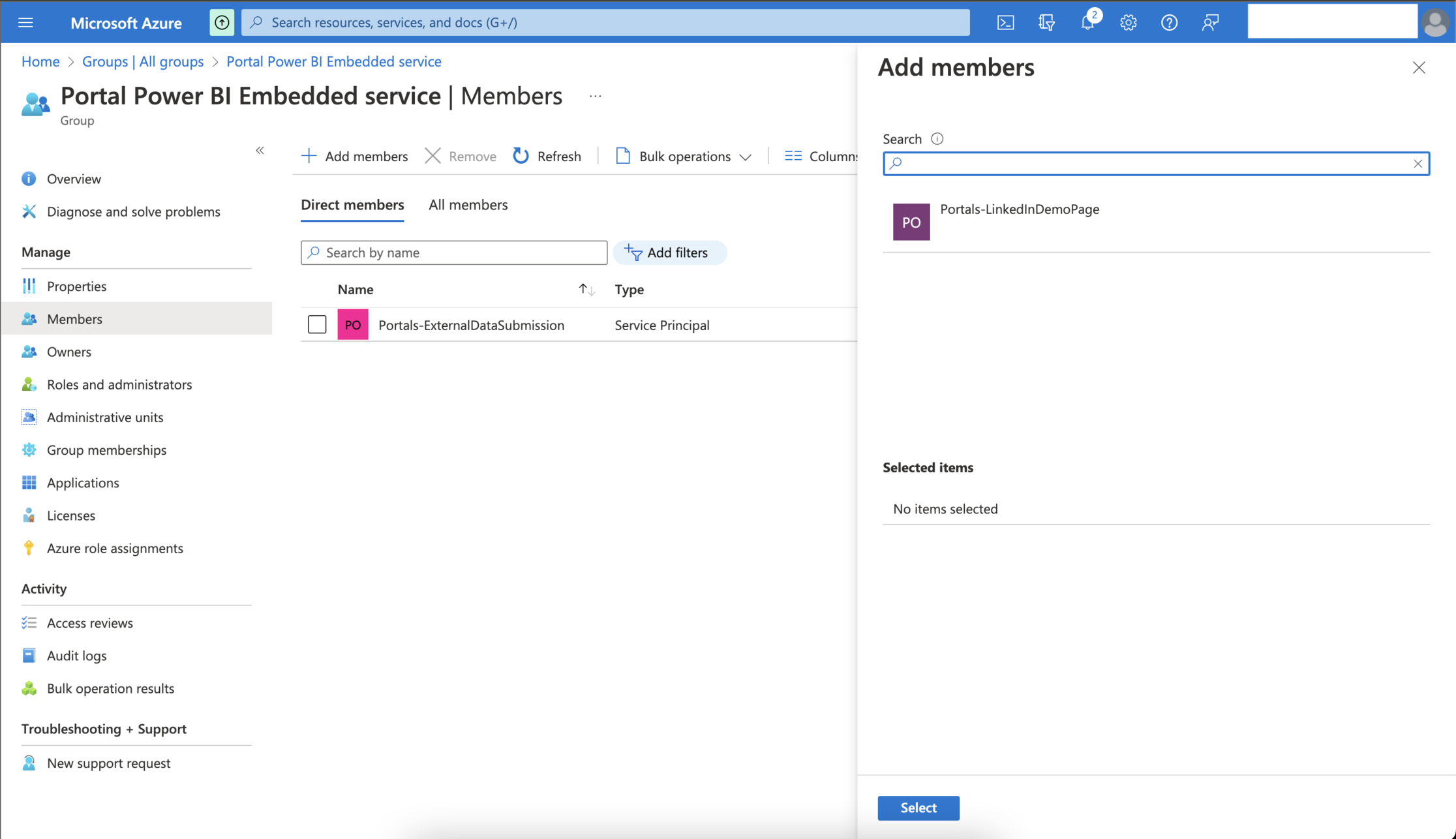
Press Add Members, and search for the Application ID you wrote down before. This should allow you to add your Power Pages site to your Security Group.
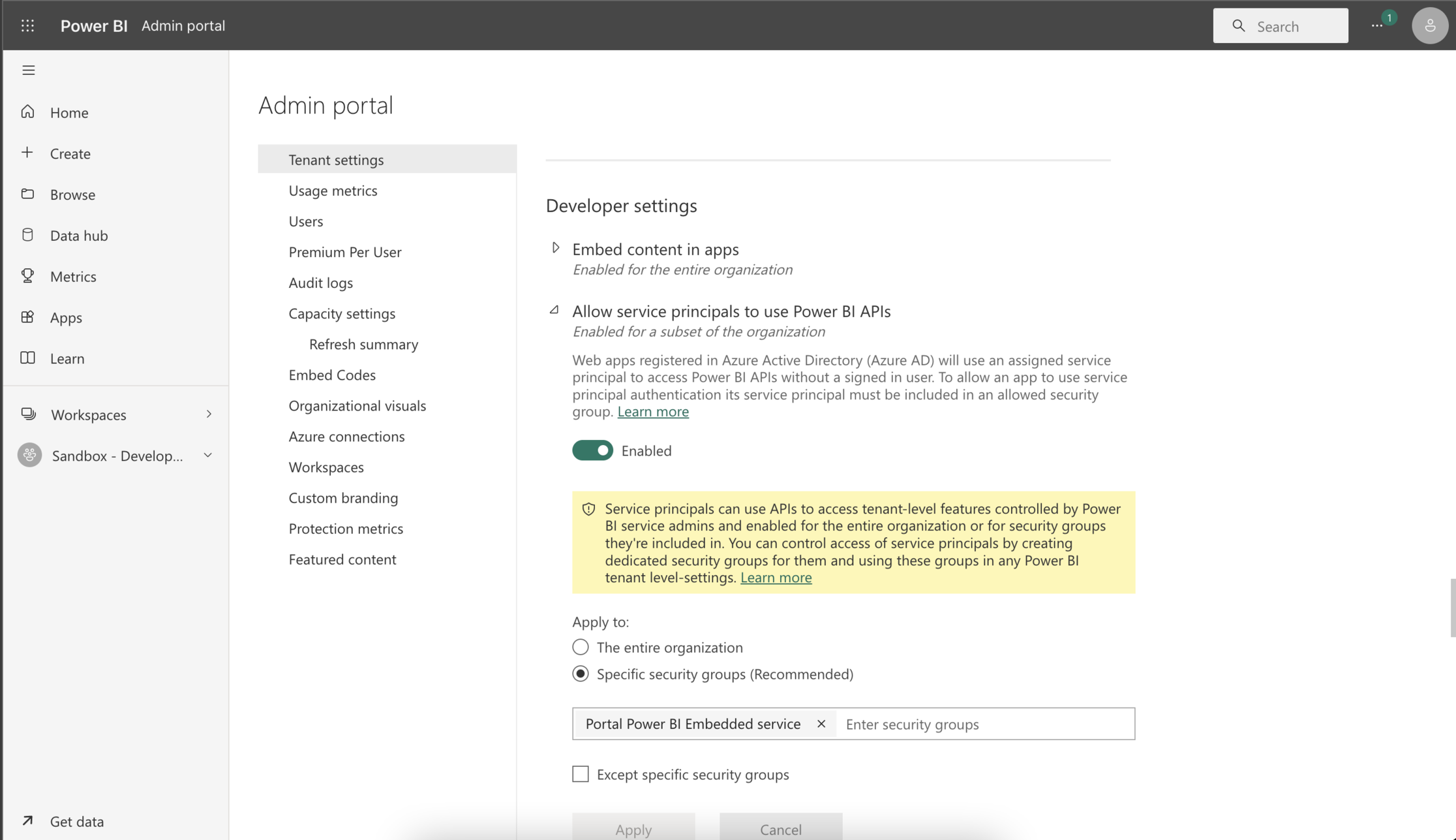
Now head to app.powerbi.com, open your Power BI Admin Portal, and find “Allow service principals to use Power BI API’s” in your Tenant Settings. Add your newly created security group to this setting.
And that is all the basic settings and permissions done!
You still need to decide on the licensing and type of embedding of your Power BI Embedded solution, but this subject will be enlightened in a coming article.
For now, you can test out Power BI Embedded with a trial version, following the steps below.
3. Embedding your Power BI Report in Power Pages
If we continue where we left off before and once again click Edit Settings on our Power BI element in our Power Pages site, you should be greeted with a new menu, after enabling all the settings above.
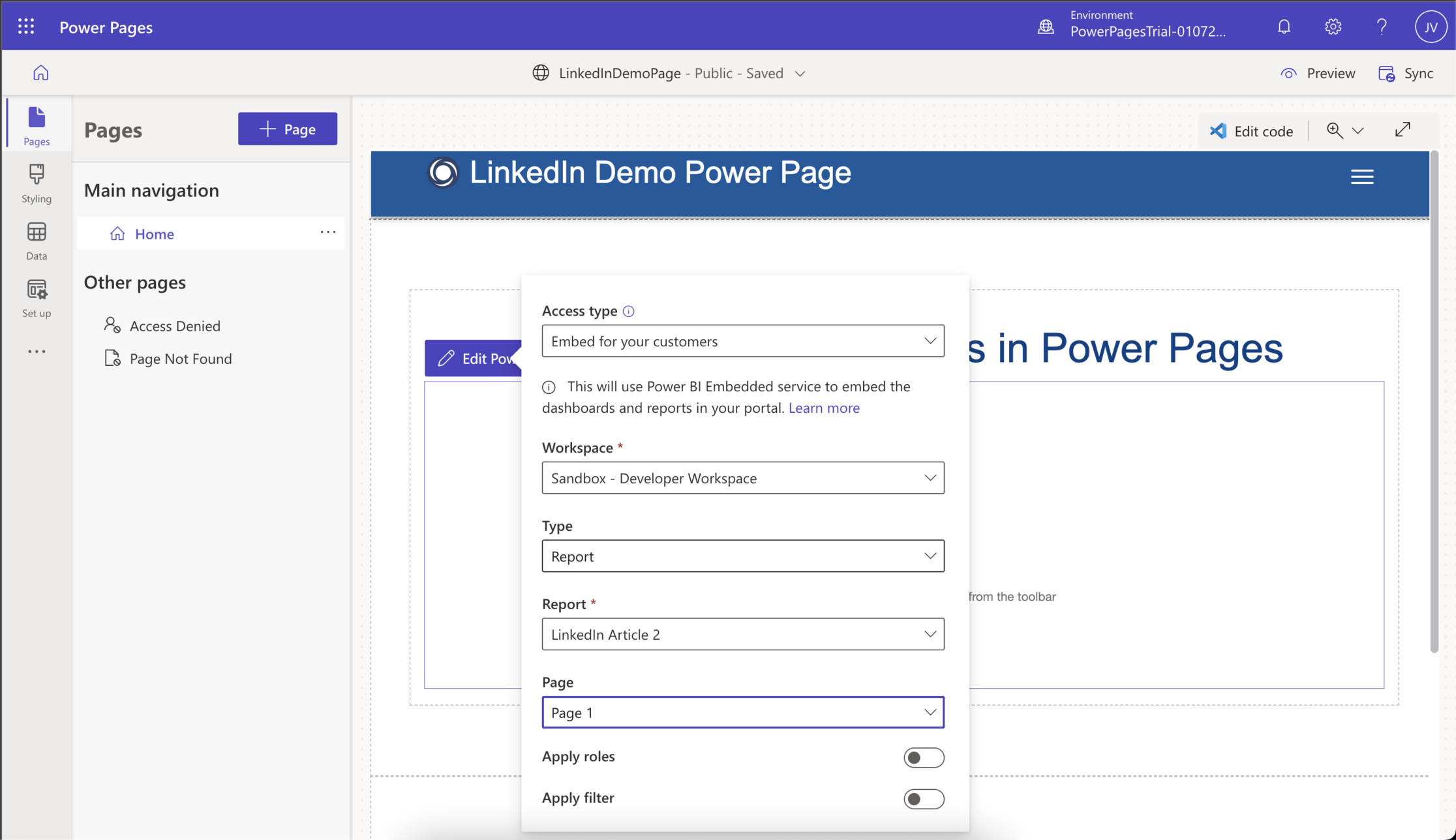
In this case, I am using the type of embedding called Embed for Your Customers, which does not require my end users to log in with their Microsoft Account to access their report (You could also choose Embed For Your Organization, and enable Microsoft Logins for access to the report).
In addition, I need to pick the Workspace, the Report, Dashboard and / or Page to be embedded, as well as decide whether to apply filters and roles. Note, that it is possible to do more advanced embedding, including applying Row Level Security and advanced filtering, by messing with code underneath the hood of Power Pages. This will be the topic of a future article.
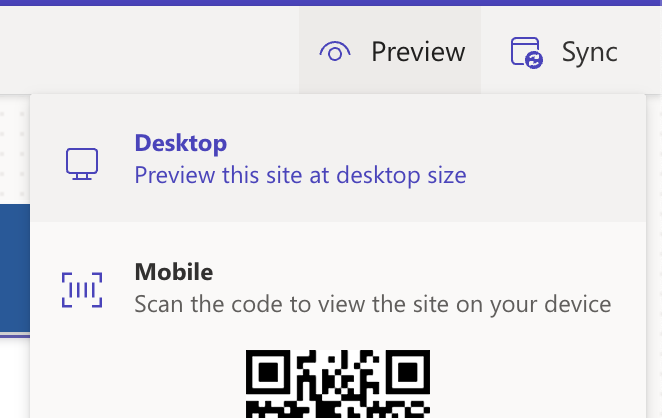
For now, feel free to hit the Preview Button in the top right corner of your Power Page studio, and see the result of your embedding!

4. Use Cases for embedding Power BI in Power Pages
The use cases for embedding Power BI in Web Pages through tools like Power Pages are many. Anytime you are faced with wanting to publish Power BI reports to people outside your organization, this could be an option.
Create Customer Portals for displaying data back to your customers
For example, you could create a Power Pages site intended for your customers, on which you share their own data back to them, in the form of a suite of Embedded Power BI reports.
Some companies even manage to make their customers pay an extra fee for this reporting service, hence paying for the Power Pages and Power BI Embedded Licensing themselves.
Create public facing websites for ESG Reporting
Or, you could create a publicly facing website to display relevant ESG metrics to interested stakeholders.
More and more companies want to show the world when they are improving their ESG metrics. Data which is often stored in internal Data Platforms, and visualized in tools like Power BI.
These reports could be displayed for the public on a Power Pages site, for all to see, using Power BI Embedded.
Extend your Externally Facing Web Sites with low-code Data Input with Power Pages
You could even extend the solutions above with other elements of Power Pages, allowing visitors to input data to your Dataverse.
The exercise of collecting data from external users is notoriously difficult, and Power Pages provides us one way of doing so.
This will also be the topic of a future article.
Summary
This guide took you through the end-to-end process of creating your first Power Pages site, and embedding a Power BI report on your site, including enabling all the settings in the different Microsoft products.
If you have other use cases or ideas for integrating products within the Power Platform with each other, feel free to reach out!




 Downhill Data
Leave a comment