Introduction
What to you get when you mix the recently-gone-generally available Stored Procedure functionality in Power Apps with Stored Procedures in a Fabric Data Warehouse?
A match made in heaven is what, I tell you.
This blog will introduce you to the general principles of working with Stored Procedures in Power Apps (not just for Microsoft Fabric, but for any SQL Server connection).
In addition, we will explore three different use cases for the integration:
- How to Bulk Create/Update/Delete Records in your Fabric Data Warehouse from your Power Apps with lightning fast performance.
- How to orchestrate data snapshots and other data transformation SPROCS from Power Apps, and parameterizing said snapshots.
- How to use results/outputs of SPROCS and Input for your Power Apps (e.g. to efficiently populate collections and galleries).
Stored Procedures and Power Apps
Stored Procedures are of course a veteran feature of the Data Warehousing landscape. Power Apps and Stored Procedures have however not always been good friends.
Actually, for most of Power Apps life, we have not been able to call SPROCs directly from within the App, but have had to trigger a Power Automate Cloud Flow from the app, which in turn could trigger the procedure: Calling a SQL Server Stored Procedure from Power Apps (mssqltips.com)
For any SPROC use case which involved passing parameters to the procedure, this of course then required first passing the variable to the cloud flow, and then embedding the variable in the call to the Stored Procedure. Not easy to build, not easy to debug, not easy to understand.
However, at the beginning of 2024, we received preview functionality to call SQL Server Stored Procedures directly from Power Apps, and on July 31st the feature went GA: Call SQL Server procedures directly in Power Fx (GA) – Microsoft Power Platform Blog
This makes the integration between Power Apps and Stored Procedures much more appealing to use, as we no longer need to license Power Automate, and deal with the added complexity of the flow.
How to call Stored Procedures from Power Apps
Calling Stored Procedures from Power Apps is simple. You first add a new SQL Data Connection, just like if you were to connect to a table, but when you get to the table selection screen, you press Stored Procedures, and choose the procedure to add:
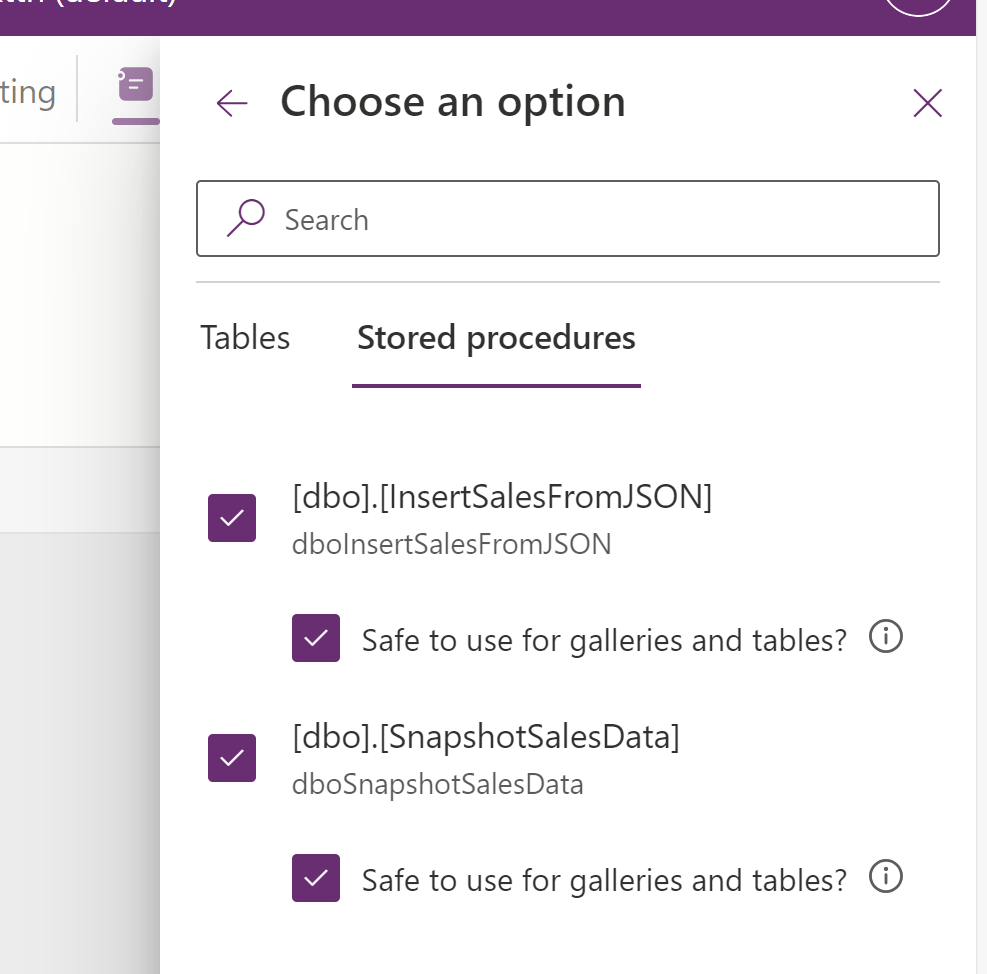
Now, you can run the SPROC with PowerFX with the base syntax:
DatabaseName.SPROCName()If you wish to pass parameters to the SPROC, you simply add the Variables in curly brackets:
DatabaseName.SPROCName({VariableName1: VariableValue1, VariableName2: VariableValue2})And if your Stored Procedure outputs a result, we can retrieve the resulting tables with the following syntax:
DatabaseName.SPROCName({VariableName1: VariableValue1, VariableName2: VariableValue2}).ResultSets.Table1

DatabaseName.SPROCName({VariableName1: VariableValue1, VariableName2: VariableValue2}).ResultSets.Table2
Use Case 1: Bulk Record Creation / Write-Back to Fabric Warehouse
The first great use case for running Stored Procedures from Power Apps, is for bulk CRUD operations in your database / Data Warehouse.
If we want to, say, generate 500 records of data in a Power App, and save those records in a Fabric Data Warehouse, the call to do so with a Patch() function from the Power App would be a rather slow affair.
Even when employing tricks like patching entire data collections at once, the end-user could expect to wait a long time for the operation to complete, if the number of records is large. And this waiting time only becomes longer if we put updates and deletes into the mix, and not only creates.
To the rescue comes Stored Procedures, of course. Let’s see how we can do it a little faster.
First, let’s create a simple Power App, which generates 500 records worth of data, spread over 6 columns.
Below is a button which generates 500 records. 125 days worth of data for each of 4 different customers, with GUIDS and randomly assigned Sales and Quantity Values for each day. The data generation code looks as follows:
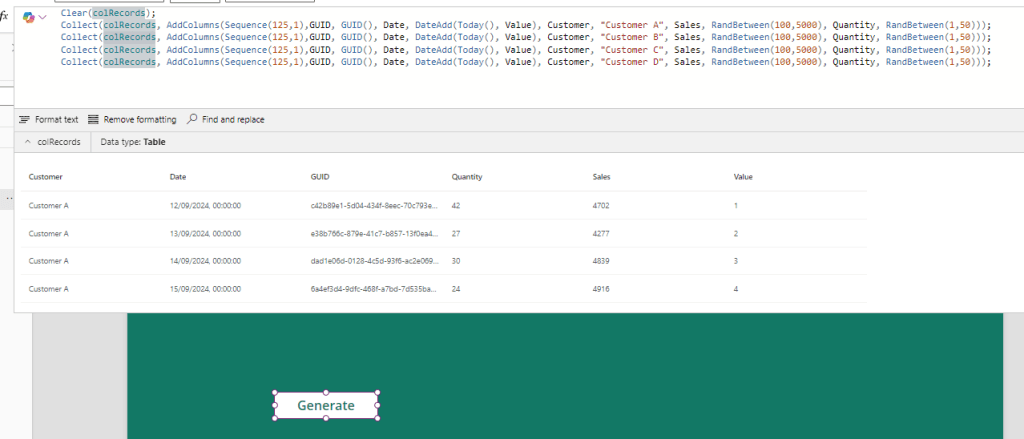
Now we need to create a table to hold this data in our Fabric Data Warehouse, as well as a Stored Procedure in our Data Warehouse to accept the collection from Power Apps and insert it into a table.
First, let’s create the Warehouse table:
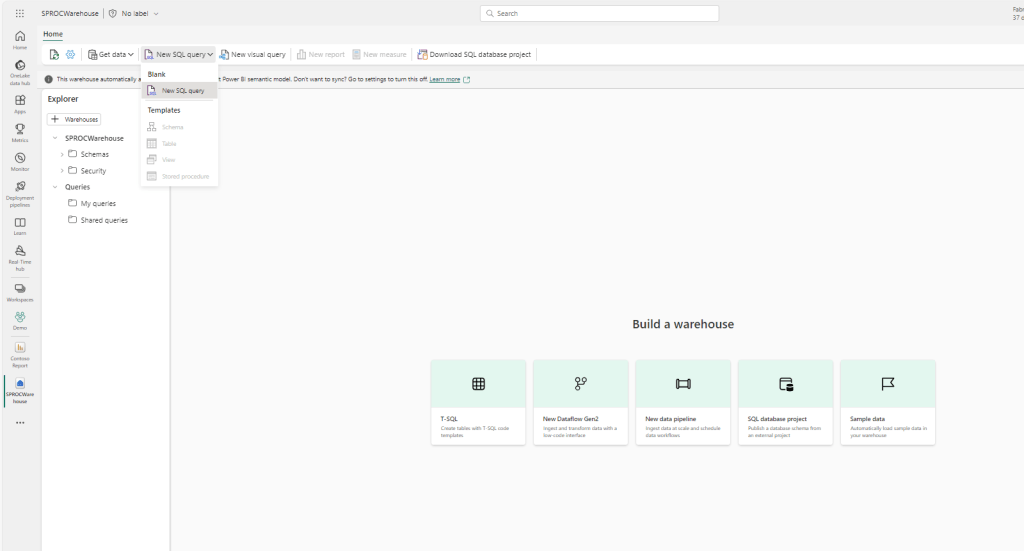

And now, we need to create our Stored Procedure. Note here that we need to use the OPENJSON function to retrieve values from Power Apps, which we will be sending over as a JSON object in a second:

Now, we can add this Stored Procedure to the Power App, by grabbing the SQL Connection String of our Warehouse, as well as the Warehouse Name:

And using those to create a SQL Server connection in Power Apps:

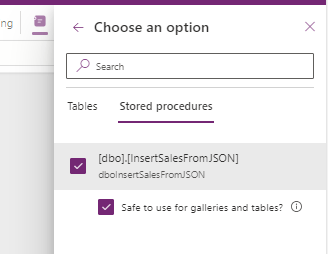
And finally by selecting the Stored Procedures tab, select our SPROC:

Let’s create a Save button to call the SPROC. For that, we will call the SPROC, and parse as the only parameter, our collection formatted as a JSON object, using the JSON() PowerFX formula as well as the JSONFormat.IndentFour option:

Testing the button shows the results in the database:

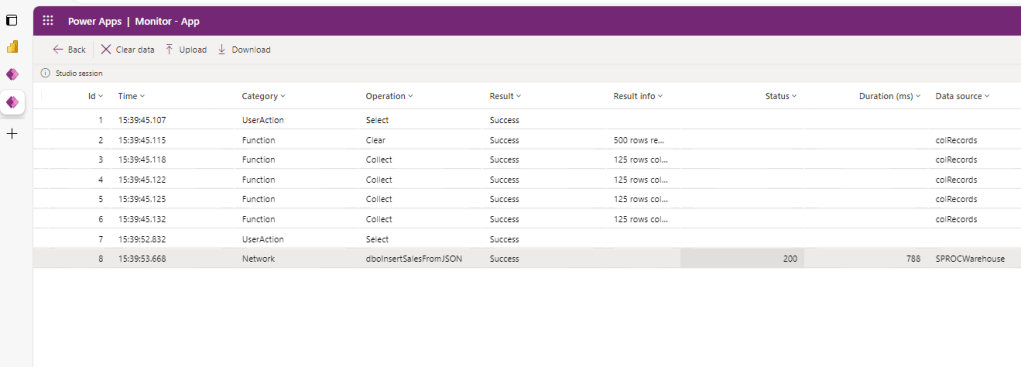
And watching the monitor we can see that creating the 500 records took under a second (I would say that that is actually faster than normal. Usually it does take a few seconds, but still way less than using a Patch formula:
Use Case 2: Trigger data snapshot in your Fabric Warehouse via SPROC from Power Apps
Now a second use case for leveraging SPROCs, is to use it to generate snapshots of data. Perhaps I want to be able to save the current state of affairs in a historized table, saving it along with a timestamp for the date and time of the snapshot.
First let’s create the History table:

Now let’s create the SPROC for the snapshot process in the Warehouse. Note that I am creating a parameter ‘Created By’ to be passed from the Power App:
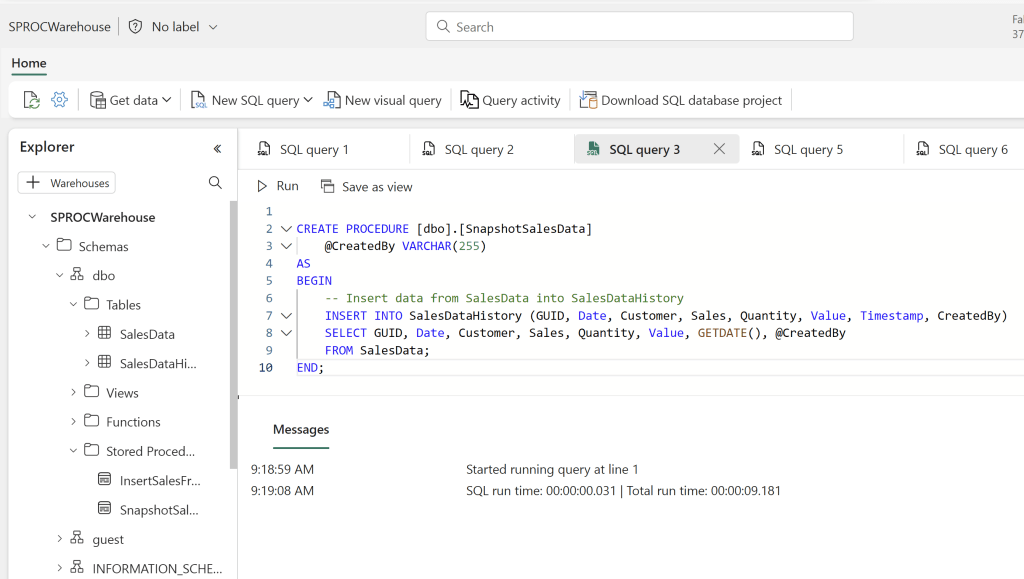
To get this new SPROC into our Power App, we will need to remove our connection to the Data Warehouse under Data Connections, and recreate it and select both procedures.
Now we can create a button to trigger the new Stored Procedure for Snapshot Creation:

Selecting the button fires the SPROC, and after doing that three times, querying my SalesDataHistory table correctly shows 1500 records (3 snapshots worth of data). And this query & SPROC, again, runs in just about a second!
Use Case 3: Populate a Power Apps gallery with the Results of a SPROC
Now, another unsung hero of Stored Procedures in Power Apps, is the ability to output the ResultSet of a SPROC.
First let’s create a new SPROC which uses two separate SELECT statements to query the full contents of both our SalesData and SalesDataHistory tables:
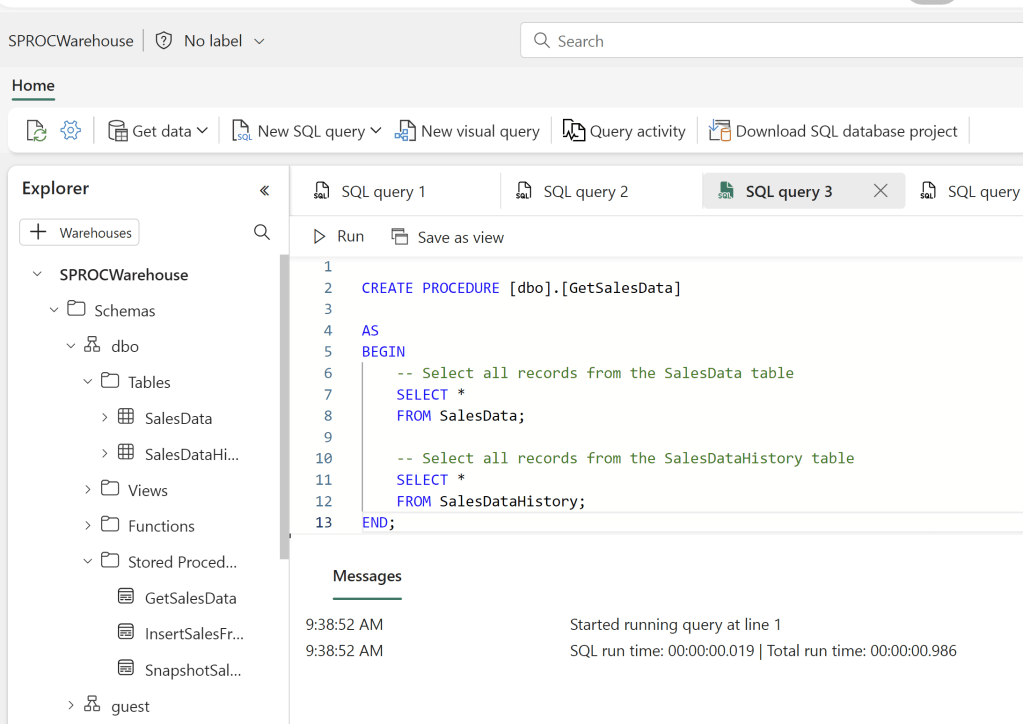
Again, add and remove the Data Connection to add the new Stored Procedure to the Power App. This time, you have to ensure that you check the box for “Safe to use in Galleries and Tables”:

This ensures that the SPROC is allowed to be called on demand, multiple times in a short timeframe, as will be done if the SPROC is placed in a Gallery, exactly like we intend.
Now let’s add a Gallery to the App, and place the ResultSets of the new SPROC in the Items property:
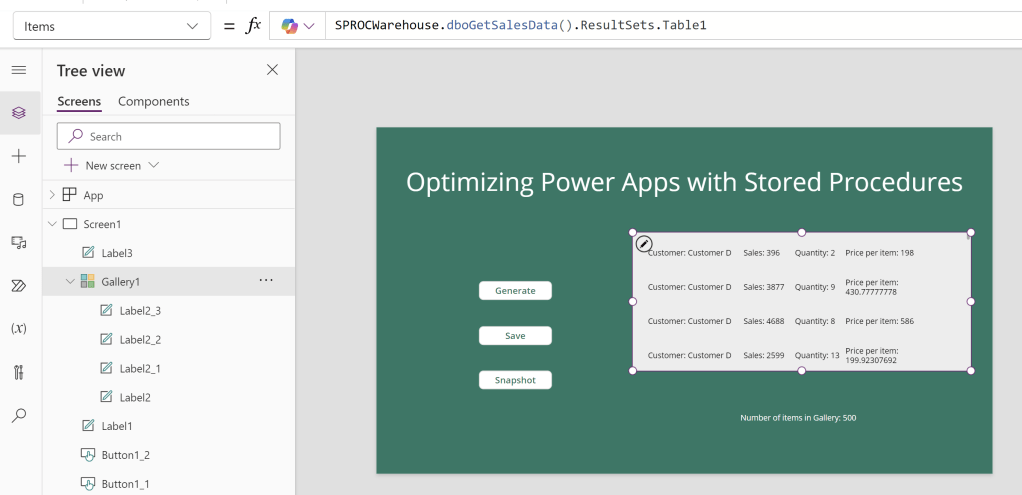
I also inserted a text label to display the count of rows in the Gallery, using the new Gallery.AllItemsCount property:
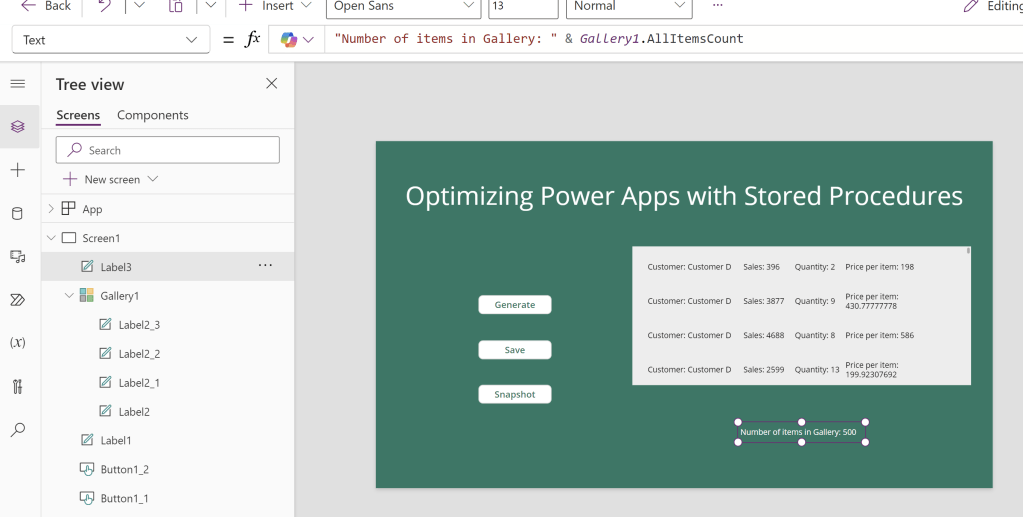
And the gallery simply displays the output of the SPROC, without me even having to press a button! This happens fully ad hoc as the user uses the app.
Now, this has an interesting side effect. Remember all those weird workarounds for returning more than 2000 rows worth of data from your Data Connections, and having to union them all together?
Well… I clicked my Snapshot button a few times more, so that there is now 3500 rows of data in my Snapshot table. And look what happens when I use the Table2 ResultSet of the SPROC in the Gallery:

That’s right! The Gallery just returns all 3500 rows without fuzz!
Now, you do of course need to be careful here. If you unintentionally return millions of rows, the app will crash, and your users will be unhappy. But for those data amounts that are on the limit of what Power Apps can handle, this is a huge improvement over unioning together multiple collections, and waiting for long queries to run.
For good measure, I just wanted to highlight that you can of course filter the output of the SPROC by, say, a Dropdown in your app as well, to help with any performance issues you might come across:

Conclusion
I hope it is clear after reading this blog, that there are many good reasons for using Stored Procedures, especially if you are chasing performance gains for your Power Apps.
The only real downsides of this integration, is that it requires, obviously, a SQL Database/Fabric Warehouse as a backend engine, and in return also Premium Licensing for all your app users.
But if that is viable to you, then you have excellent ways of integrating high performing Power Apps with your backend for Creating, Updating, Snapshotting and even just Loading data into the app.
I am very curious to hear if you have any good use cases for this functionality. Write a comment if you have any ideas.





 Downhill Data
Leave a comment