

Introduction
When building Translytical Task Flows for Power BI / Fabric, you’ll quickly come head to head with a few limitations:
- They won’t work in Embedded scenarios
- They won’t work with PBIR and PBIP formats
- They natively only support inputs coming from the three new slicer types: Text, Button and List Slicers (all of which are in preview at the time of writing).
While the first two certainly limits some use cases, I’m personally more annoyed by the UX limitations imposed by the third issue.
If we only use these new preview slicers, we have no way of offering our users the option of selecting values from e.g. dropdowns like in the old Power BI slicer, nor do we have a reliable Date Picker.
While I’m still brewing on a good solution for the Date Picker, in today’s blog we’ll have a look at how you can use Calculated Measures to pick up User Inputs from the old Power BI Slicer.
This blog is the fifth in a series on Translytical Task Flows. Check out the other ones below:
- Guide: Native Power BI Write-Back in Fabric with Translytical Task Flows (How to build a Comment/Annotation solution for Power BI) – Downhill Data
- Fabric Data Warehouse as write-back destination for Translytical Task Flows & User Data Functions – Downhill Data
- Exploring User Input Options for Translytical Task Flows (Write-back in Fabric & Power BI) – Downhill Data
- https://downhill-data.com/2025/07/15/troubleshooting-debugging-and-error-handling-in-user-data-functions-translytical-task-flows/
Replacing List Slicers with Dropdowns
My biggest gripe about the new List Slicer, is the absence of a Dropdown feature.
If you have a dimension with many different possible values, the List Slicer will simply present you with an endlessly scrolling list for users to interact with.
This of course works for some scenarios, but in many cases I’d like to be able to collapse the scrollable list into a dropdown, just like it was possible with the old Power BI slicer:

But as the good old Power BI dropdown slicer is not supported by Translytical Task Flows, do we even have an option?
The answer is yes. All it takes is a little bit of DAX.
If we create a simple DAX Measure with the SELECTEDVALUE() formula, we can extract information from the semantic model, about any value selected by the user.

If we then create a Power BI Slicer with a field that corresponds to our Measure, and format it as a dropdown:
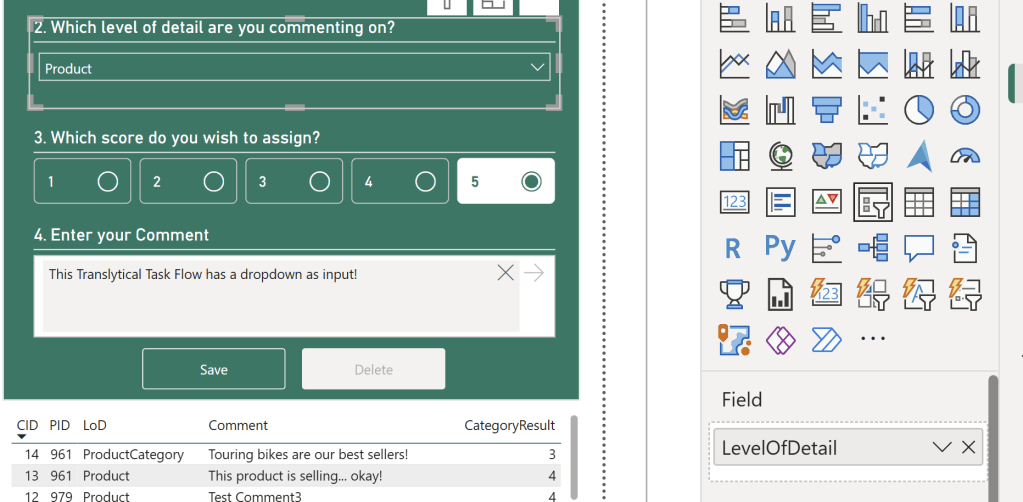
We can configure our Translytical Task Flow action on our button, to reference the value of our Calculated Measure, instead of referencing one of the new slicer types, by using the Conditional Formatting button:
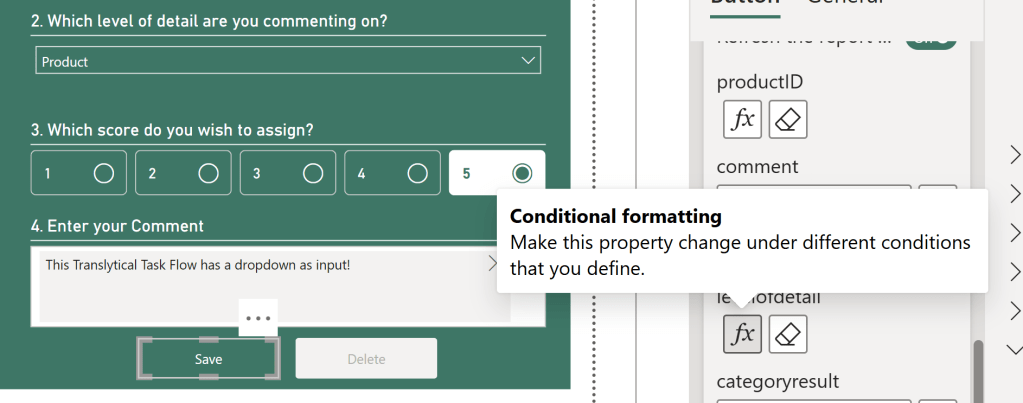

The final result, is a Translytical Task Flow which now uses a Dropdown Slicer fully in unison with the new slicer types as well.
Conclusion
To the extent of my knowlege, there are no drawbacks to using the technique above. Almost rather the opposite, as we remove a Preview item from the equation, in replacing a preview List Slicer with a regular slicer and a Calculated Measure.
You can of course argue that the Solution Architecture here is more complex – and I would agree. But as Power BI Developers you are likely not too stressed about adding an additional Calculated Measure or two to your semantic model.
You may also recognize from reading this blog, that you can of course use Calculated Measures for other things than simply picking up values from a slicer. That is indeed the case, and it will be the focus of next week’s blog.





 Downhill Data
Leave a comment