Introduction
For this weeks blog, a quick tip about a feature in Power BI desktop which had flow entirely over my head: You can use RegEx for Find & Replace operations in Power BI Desktop TMDL View!
Yes! You heard that right!
I had no idea, until I caught it in a live demo by Power BI partner director Mohammad Ali at his Power BI Next Step keynote.
Okay so what. You can do RegEx. What’s does that mean?
Well, it means that you have quite extensive possibilities of doing semi-automated updates of your entire Semantic Model without leaving the Power BI Desktop experience. Below is an explanation, and some sample code you can use.
Using RegEx in Power BI Desktop TMDL View
In Power BI Desktop, navigate to the TMDL View:
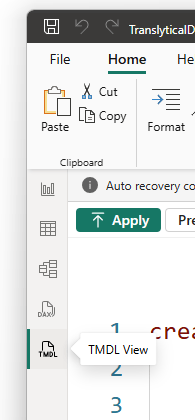
Once in the TMDL View, drag and drop elements of your Semantic Model onto the canvas. Contrary to popular belief. you don’t have to pick a specific element: You can drag the entire model in at once for bulk edits!
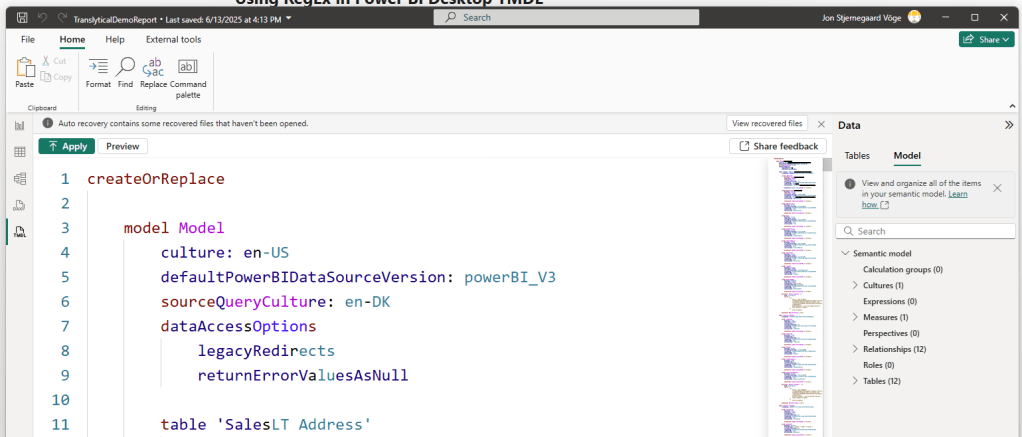
Once the TMDL code is in your canvas, CTRL+F will bring up the Find search bar:
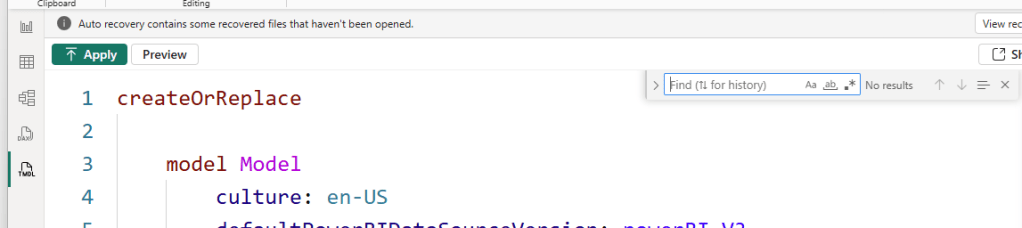
Expanding the bar will give you the replace option:
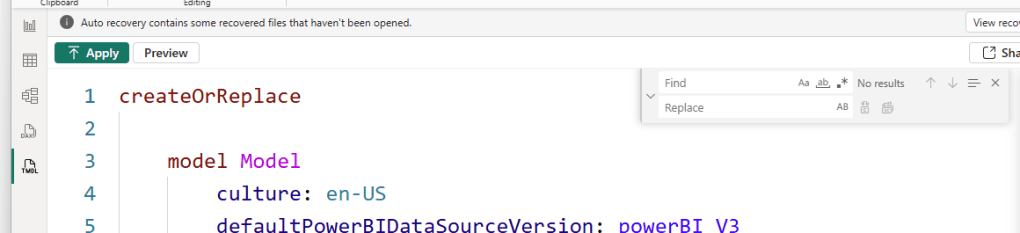
And enabling this little fellow with no tooltip and indications whatsoever, will enable you to write RegEx in the Find and Replace fields:

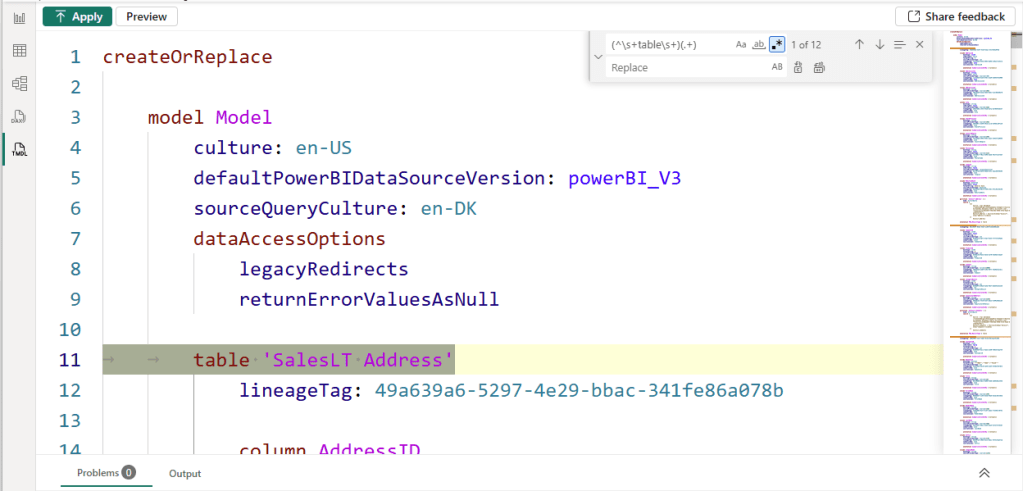
Now I can search for e.g all table names in my model:
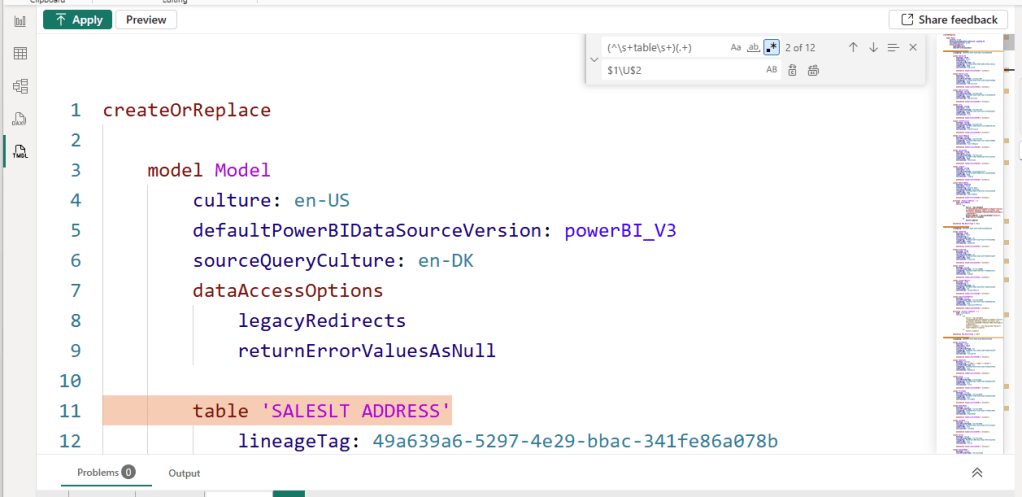
And replace them with e.g. and Uppercase version of the same format:
Finally, make sure to Apply your chances to the model:

Some sample RegEx code you can implement in your work
Now I’m no RegEx savant, but I collected just a few simple but some awesome patterns that I believe could be useful to share. Feel free to steal any of the below, but please do verify whether the commands are indeed selecting what you expect them to do in your specific model.
Depending on your luck, a RegEx pattern could identify something that you did not expect during a large find/replace.
Note that especially you’ll want to modify the Find examples below to suit your needs.
Find and highlight all table names:
Find: (^\s+table\s+)(.+)Find and highlight all column names:
Find: (^\s+column\s+)(.+)Find and highlight all calculated measures:
Find: (^\s+measure\s+)(.+)Add Prefix or suffix to Table/Column/Measure:
Find: Use one of the above find patterns
Replace w. table prefix: table Sales_$1
Replace w. column suffix: e.g: column $1_Modified
Replace w. measure prefix e.g: measure M_$1
Convert to Uppercase or Lowercase:
Find: Use one of the above find patterns
Replace w. Uppercase: $1\U$2
Replace w. Lowercase: $1\L$2
Remove something from Table/Column/Measure name:
Find: Use one of the above find patterns, potentially narrowing down to something quite specific
Replace: (Leave blank)
Remove empty spaces from Table/Column/Measure name:
Find: Use one of the above find patterns, potentially narrowing down to something quite specific
Replace: (Leave blank)
You can also work out much more advanced use cases, if you are able to use more complex RegEx to return several substrings, and manipulate each individually.
If you needed to e.g. convert the first word of a Table name to uppercase, while making the rest lowercase, that would be possible too. Ask your favourite LLM with help desining the necessary RegEx.




 Downhill Data
Leave a comment