
Introduction
One thing that has always annoyed me about the Power BI service, is the lack of a certain feature. A feature which exists in countless other Microsoft cloud offerings: Built in Version History.
However, with Microsoft Fabric came also the GIT integration for workspaces, which allows for connecting a workspace to an Azure DevOps repos, to reap all the benefits of GIT.
This article will serve as a beginner’s guide to setting up the integration, starting from creating your Azure DevOps repos, to syncing your items to the repo for a simple Version History setup. We will also have a look at restoring previous versions from the repo.
Note that you can do much more with the GIT Integration than what this guide shows (we will cover some of those in future blog posts).
Setting up Azure DevOps
Before being able to connect our Power BI / Fabric Workspace to GIT Source Control, we need to set up Azure DevOps, which is currently (as of spring 2024) the only supported GIT repos.
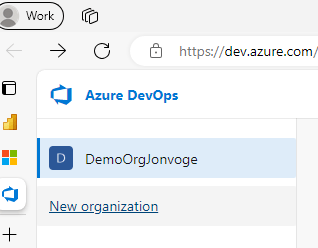
First, go to dev.azure.com, login with your Microsoft Account, and select the Organization you belong to, or create a new organization if you do not already have a suitable one:
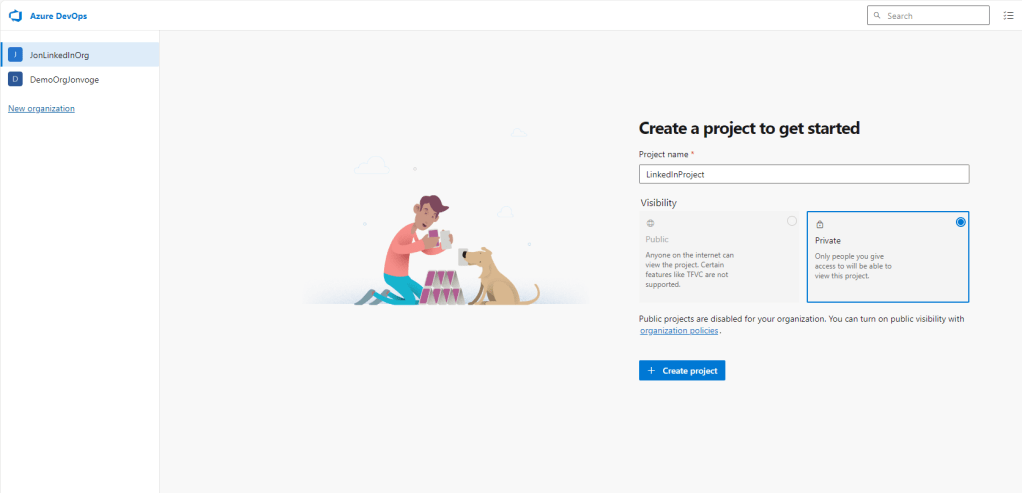
Next, create a Project for you to contain your work:
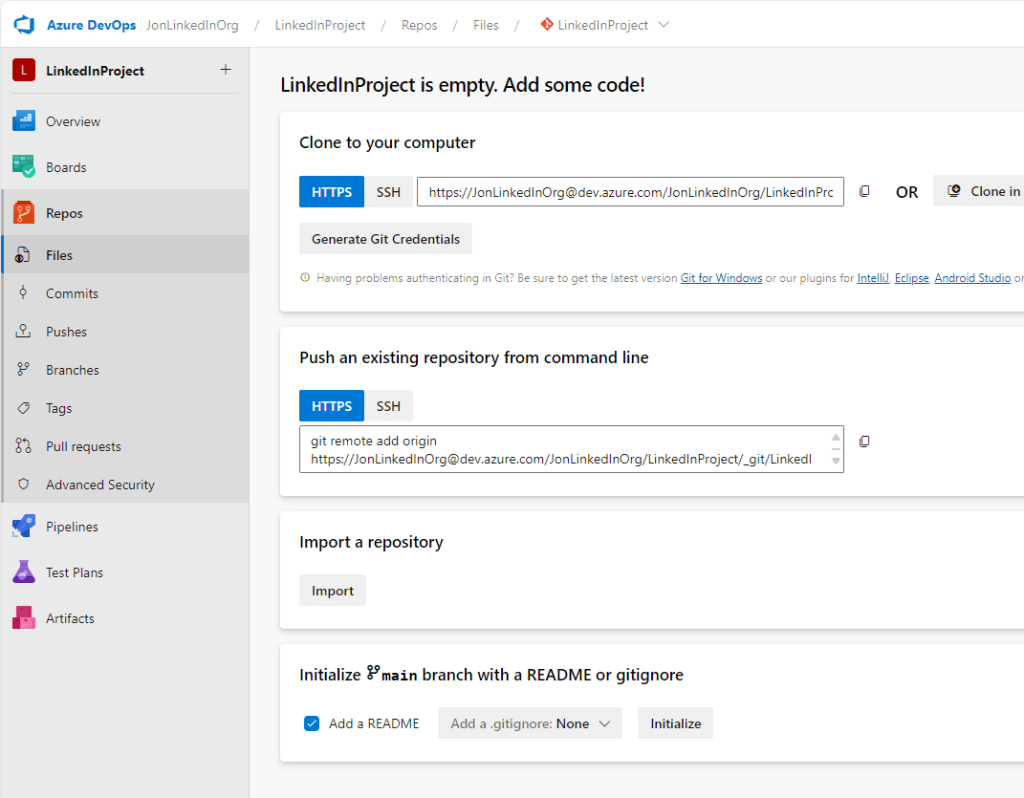
Finally, go to Repos of your newly created project, and initialize a new Main Branch:
Setting up your Workspace for easy Version History with Azure DevOps
In order for you to leverage GIT in your workspace, you need to create a workspace with the proper licensing for your use case. As per the Microsoft documentation (Manage a workspace with Git. – Microsoft Fabric | Microsoft Learn), a Power BI Premium Per User / Premium Capacity Workspace will suffice if you only need support for Power BI items. If you need to leverage Fabric items, you will need to have your workspace use a Fabric Capacity.
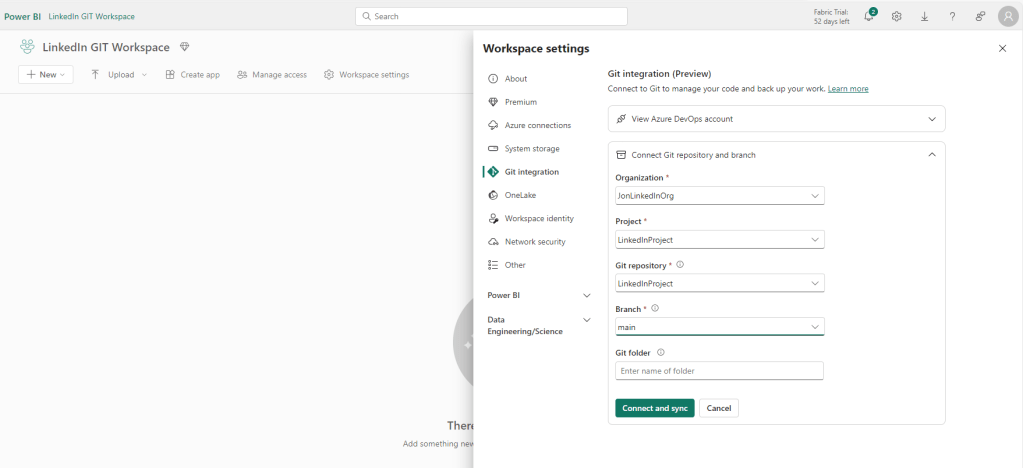
Go ahead and create your workspace, and jump into Workspace Settings > Git integration, and point it towards the Repos and Branch you just created:
You’ll notice that this prompts a new Source Control button to appear:

For now, the Source Control menu is empty, but let’s publish a new Power BI report and Semantic Model to the workspace, and see what happens:
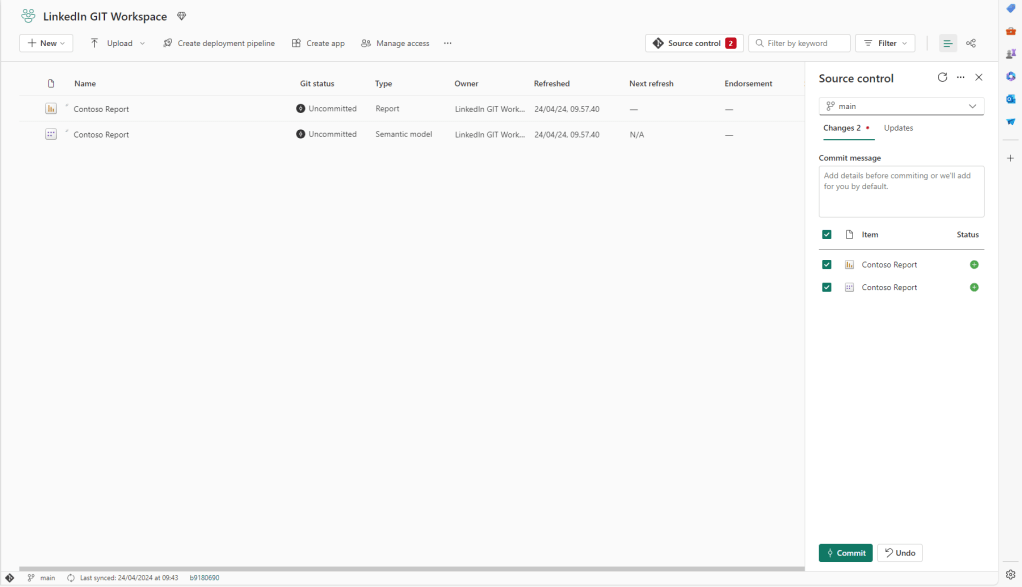
After publishing we should notice three things:
- Our Source Control buttons shows a big red number “2”.
- Our workspace items show a new columns ‘Git status’, which for both out items show ‘Uncommitted’.
- The Source Control menu shows both items as being able for us to add to a ‘Commit’.
Let’s go ahead and do just that, and commit the changes to our GIT Repos. Our items will change their status to “Synced”, while the Source Control button will go back to showing ‘0’ outstanding changes:

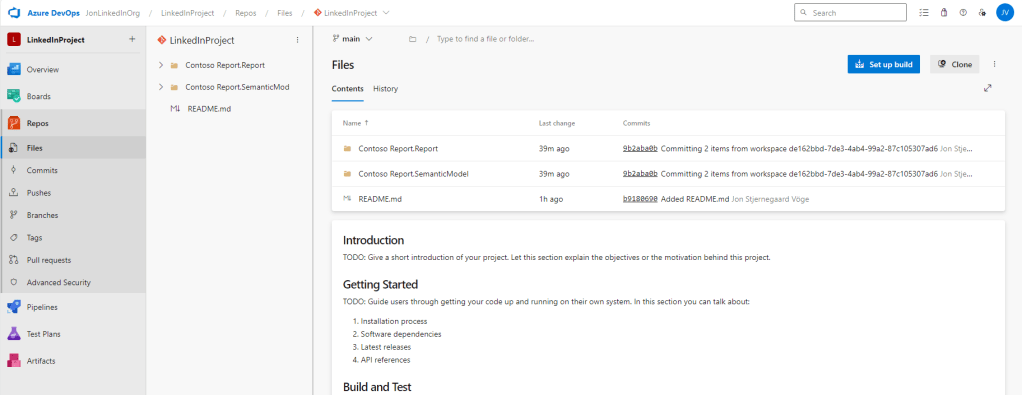
Back in your DevOps repos you can now see the two files we committed before:
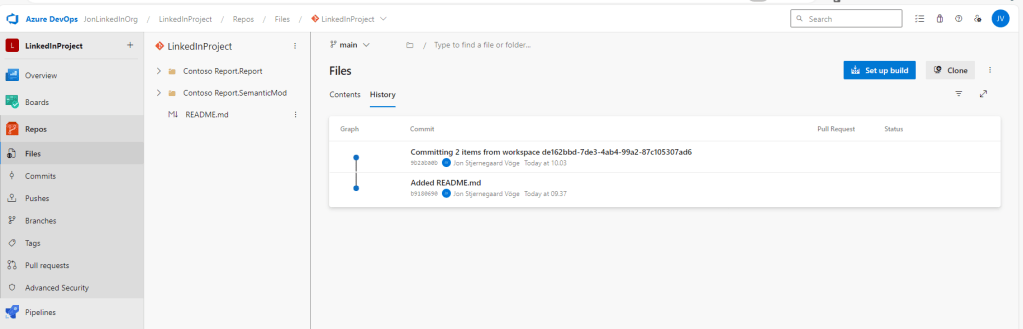
As well as see the History of changes made:
Making changes to items and restoring previous versions
Let’s go ahead and try to make a change to one of our items in the workspace. I’ll make a quick change to the Report file in the web editor, and save that to the workspace.
Here I am adding an additional details page to my report:


Notice that editing the report, regardless of whether you edit through the web editor, or overwrite the report by re-publishing from Power BI Desktop, prompts the Source Control to detect an uncommitted item, and now show that an item has been modified.
Committing the item to the repo, adds a new step to the branch history:

Let’s say now, that we have messed up while making our changes, and we need to roll back to a previous version of the report?
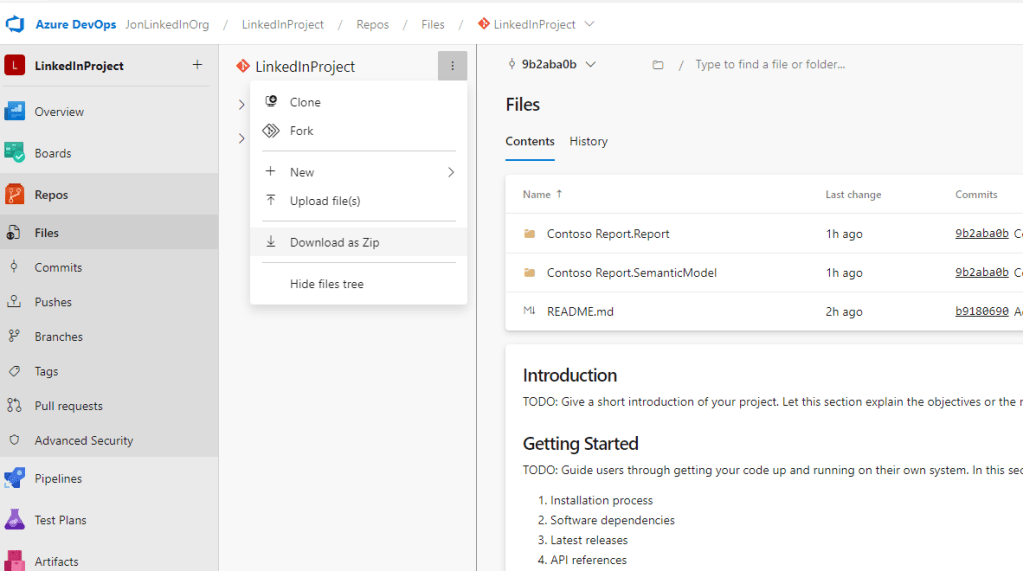
From the branch History we can select a previous Commit, and select Browse Files:
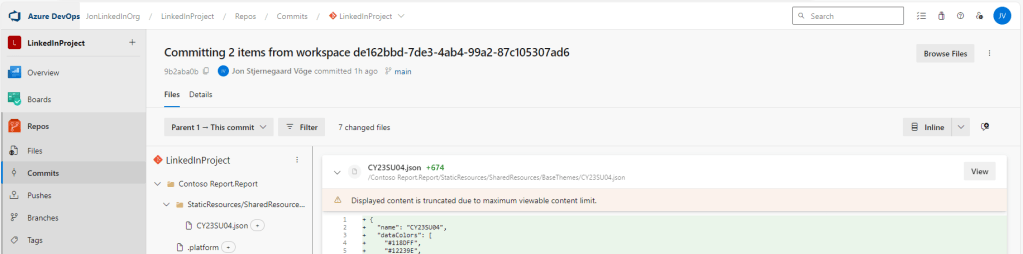
This will allow us to download old versions of the files in the repos:
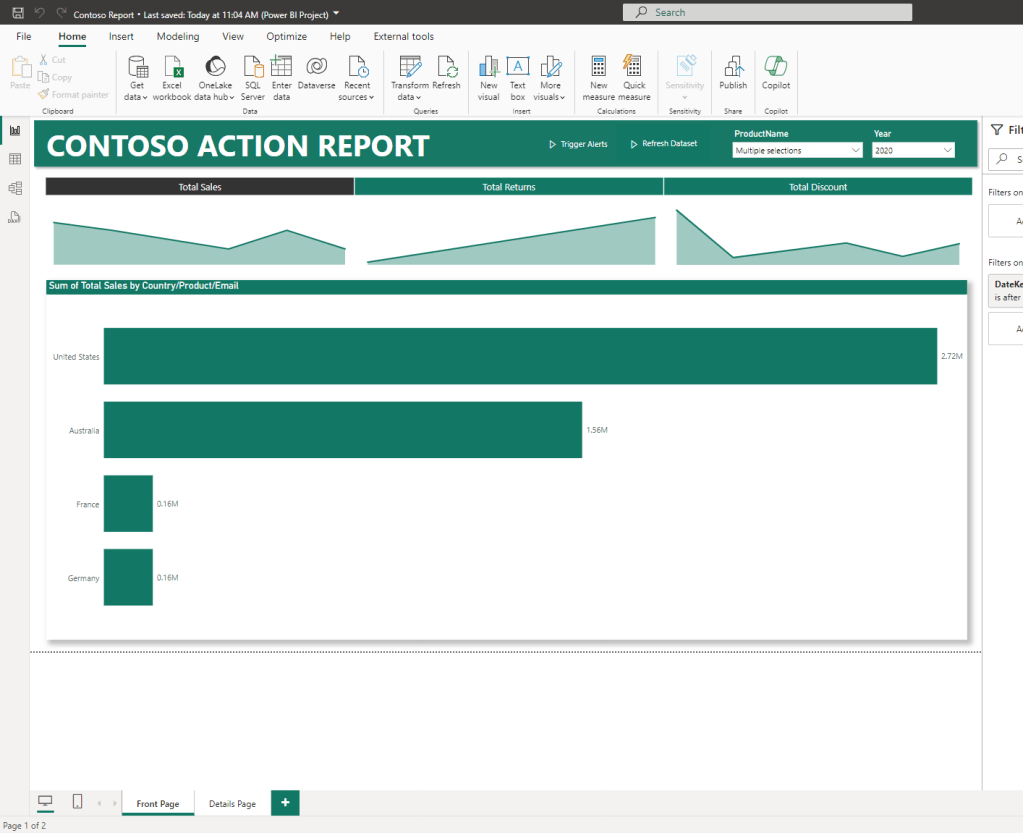
And opening that file in Power BI Desktop, shows us the old version of that file, with no extra details page:
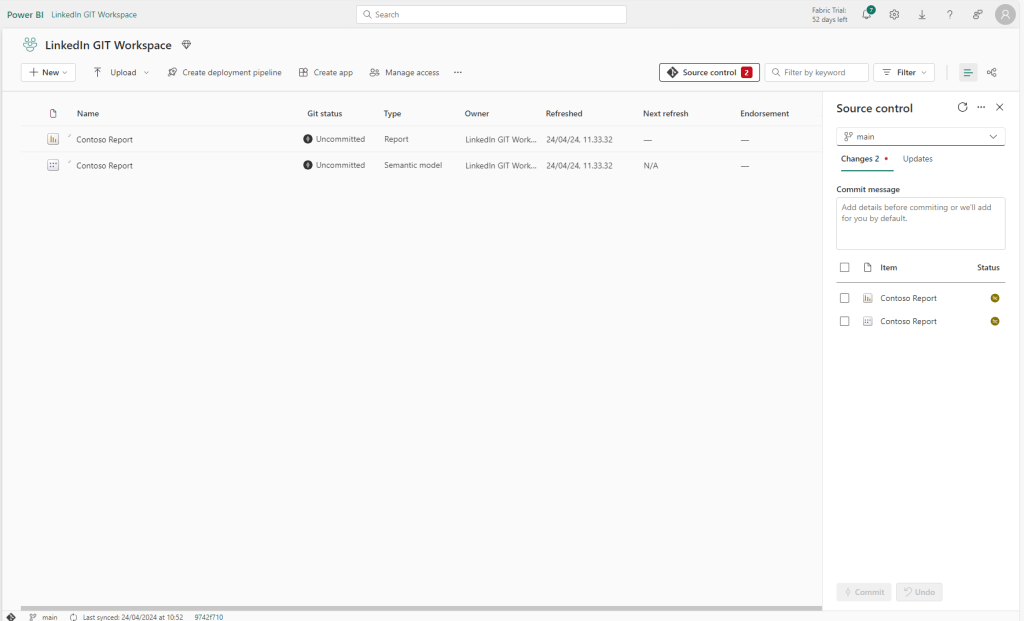
I can now republish to my workspace, which will detect the changes as uncomitted:
And a quick commit pushes the restored version to the Azure DevOps repos as well:

Alternatively, you may attempt the above process with a “Commit Revert” in Azure DevOps instead, by selecting a Commit from the history, and selecting ‘Revert’. However do note that doing this in the browser will only be possible if no Merge Conflicts are found:
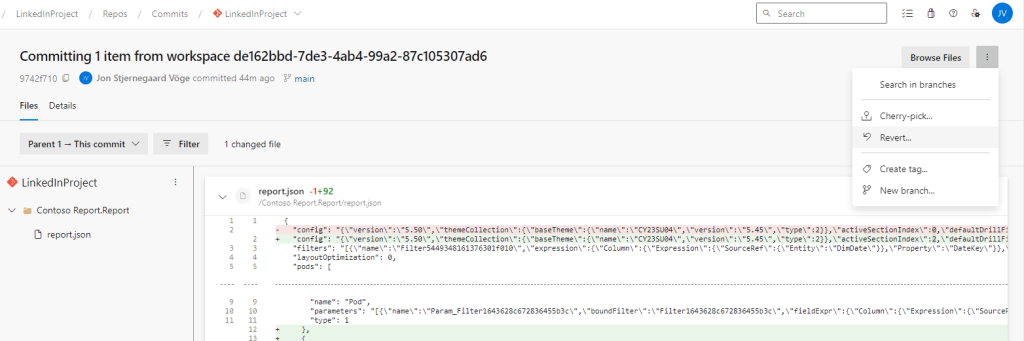
This prompts a new feature branch to be automatically created, and a new Pull Request is auto populated for you to pull the changes into your target branch:

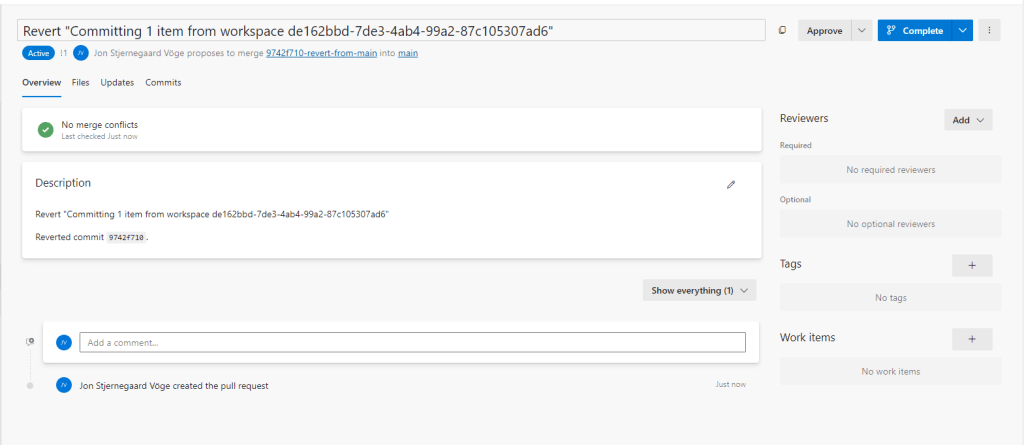
And completing the Pull Request will merge the reverted commit back into your branch:

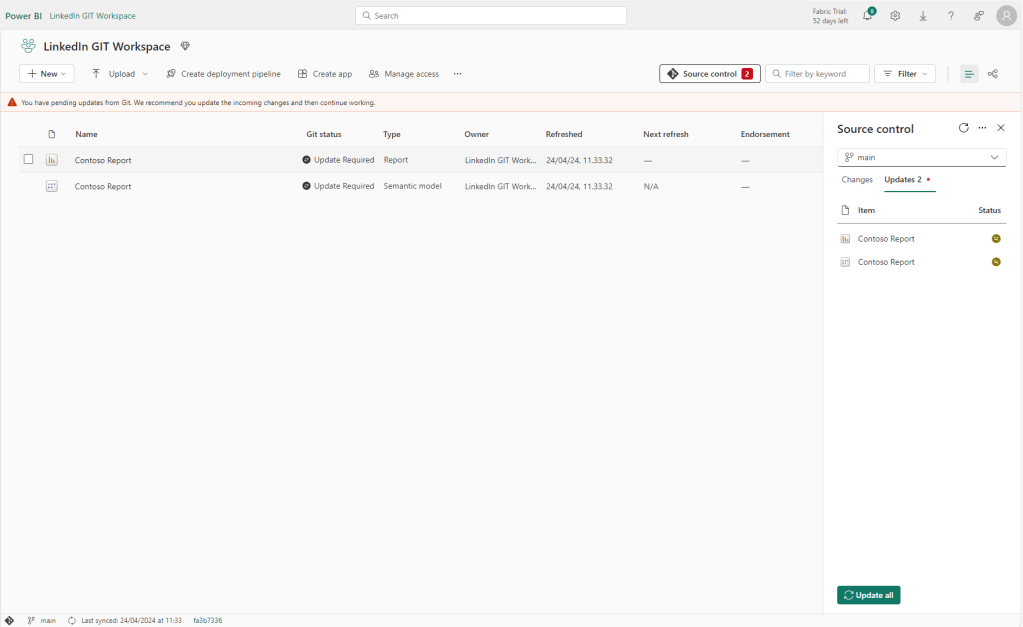
If you now go to your Power BI workspace, you will notice that our Power BI Items requires updating, as there are 2 changes pending from the Source Control (Note that we are in the “Updates” tab, not “Changes” tab, of the Source Control now):
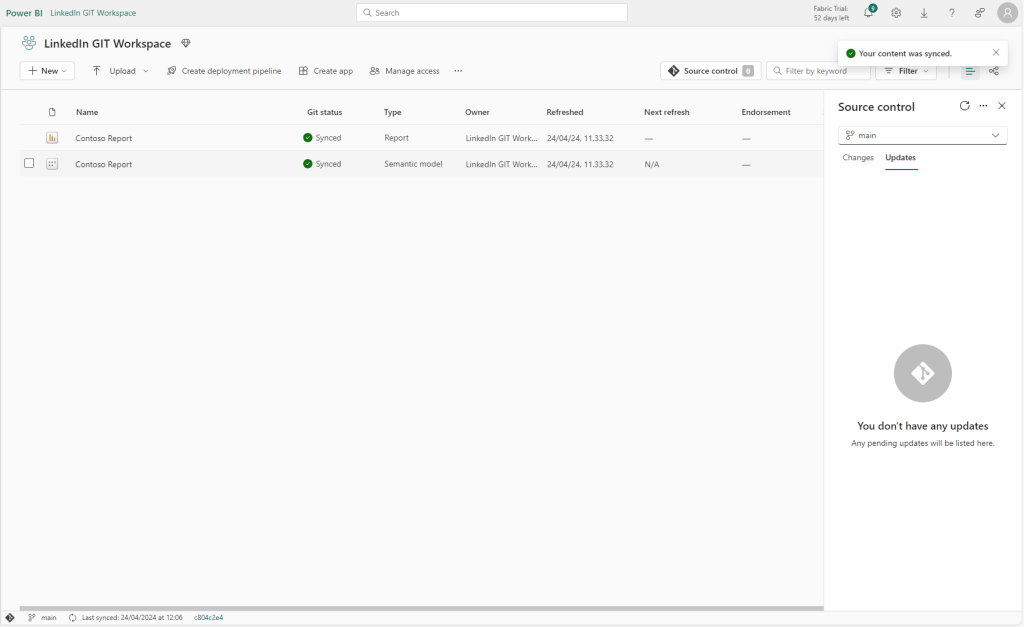
Selecting ‘Update All’ once again brings Order and Peace to our Workspace, as it will be in perfect sync with our DevOps repos again:
Other considerations
Now… What we just did only scratches the surface of what’s possible with GIT, but you know what? You just added Version/Source Control to your Workspace!
An important piece of information is, that while the above works great for Power BI items, certain Fabric items are unsupported as of yet. Currently, the following items are supported (Overview of Fabric Git integration – Microsoft Fabric | Microsoft Learn):
- Data pipelines
- Lakehouse
- Notebooks
- Paginated reports
- Reports (except reports connected to semantic models hosted in Azure Analysis Services, SQL Server Analysis Services or reports exported by Power BI Desktop that depend on semantic models hosted in MyWorkspace)
- Semantic models (except push datasets, live connections, model v1, and semantic models created from the Data warehouse/lakehouse.)
- Spark Job Definitions
- Spark environment
- Warehouses
And further, some other topics of interest that I may elaborate on in this blog in the future, or you may look into on your own:
- How does GIT enable us to as a team, with multiple collaborators, to work on the same items in the workspace?
- How do we handle deployments from DEV to TEST to PROD?
- How do we handle documentation, reviewing, testing and validation?
But for now, I’ll leave you with a “Welcome to the world of GIT”. Enjoy.
”





 Downhill Data
Leave a reply to Application Lifecycle Management (ALM) for Fabric / Power BI development w. Deployment Pipelines – Downhill Data Cancel reply