Introduction
The contents of this blog has also been the focal point of a few of my conference sessions in the past year. Feel free to check out these recordings. There may be a few extra tips and tricks hidden in there:

Data Toboggan: https://www.youtube.com/watch?v=mVsW9kSjjJ4
Cloud Data Driven User Group: https://www.youtube.com/watch?v=sOO8MkrFtbs
Microsoft Fabric User Group Denmark: https://www.youtube.com/watch?v=HV6bIsIq2Qc&t=1686s
Data write-back is a topic dear to me, and you may have come across one of my other articles on the subject: Guide: Add Write-Back to Power BI reports with Power Apps – Part 2: Display write-back data LIVE in Power BI reports – Downhill Data (downhill-data.com)
With the announcement of Microsoft Fabric, one of my first thoughts was: How can we perform Data write-back to a Microsoft Fabric Backend in OneLake?
At first, I managed to bring Dataverse Data into a Fabric Lakehouse through the Dataverse Link for Fabric, and the Synapse Link for Dataverse plus a Shortcut an Azure Data Lake Gen2 to the Fabric Lakehouse. A process which is however not truly live, as the synchronization is only as up to date as the Synapse Link.
Not quite satisfied I continued to experiment, and it turns out that using the SQL Endpoint of the Fabric Data Warehouse, which is the only endpoint in Fabric which is not Read-Only, works better.
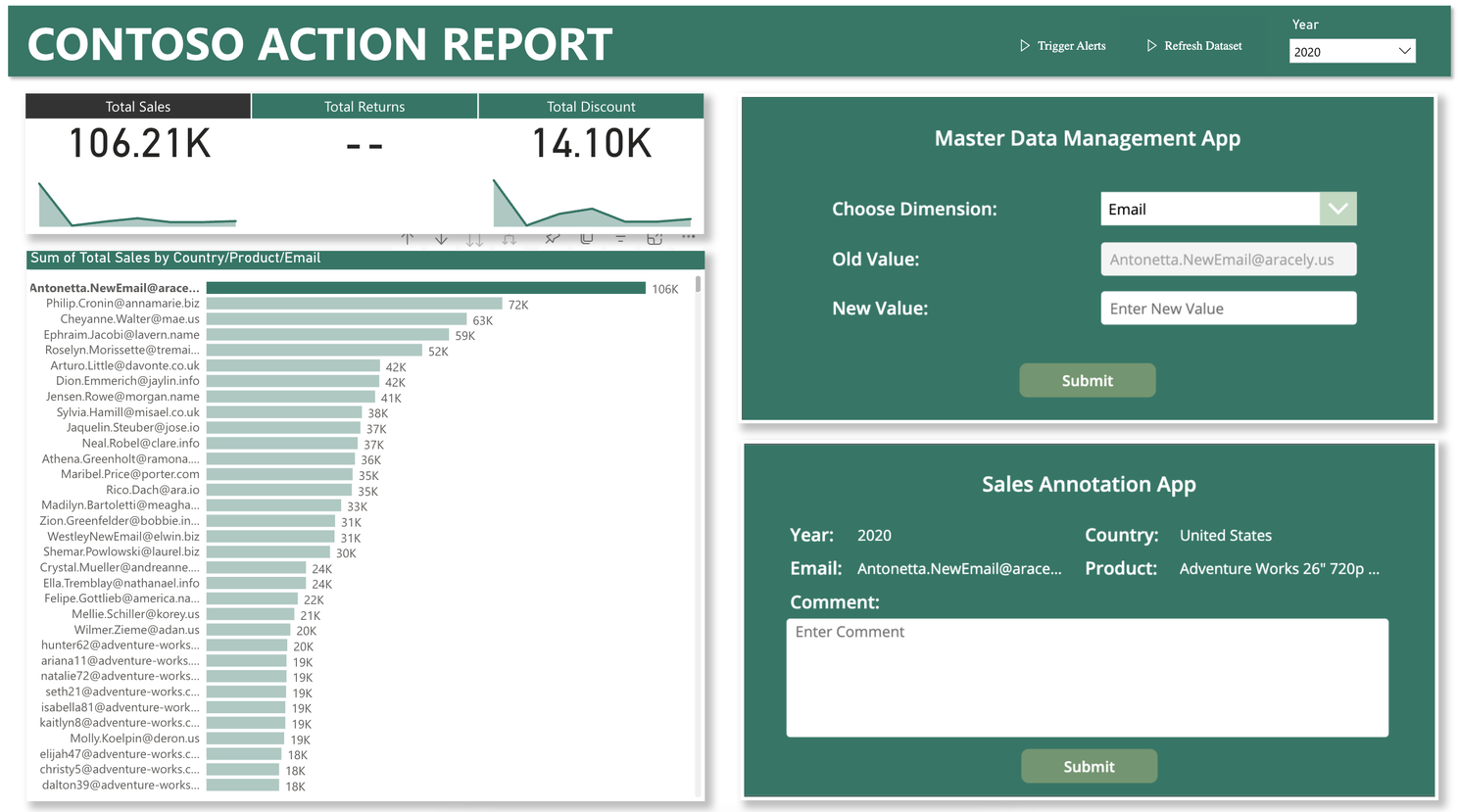
The screenshot below shows a sample report in which two embedded Power Apps, are able to add comments and modify master data in a Fabric Data Warehouse, which is reflected live in the same report:

The solution is still not as straightforward as one may hope, and there are limitations, but read on below to see how to accomplish the above.
Setting up the foundation: Data Warehouse, Data Model and simple Power BI Report
To get started, you’ll need a Fabric enabled tenant and a fabric enabled workspace available to you. You may follow one of the many excellent guides on getting started with Fabric to accomplish this: Fabric (preview) trial – Microsoft Fabric | Microsoft Learn.
Once your Fabric Workspace is created, go ahead and setup a Data Warehouse inside the workspace, and put some data of your choice in there. I followed the beginning of the excellent Microsoft Learn guide, Tutorial: Microsoft Fabric for Power BI users – Power BI | Microsoft Learn, but replaced the data destination with my Data Warehouse, to get a sample Contoso Dataset up and running:


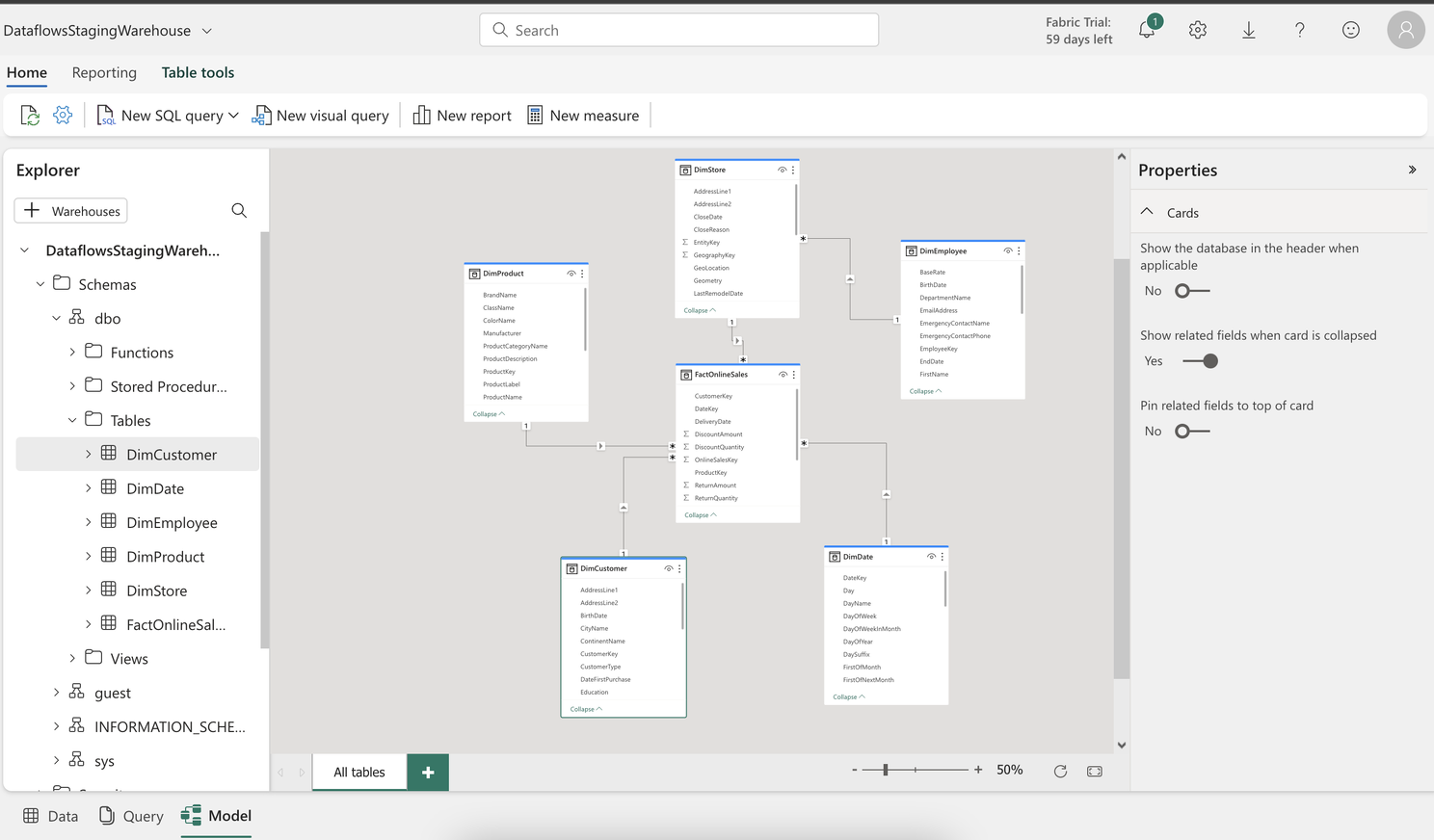
With data added to the Warehouse, find the Model tab, and define relationships between your tables as well:
And finally create a basic Power BI report on top of the warehouse dataset. The Power BI report should display some piece of data from the data warehouse, which you want to alter with data write-back.
Connecting Power Apps and Power Automate with the Data Warehouse
If you have not tried building Power Apps before, I’ll recommend following another guide of mine on the topic to get started: Guide: Adding Write Back capabilities to your Power BI reports with Power Apps – Part 1: Getting Started | LinkedIn
Continuing with our Data Warehouse setup here, if we build a simple Power App, we’ll notice that we can actually easily hit the SQL endpoint of the Data Warehouse, by using the SQL Server Data Connector. The only slightly tricky part, is knowing that we need to enter the name of the actual Data Warehouse, to get the Connector to find the right tables:


Once connected, we can use the Data Warehouse tables to populate controls of our App:

However, trouble arises as soon as we start trying to write back to the tables with Patch():
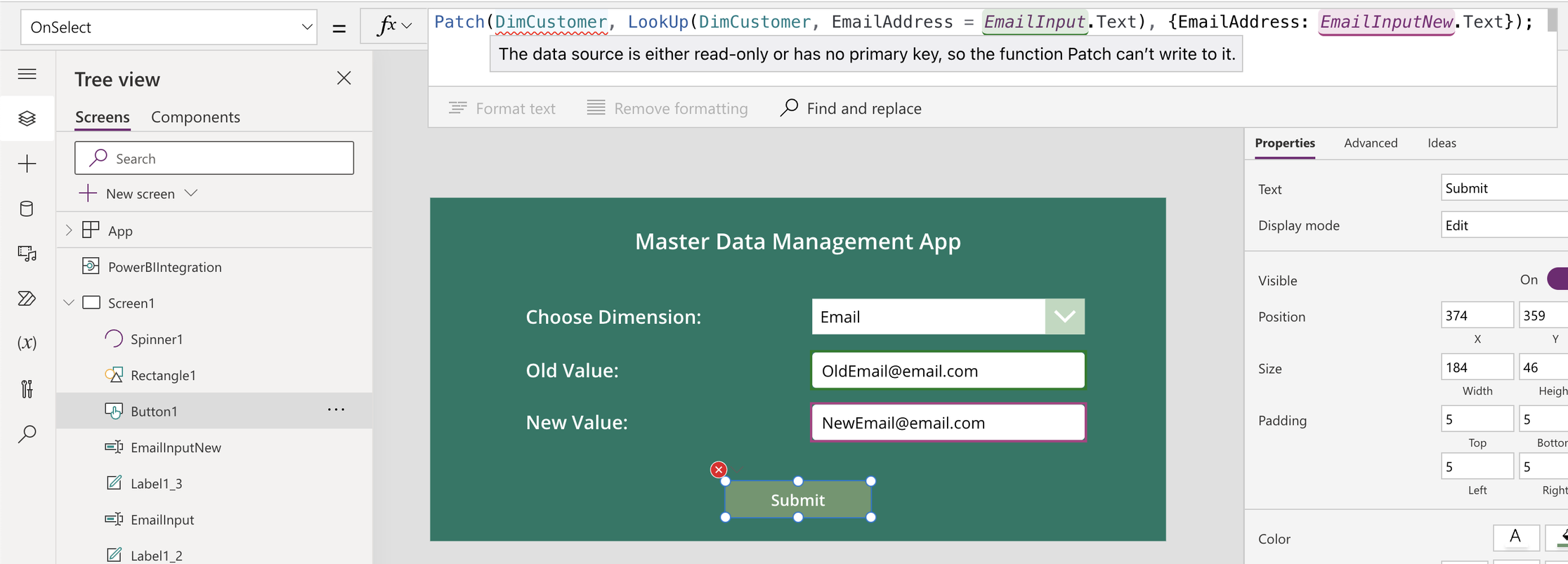
Wasn’t the SQL endpoint supposed to be Read AND Write? Yes. But unfortunately, PowerApps is only able to write to tables with an enforced Primary Key. And this is not possible to do with the current T-SQL layer in the Fabric Data Warehouse T-SQL surface area – Microsoft Fabric | Microsoft Learn.
To the rescue comes Power Automate. If we build a simple Power Automate Flow to hit the SQL Endpoint, we can leverage T-SQL statements like INSERT or UPDATE to achieve write-back functionality:
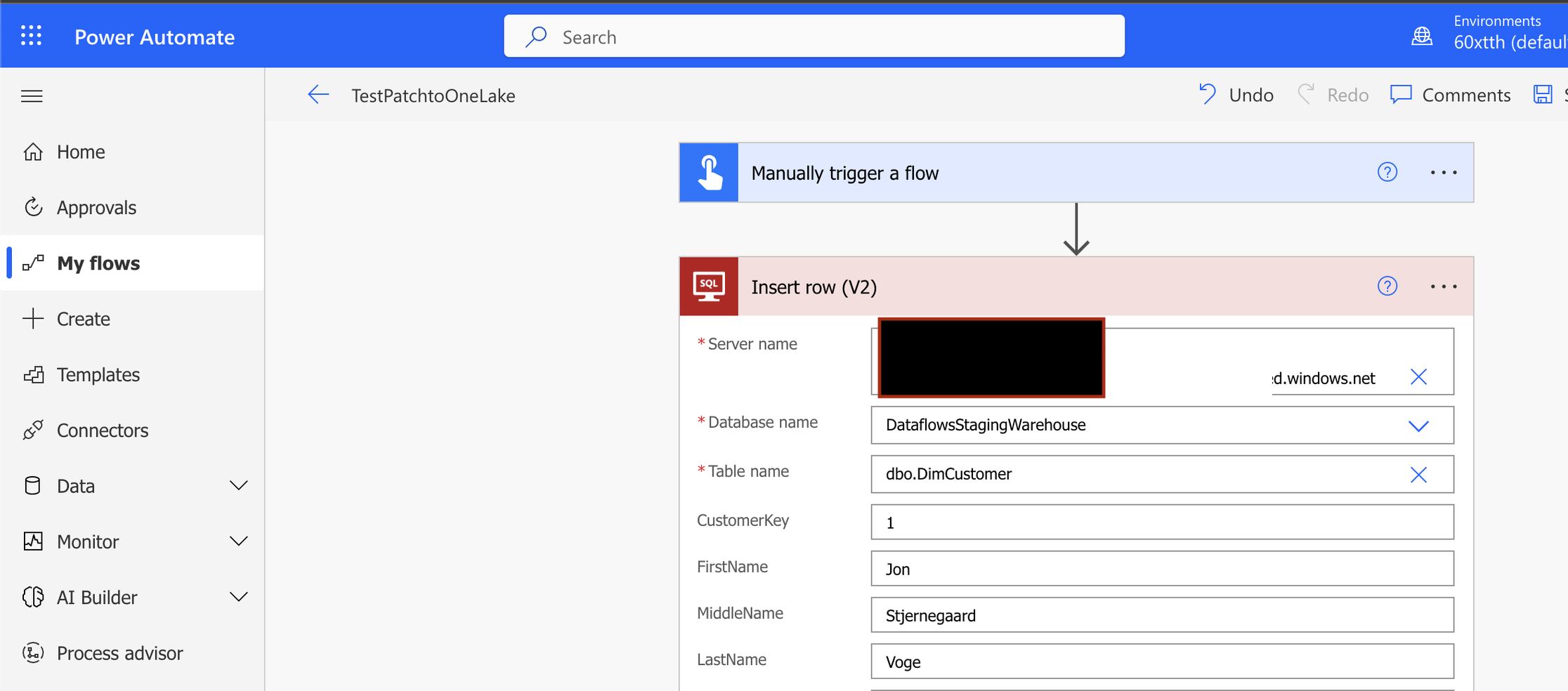
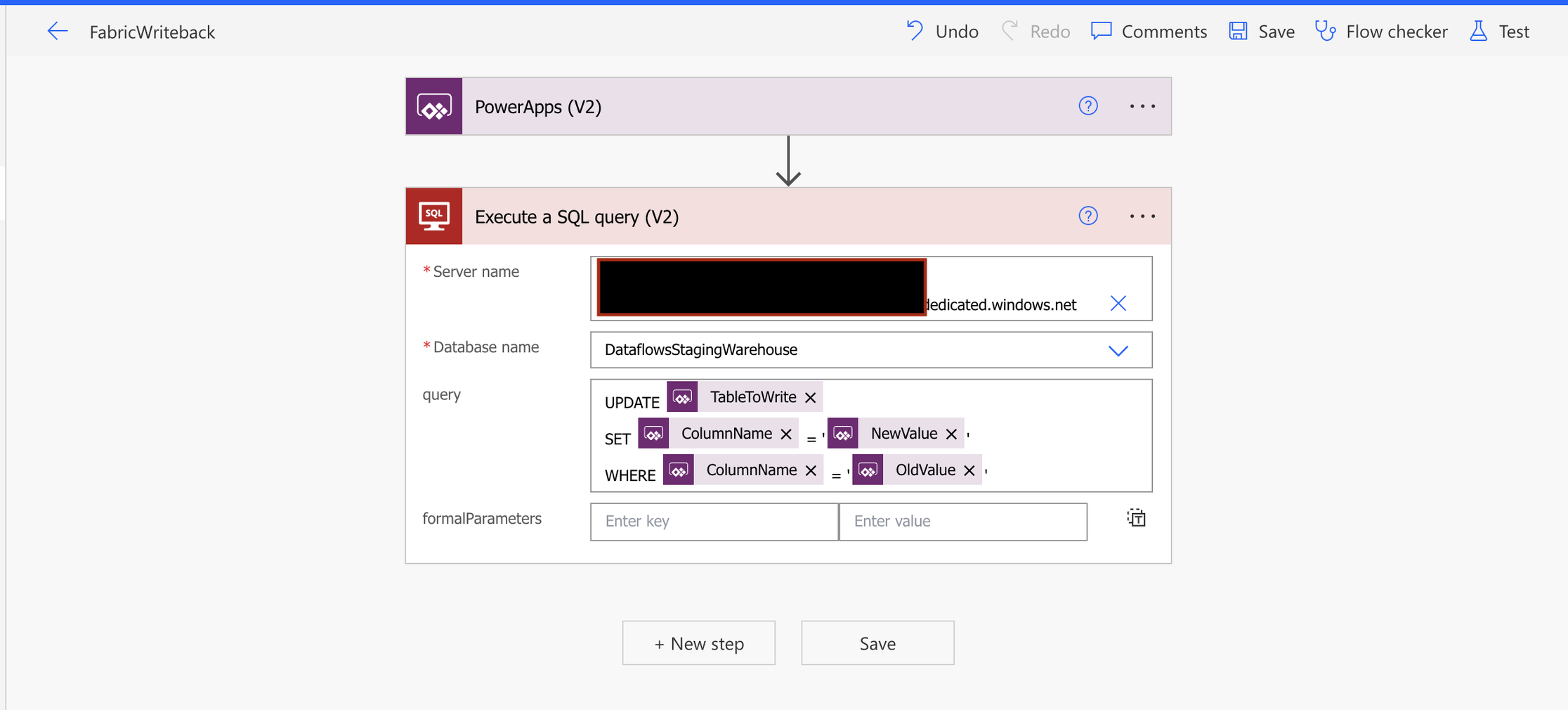
Further, we may alter the trigger to originate in Power Apps, and parameterize the Flow with dynamic input variables from our App, to create a decent workaround:
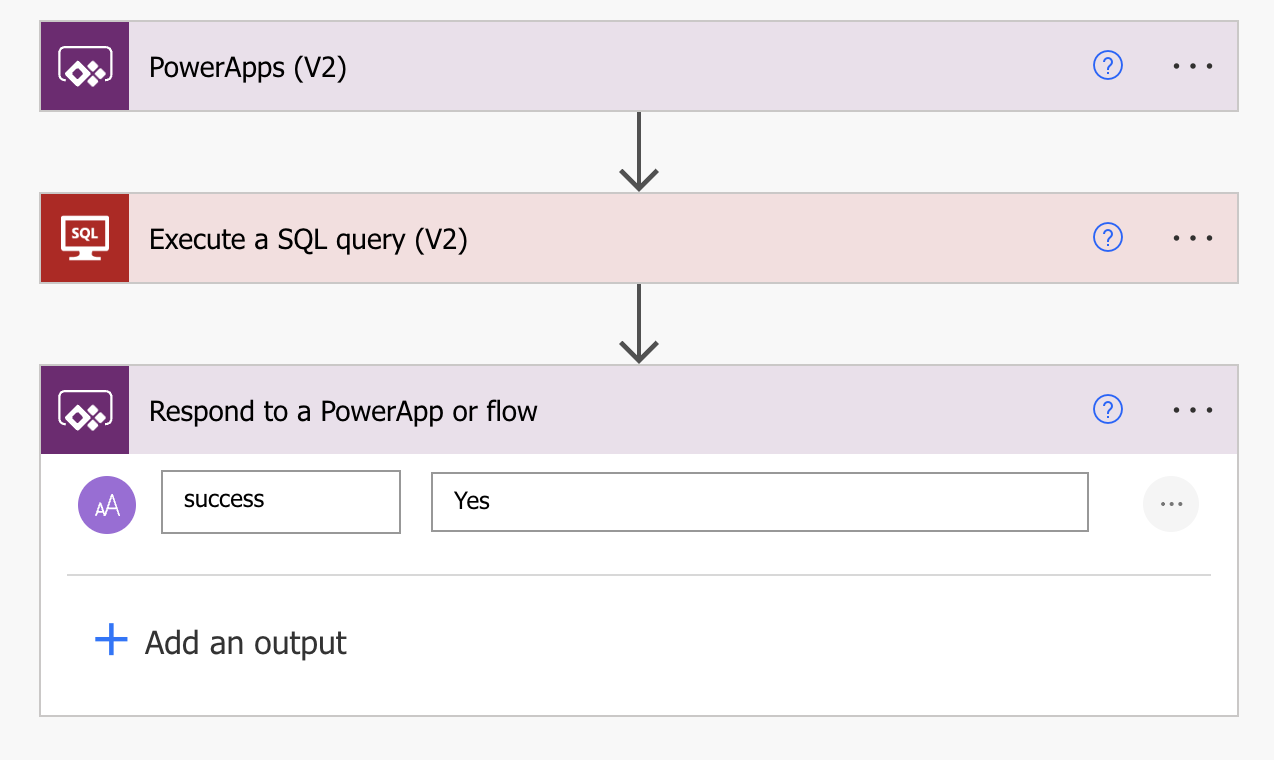
And even send back a response to Power Apps, to trigger any further actions in there:
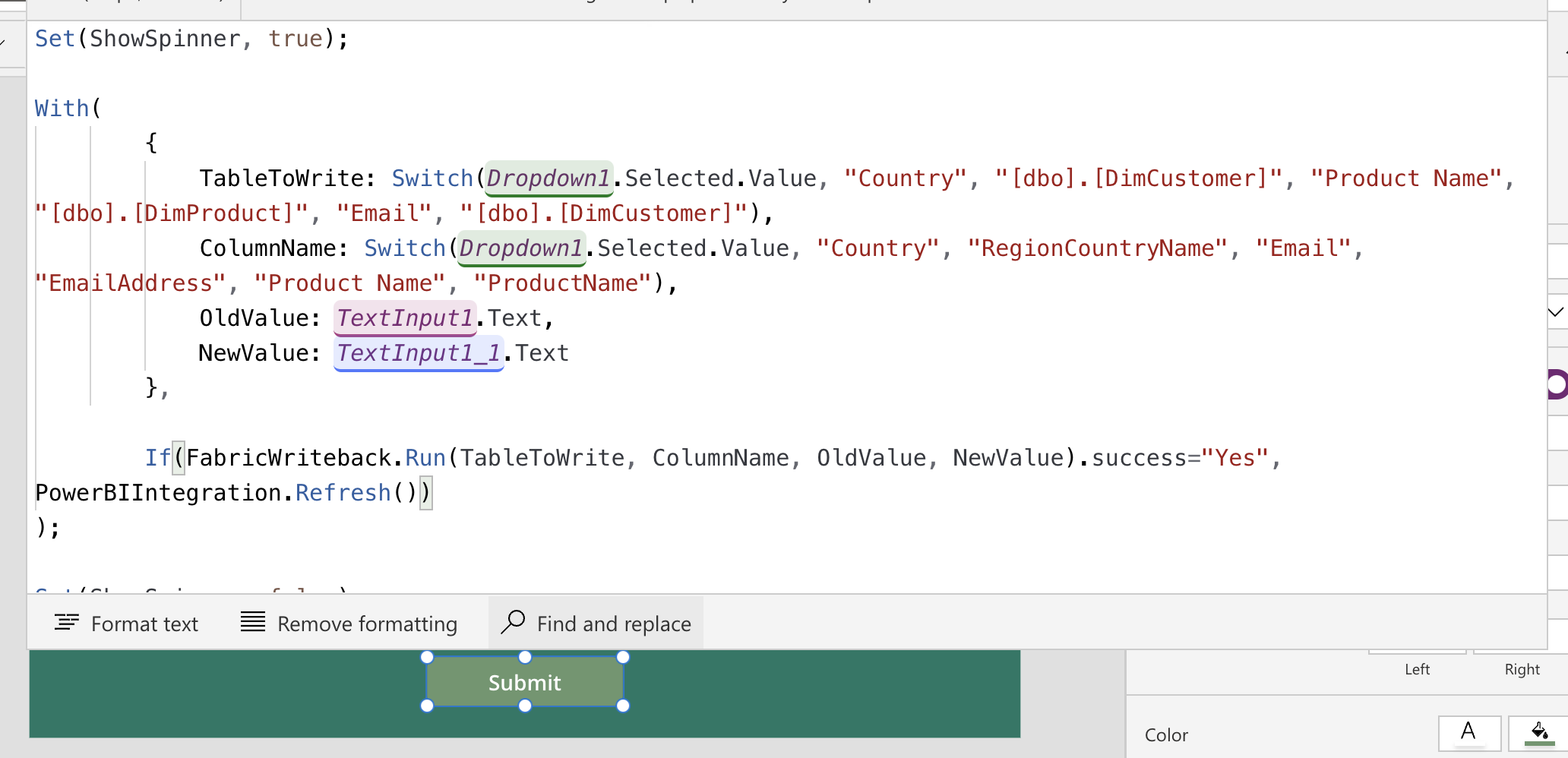
The final piece of the puzzle is to rewrite the code for our Button in the Power App to run the Power Automate flow, passing the variables in the process:
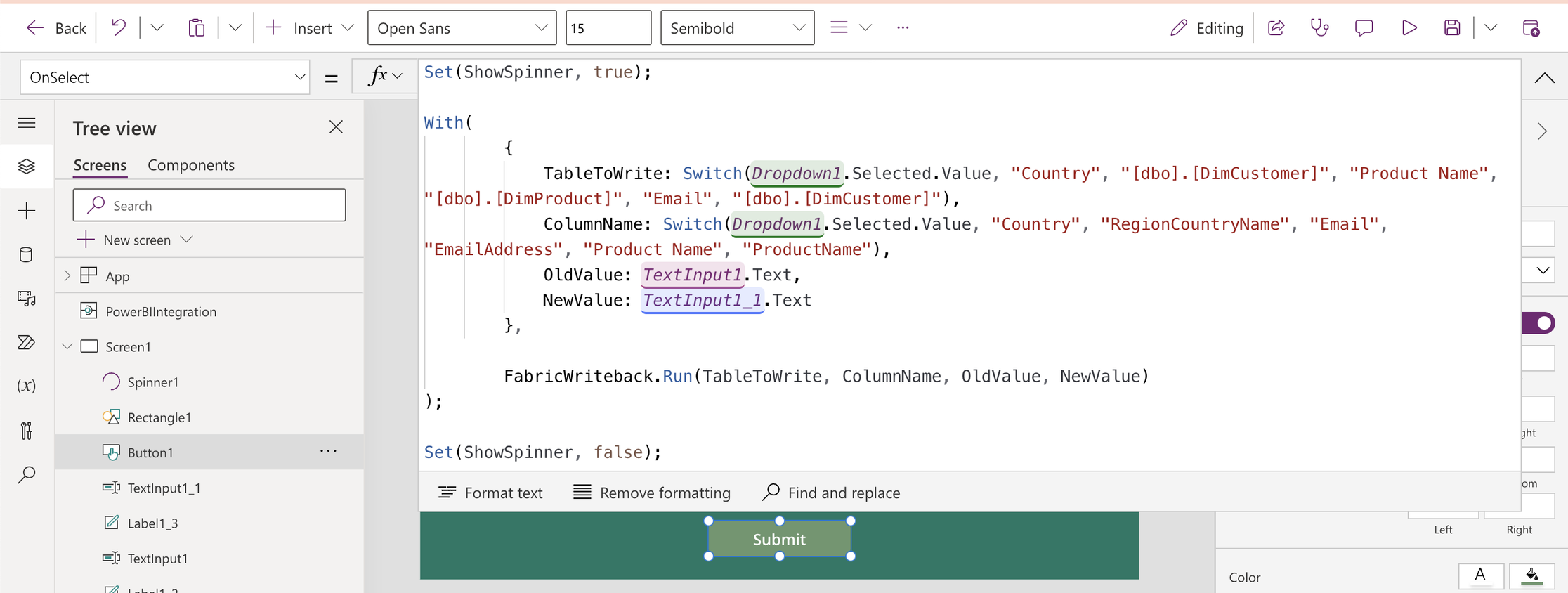
And adjust it to trigger a refresh of the Power BI visualisations when the SQL statement succeeds:
Finally, we can embed the Power App inside of Power BI. The end result is this: A Power BI Report, with an embedded Power App, that allows users to select a datapoint to update, and send an Update statement to the Fabric Data Warehouse SQL endpoint via Power Automate, providing write-back capabilities.
Limitations and reflections
The major caveat of this solution, is the necessity of Power Automate to execute the SQL statement to the Warehouse, which adds an extra layer of complexity to both solution architecture and licensing questions.
The solution will work in both DirectQuery and DirectLake semantic models, but you may experience a small delay in data showing up with DirectLake, due to the model having to ‘reframe’ for new data to show up.
You may alternatively revert to outputting your write-back data to Dataverse or a normal SQL Database, and build a Composite Power BI Model which pulls data from both said Dataverse/SQL Table, as well as your regular Data Warehouse, to be combined in the report. However, if you need the data to be incorporated directly in your Data Warehouse immediately, then this could be the solution for you!
Also… On a final note… This integration of course still works within Power Point:





 Downhill Data
Leave a reply to Link Collection: Enhancing Microsoft Fabric with Microsoft Power Platform – Downhill Data Cancel reply