Introduction
Hierarchies in Power BI are a blessing and a curse.
From an End User perspective, they provide great context, and may acts as funnels guiding analysis. But from a developer point-of-view, they often also come with a range of not-so-basic requests.
Have you for example encountered one or more of the following user requests?:
- I want the top level of the Hierarchy to summarize Column A, while the bottom level should summarize Column B instead.
- I only want the Value for Column C to be display on the lowest level of the hierarchy.
- Can we Drill Through to different details pages in the report with our Drill Through button, depending on the level of the hierarchy that is selected?
All of the above are a hassle for a developer… Unless you know the two DAX formulas ISINSCOPE() and ISFILTERED()!
This blog will outline how you with ease can accomplish all of the three tasks above.
Using ISINSCOPE() to conditionally alter Measure behaviour in your matrix
The formula ISINSCOPE() returns true if the specified Column is in scope within the current selection. Full documentation found here: ISINSCOPE function (DAX) – DAX | Microsoft Learn.
Still confused what that means? Don’t worry. Let’s do a quick example.
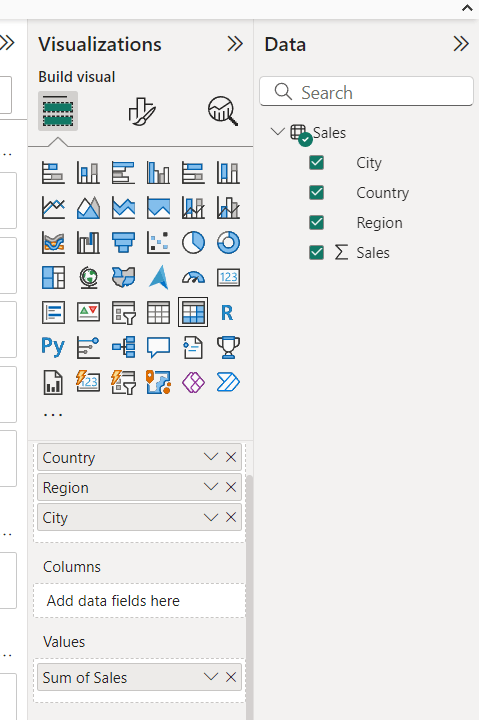
Below I have a simple Hierarchy:

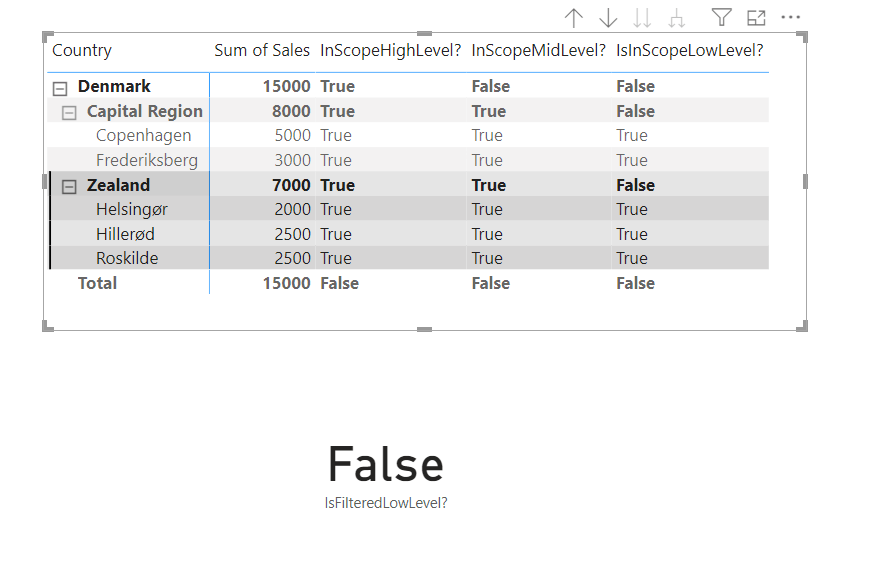
The following three Calculated Measures, each using ISINSCOPE() to check the scope of my three Hierarchy Levels, clearly illustrates how the function works:




As seen, the Upper Level of my hierarchy, Country, is always in scope (except for on the totals line). The Mid Level is in Scope on the Lower and Middle levels, and the City Level is only in scope on the City lines of the hierarchy.
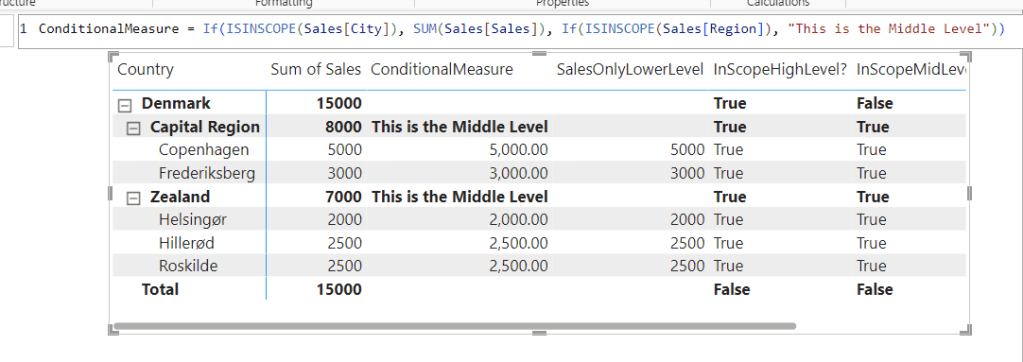
Now how do we leverage this? We can use this in simple If-Statements to conditionally alter the behaviour of other measures. For Example, we may use the following formula to only display data on the lowest level of the hierarchy:


Or we can conditionally return different calculations depending on the level of the hierarchy by nesting the function:
Using ISFILTERED() to dynamically alter Drill Through destinations
Now consider Drill Throughs from Tables/Hierarchies in your report. I for one, try to always create a Drill Through button for my users, if they need to navigate to a Details page. The reason being, that end-users rarely find the Drill Through option in the right-click menu.
It is a pain in the *** to create multiple Drill Through buttons. Not nice UI design, not nice UX design, not a nice developer experience. Perhaps we could leverage ISINSCOPE() to dynamically alter the behaviour of our Button depending on the selected Hierarchy Level?
Well, unfortunately not. ISINSCOPE() unfortunately only works within the context of a hierarchy. This also means, that a Measure containing ISINSCOPE() will simply return blank if put on a visualization/Button that does not hold information about the Column specified in the function.
So what do we do if we want to create a Drill Through button which is dynamically altered depending on the selected level of the Hierarchy?
To the rescue comes ISFILTERED().
ISFILTERED returns true if the specified column has a direct filter. Meaning that a filter from the Mid Level of my hierarchy, would not be a Direct Filter on my Low Level of the hierarchy, even if it limits the number of Cities being displayed. Full documentation here: ISFILTERED function (DAX) – DAX | Microsoft Learn
The following Measure checks if the lowest level of my hierarchy has a filter:


Now I can create a single Measure which tells me which Level is currently being filtered:


And if I create a Measure using this knowledge, to dynamically return the name of my Details Pages:


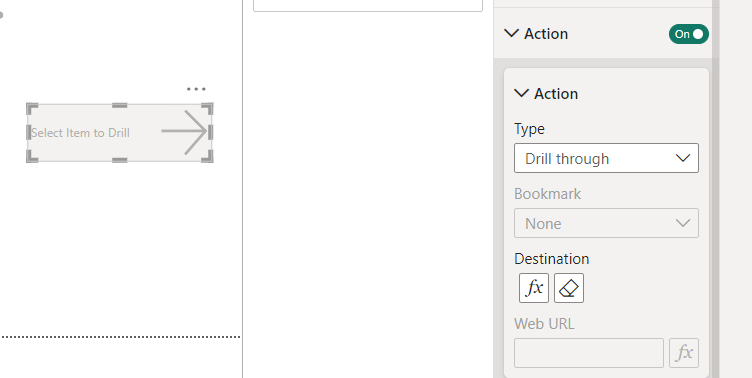
I can use this Measure both as the Conditional Destination on a button action, as well as the Conditional Label:
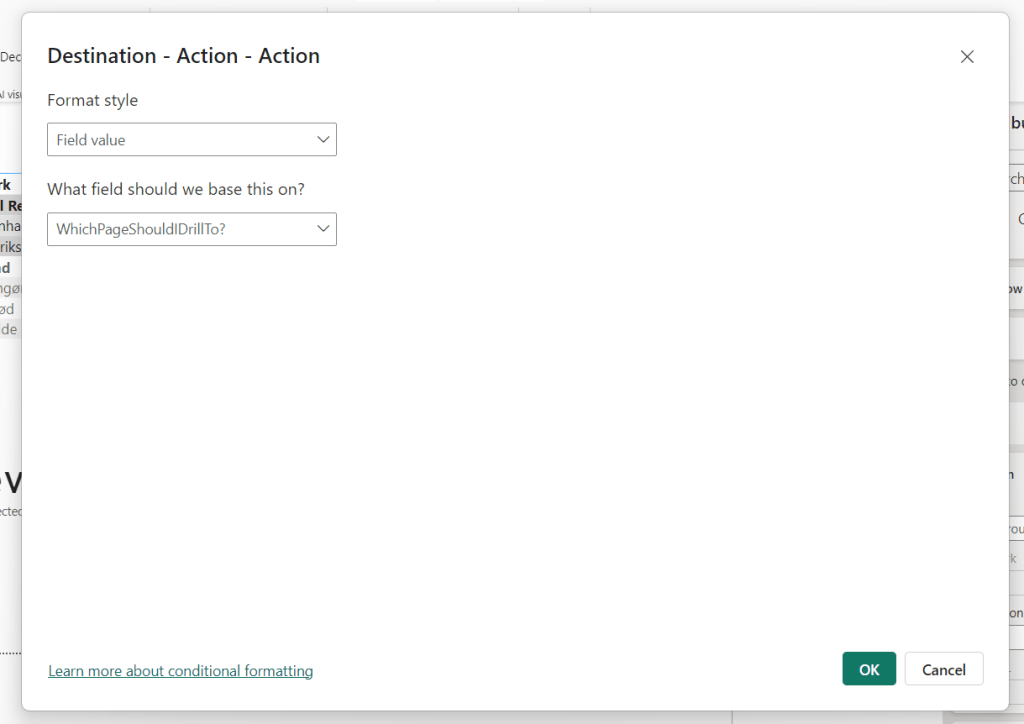
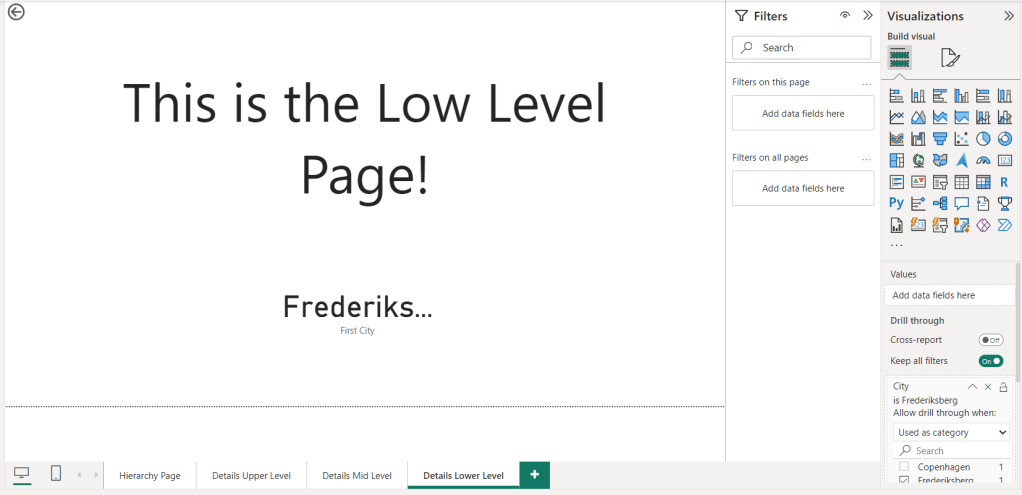
The final piece of the puzzle is to ensure that the correct Hierarchy Level has been added to each of the Details Pages as a Drill Through field:

And the result, is conditional navigation from one button, depending on the selected level of the hierarchy:
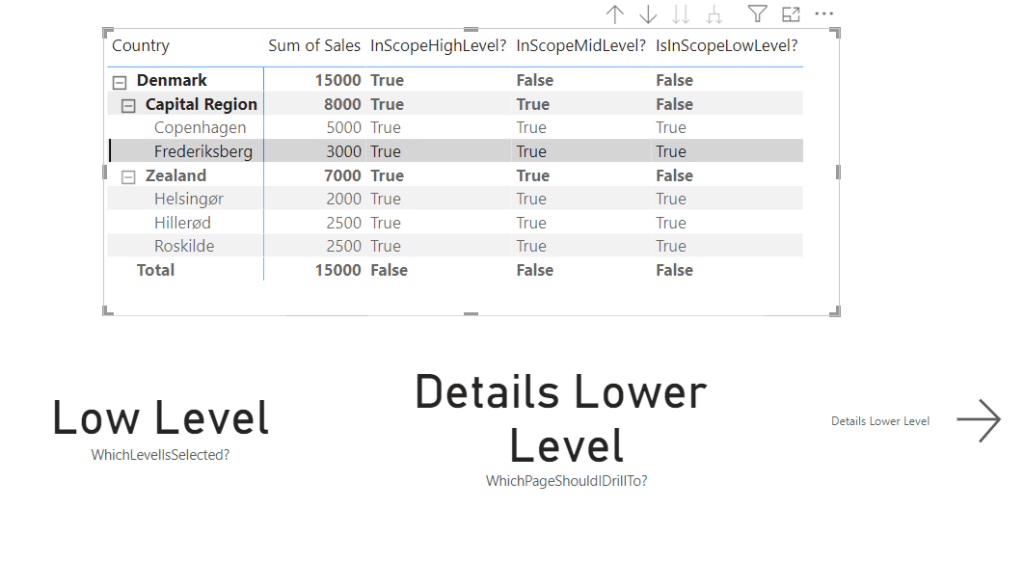
I hope you enjoyed this week’s blog. I am very curious to hear if this inspires any use cases out there! Please reach out if you have cool ideas to share.




 Downhill Data
Leave a comment