
Introduction
I’ve previously written about sharing Power BI Reports with Externals, both through Power BI Embedded (using Power Pages) and to guest users in the Power BI Service.
However, a new addition to the line-up of capabilities in Microsoft Fabric allows us to share Semantic Models directly with external users as well, enabling entirely new use cases.
You may for example:
- Allow external users to build their own Power BI reports on top of your Semantic Model (useful for large organizations with multiple tenants, or companies which wish to expose models to 3rd parties without Power BI Embedded).
- Allow external users to combine your Semantic Model with their own, or perhaps build their own Measures using your model, in their own local model.
- Allow external users to publish reports that uses your data to their own service.
The technique is fairly simple, but requires a little bit of work in the Azure portal as well as the Fabric Admin Settings. At least in my experience, I often find that people are missing a setting or two, which leaves them confused when trying to access the models from the external accounts.
Sometimes you might only need to setup stuff in the Fabric Settings, and sometimes we need a quick visit to the Azure portal.
In any case, read on below to make sure you have all the boxes checked!
Fabric Admin Portal Settings
First things first, let’s get all the Fabric Admin Settings set up, and see if that is enough.
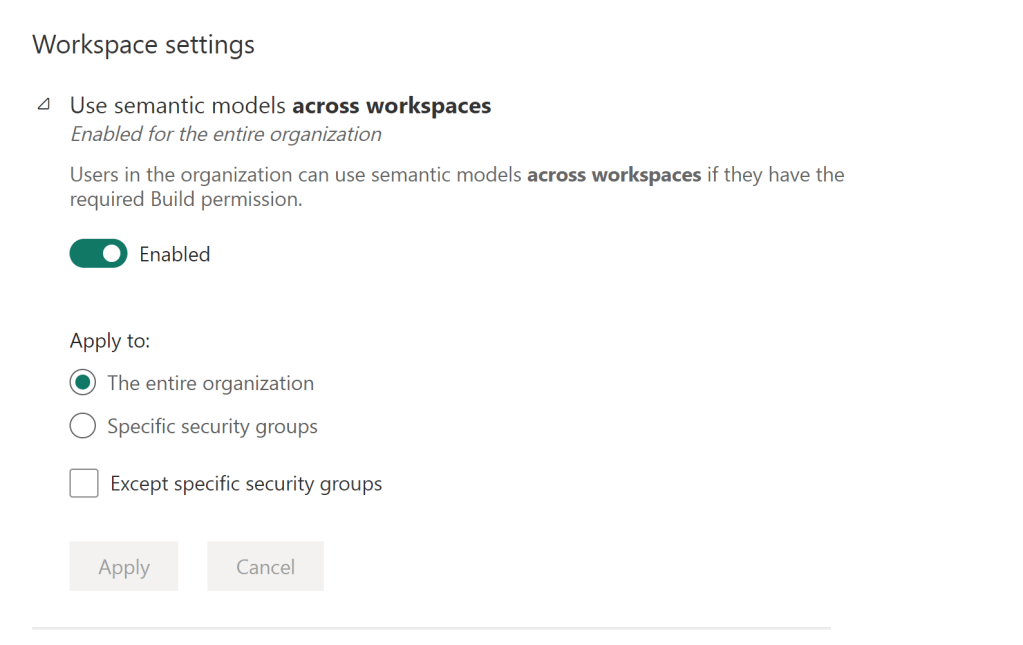

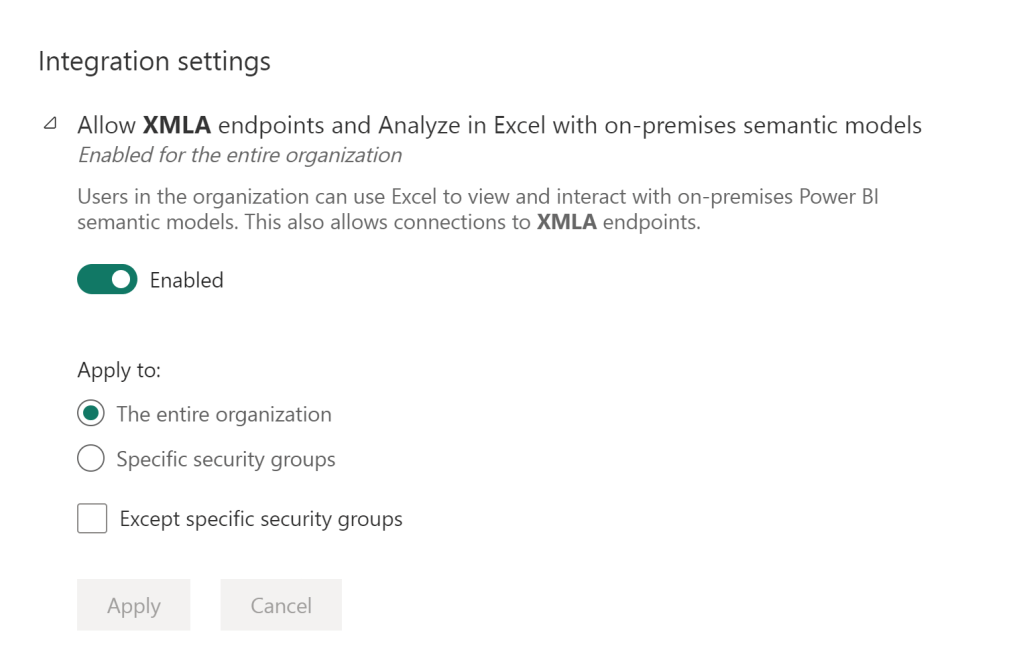


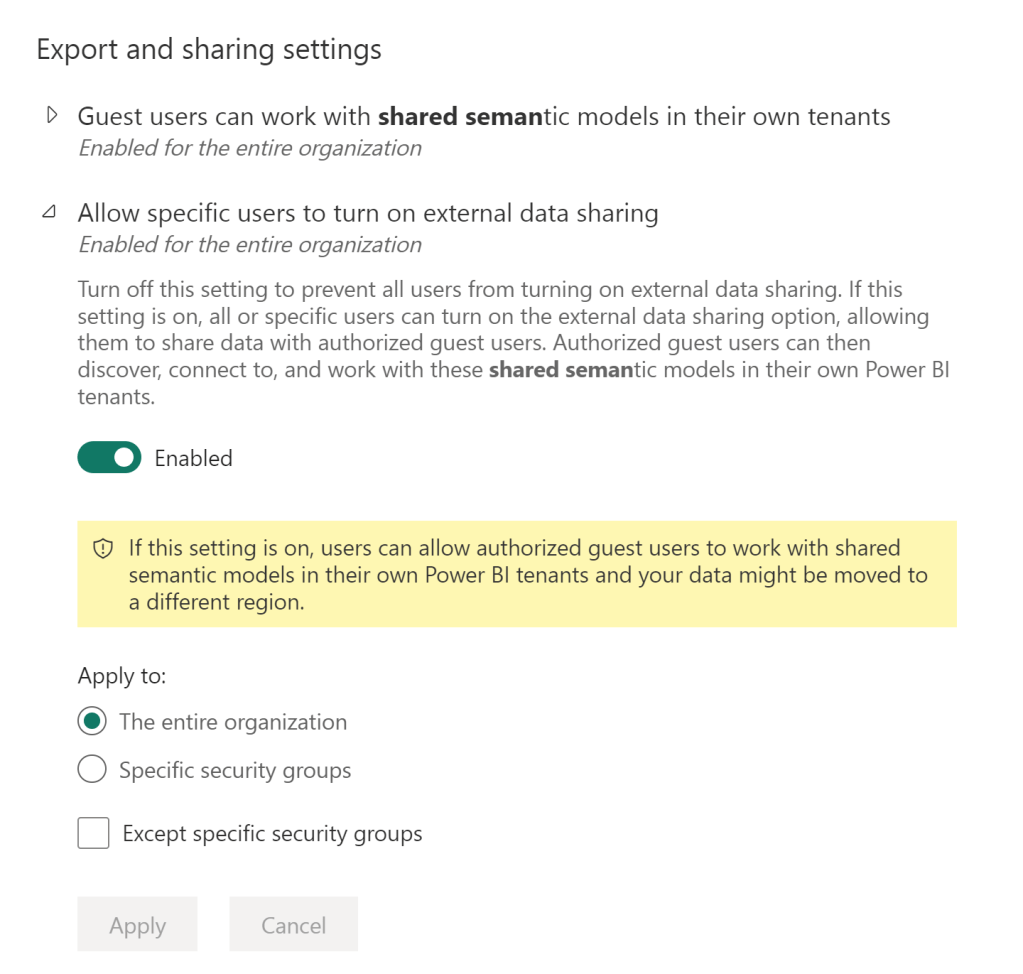
Enabling Semantic Model External Sharing
Now its time to enable External Sharing specifically for the Semantic Models we wish to distribute. Navigate to the Workspace which holds your semantic model, and open the Settings of the model itself:

At the very bottom of the settings page, toggle on the External Sharing setting:
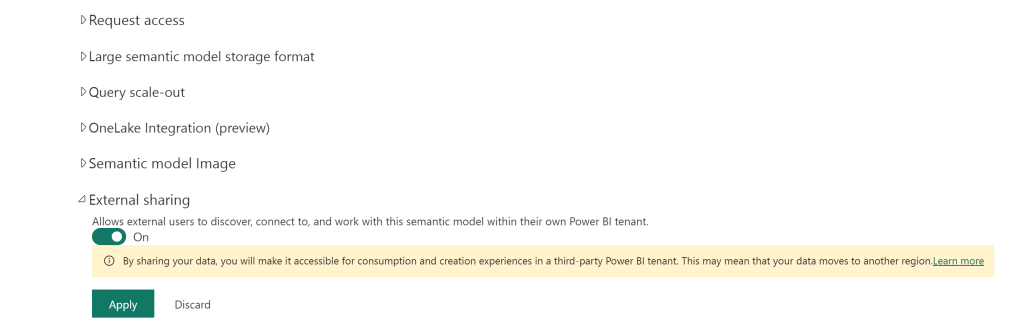
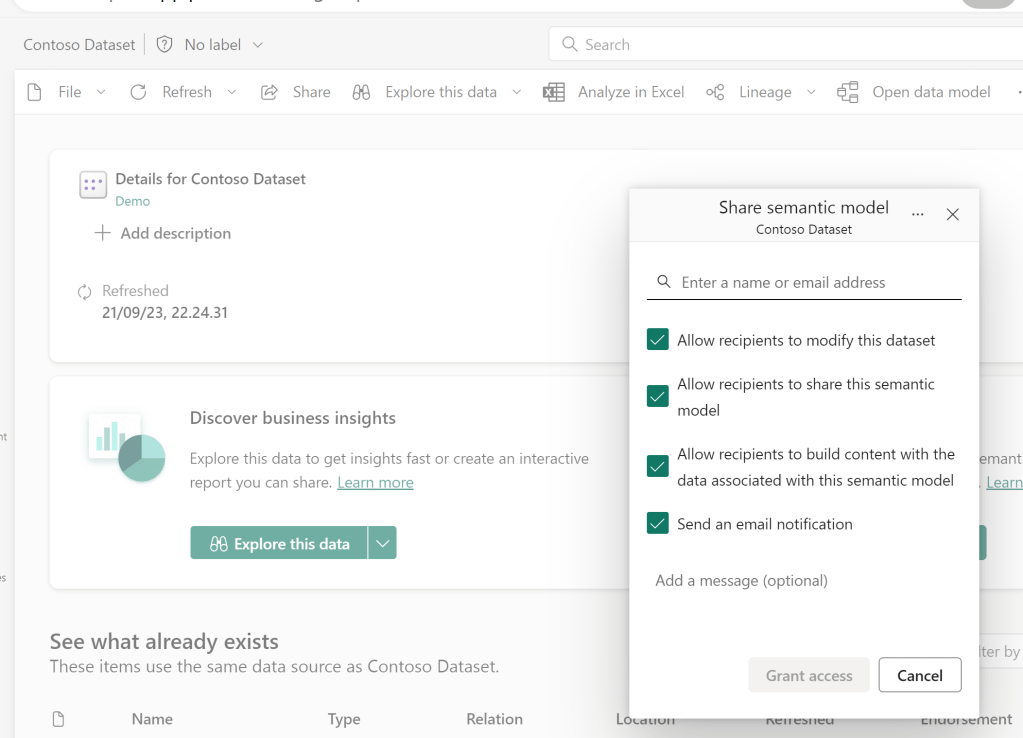
Now you can enter the Semantic Model in the workspace, click the ‘Share’ button, and send the model to your desired recipients.
To invite external users, you may either use ad-hoc sharing from directly in your Power BI service, simply by typing their external emails in the Sharing dialogue. Alternatively, and especially useful for bulk-invitations, you may consider adding the guest users via the Azure portal. For more info, check the official documentation: Distribute content to external guest users with Microsoft Entra B2B – Power BI | Microsoft Learn
Note that for external sharing to work you must give recipients build permissions on the semantic model. Also rest assured, that despite ticking the box for “allowing recipients to modify this dataset”, the recipients will in fact not be able to edit your semantic model.
Connecting to the shared model
We will now attempt to connect to the externally shared model from the recipient’s tenant. The recipient should receive an email with a link to the model:

Which will take them into the sharer’s tenant, with access to only the artifacts shared with the recipient:

The recipient can connect to the model from in here from the sharer’s tenant, or choose to open Power BI Desktop, to connect to the data from their own tenant.
In Desktop, you’ll first need to ensure that the two settings “Q&A for live connected Analysis Services databases” and “Connect to external semantic models shared with me” are turned on. As of July 2024 these settings are still found in the Preview tab:

Afterwards, you’ll have to open the OneLake Data Hub, and go to the External Data tab, to see the models. If you do not see an External Data tab like in the screenshot below, you will need to alter your Azure settings. In that case, briefly skip to the next section, before returning here.
At first, Power BI will show you that it is scanning all the tenants, which you have been added as guest user to, for external sources shared with you:
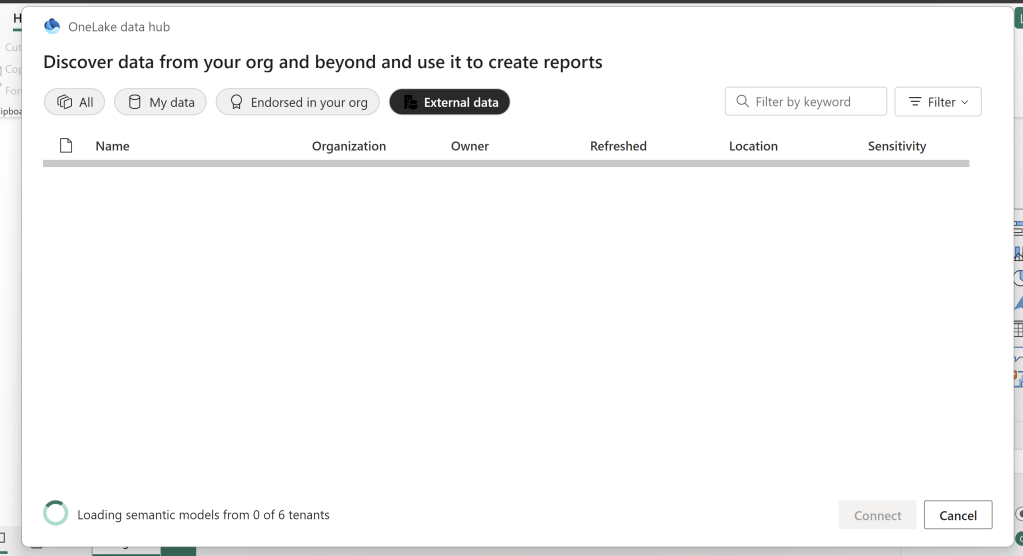
After scanning, the list of available items is shown, and you can connect just as if the model resided in your own tenant:


And the recipient can now build reports in their own tenant, using the shared semantic model, and publish them to the service. Note that the storage mode for this technique is limited to DirectQuery.
The recipient will also be able to combine this Semantic Model with Models from the recipients own tenant, enrich the model with their own models (this will only be stored in the recipients own .pbix and local semantic model, not in the original sharer’s model).
Azure Set Up
If you did not see the External Data tab in Power BI Desktop, you likely have one of two issues:
- The sharer’s tenant has MFA enabled, while the recipient’s tenant does not
- The sharer’s tenant has the Trust multi-factor authentication from Microsoft Entra tenants option turned off.
For the first of these, ensure that MFA is enabled. Your IT might be able to help you out with this one, or in case you are experimenting on your own, check out the official guidelines: Deployment considerations for Microsoft Entra multifactor authentication – Microsoft Entra ID | Microsoft Learn
For the second option, follow this small guide to enable the proper B2B collaboration settings: Configure B2B collaboration cross-tenant access – Microsoft Entra External ID | Microsoft Learn
Limitations and Considerations
I love this feature! Especially that this actually provides a decently secure way of sharing your Model with externals. Row Level Security (RLS) will still be respected, and due to the model always being Direct Query, only users that you gave permissions on the model in your own tenant will be able to consume the model and any reports built on top of it.
However, there are of course limitations as well. Notably, you will continuously be warned during the set-up process that your data could leave your geographic region in terms of data processing, as data will be cached in the receiving tenant’s region.
There are more limitations to consider, mostly relating to the nature of composite models. For a full list, refer to the official documentation: Power BI in-place semantic model sharing with guest users in external organizations (preview) – Power BI | Microsoft Learn
Conclusion
This was a brief tutorial on enabling external sharing of semantic models in Fabric.
Hopefully you found it useful, and will now be able to distribute models to your colleagues, consultants and other external peers.
Did you know that semantic models are not the only Fabric artifacts that we can share with externals? Stay tuned for next week’s blog…





 Downhill Data
Leave a reply to How to give external users access to your Lakehouses and Data in Microsoft Fabric – Downhill Data Cancel reply