Introduction
Half a year ago, I wrote a blog post on creating Measure Tables in Fabric Data Lakehouses directly in the browser: How to create Measure Tables in Microsoft Fabric – Downhill Data (downhill-data.com). Back then, Data Warehouses were less relevant for the story, as they could not be used for Direct Lake models, and we could always just create our Measure Tables in Power BI Desktop.
Since then, support for Warehouse based Direct Lake Semantic Models has arrived, and it is worth showcasing that you can of course also create Measure Tables in your Data Warehouse based DirectLake Semantic Models.
Read on below to learn how!
Creating the Measure Table
To create your Measure table, simply create a new or open your existing Fabric Data Warehouse. Right-click on the Tables folder, and click New table.
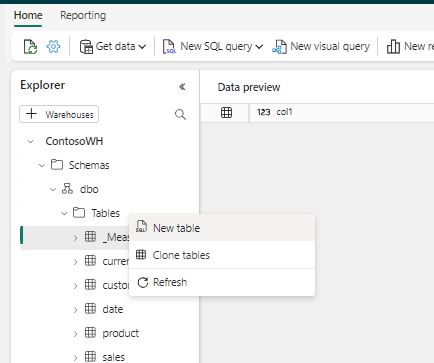
This will auto-generate a SQL query that once executed, will create a simple table in your Data Warehouse:
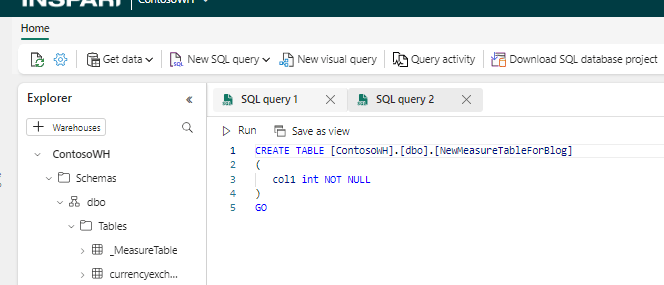
Feel free to modify the schema as well as the name for the table – I have chosen the name ‘NewMeasureTableForBlog’ as the name for my table. The table needs at least one column in order to be created. However, it is not important what you call this column, as we will be hiding it from view anyway.
Running the Query should create the table in your Warehouse. You may or may not need to manually refresh the Tables folder in your Warehouse to see the result:
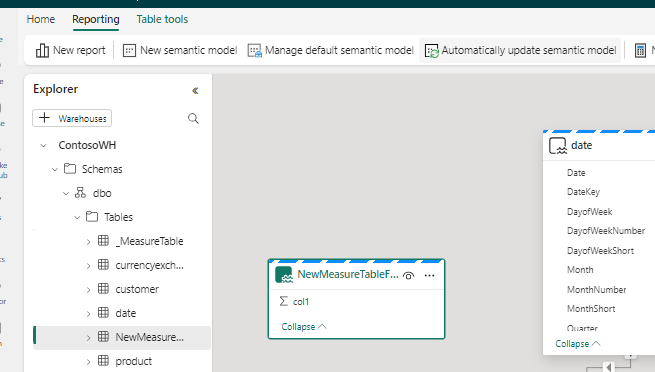
Converting the Table to a Measure Table
Now you arrive at a fork in your path, and you need to make a decision.
Do you wish to build your Power BI reports using the Default Semantic Model for your Warehouse? Or do you wish to create new Semantic Models on top of the Warehouse?
If the first is true, you can go ahead and create your Measures directly in the table you just created inside the default semantic model:

After creating the Measure, you can hide the original column:
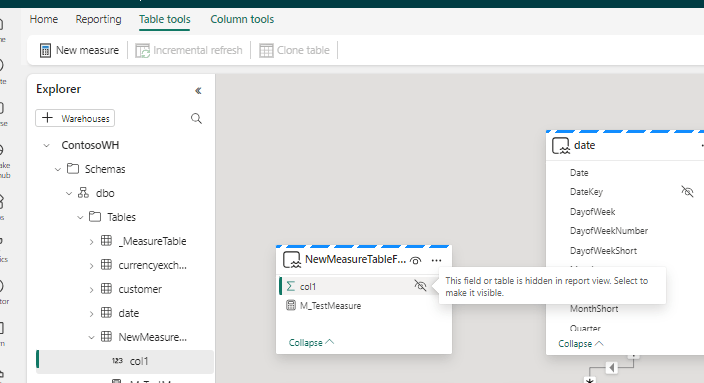
And despite not being visible from within the Warehouse itself, the table will now be represented as a Measure Table when you use the semantic model to build reports:

However, if you do plan on creating new Semantic Models on top the warehouse, instead of using the default semantic model, you should instead avoid creating your Measure in the default semantic model, as this will prevent you from adding the Measure Table to your new semantic model.
Instead, simply create a new semantic model using the unmodified Measure Table you created originally, and only create the New Measure and Hide the original column, once inside and editing the new semantic model.
And there you have it! That is how to create Measure Tables in your Fabric Warehouse Semantic Models.




 Downhill Data
Leave a comment