Introduction
Recently I posted my guide on Data Write-Back to Fabric Data Warehouse with Power BI and Power Apps: Live Data Write-Back to Fabric Data Warehouse from Power BI w. Power Apps and Power Automate – Downhill Data (downhill-data.com)
That solution uses Power Automate to circumvent the traditional Power Apps x Fabric problem, of Fabric Warehouses not supporting enforved Primary Keys, which is otherwise required for Power Apps write destinations.
However, a good friend of mine, Chris Hansen aka Skills Thrills asked me: Why don’t you just use Stored Procedures? I had no good answer, and hence, here is a quick guide on accomplishing Write-Back to Fabric Data Warehouse from Power Apps, using Stored Procedures.
The Case: Adding new users to Row Level Security (RLS) table in Fabric Data Warehouse
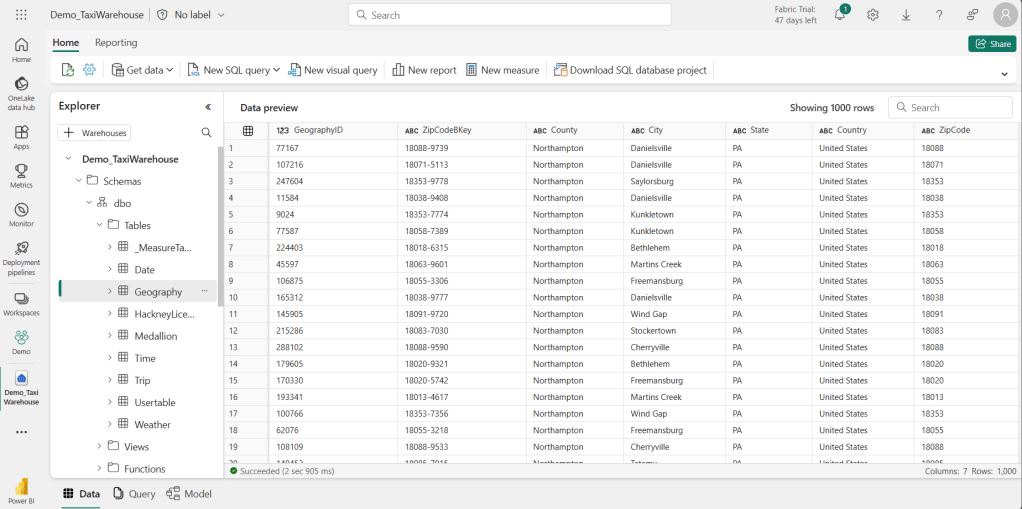
I have created a Fabric Data Warehouse using the famous Taxi Trip dataset. This dataset, I wish to use in Power BI reports, but I want to restrict access to data with Row Level Security (for a guide on how to configure DirectLake semantic models for Row Level Security, see my guide here: How to setup RLS in Microsoft Fabric / Power BI without breaking DirectLake functionality – Downhill Data (downhill-data.com)). Hence, to control RLS, I have a UserTable as well.
To understand the model, here is a glimpse of the Geography table of my model, as well as the User Table, which should allow a logged in user to see one or more States from the Geography table:
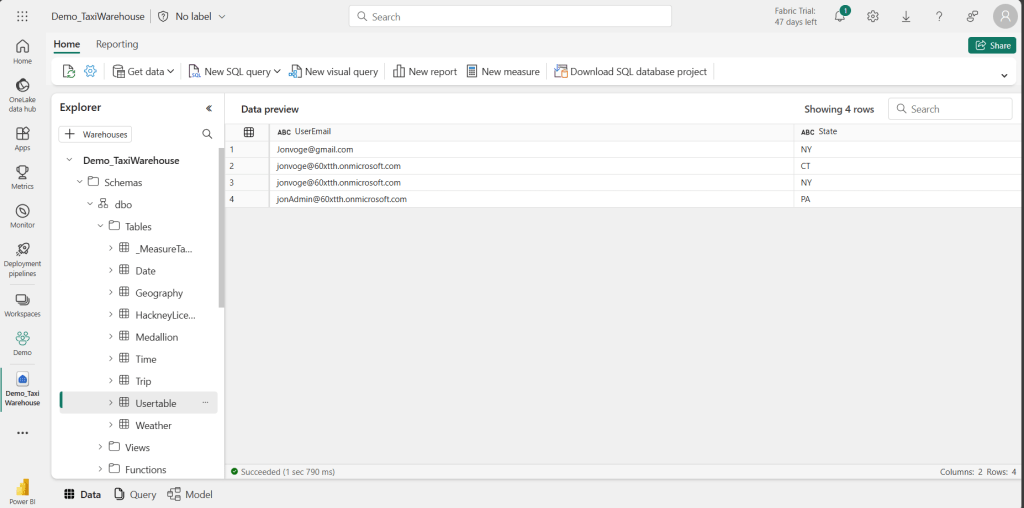
Now, what I would like, is to be able to add new rows of data to the UserTable, without having to write SQL Queries in my Fabric Data Warehouse. Rather, I would like to be able to user simple inputs in a Power App, to add this data.
To do this, we can create a reusable Stored Procedure, as well as a Power App to call said SPROC.
Creating the Stored Procedure
Let’s create the Stored Procedure first.
Create a new SQL query from blank, or use the SPROC template:
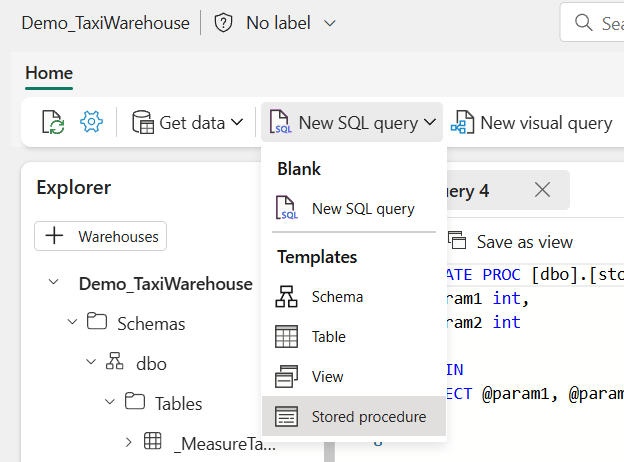
In this case, we wish to pass two parameters to the procedure, ‘State’ and ‘UserEmail’, and insert those value pairs into the User Table. Hence, we can modify the SPROC accordingly:
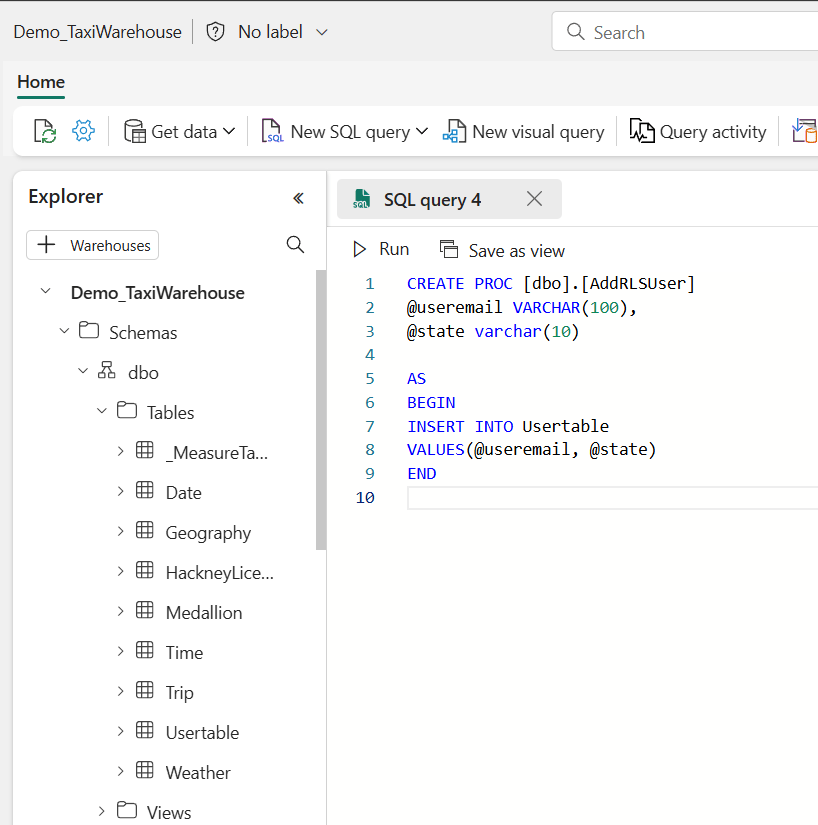
Don’t forget to run this query, as be need to create and persist the SPROC in our Fabric Data Warehouse. After running, the procedure will be available under the corresponding folder in the Warehouse:

Creating the Power App to call the SPROC
Next, we need a Power App to call this SPROC and feed it with the values we wish to insert. I will not go through this process A-Z, but suggest you to get inspired by one of the many guides available out there: Guide: Adding Write Back capabilities to your Power BI reports with Power Apps – Part 1: Getting Started – Downhill Data (downhill-data.com)
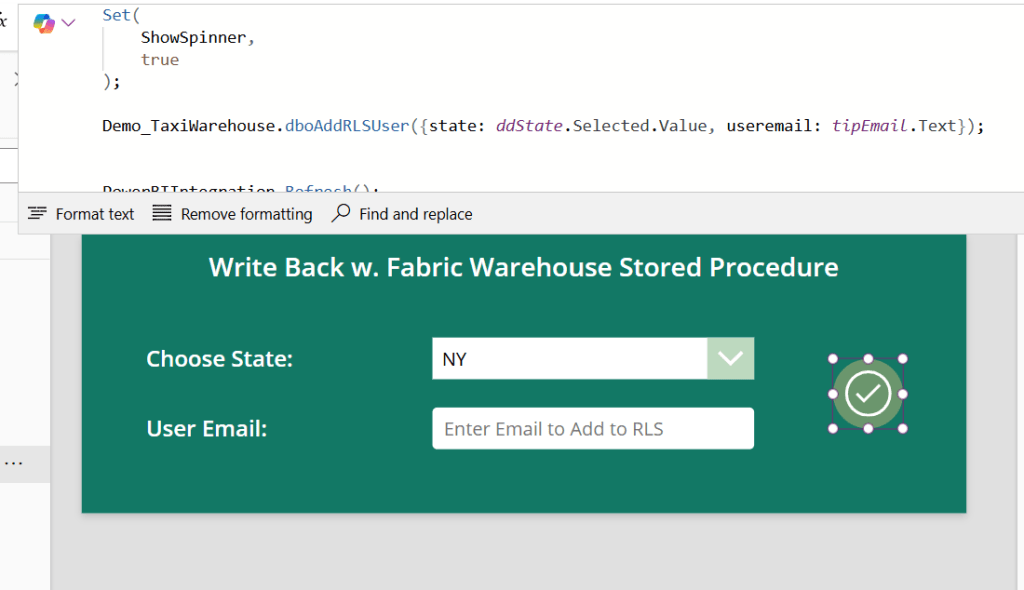
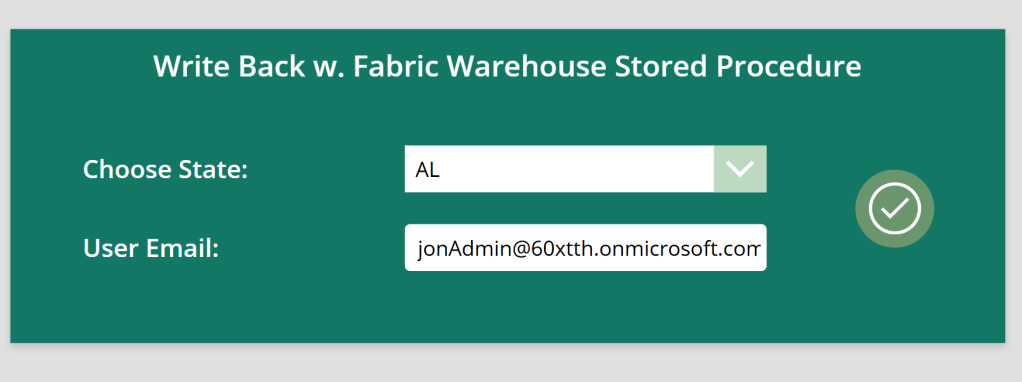
For this example, I am building an app that looks like the following, and which can be used either as a standalone app, or embedded inside a Power BI report (or even inside a Power Point, if you are crazy enough: Let Power Point users write data directly to your database w. Power BI & Power Apps – Downhill Data (downhill-data.com)
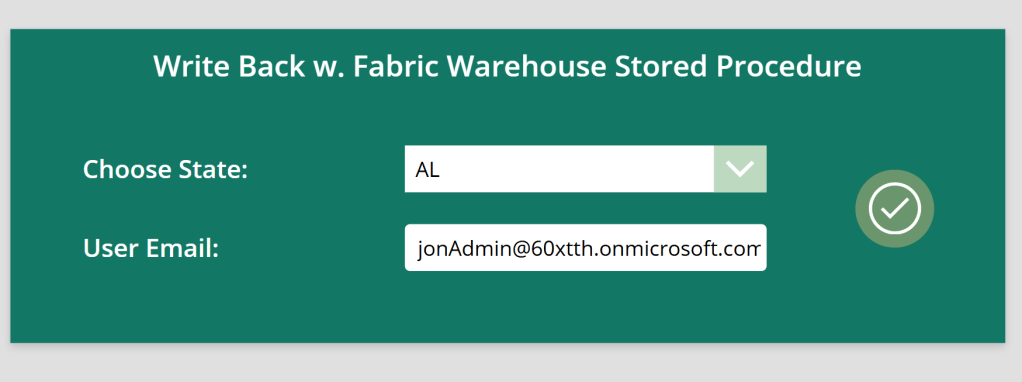
For this app, I have simply created a Dropdown to choose between States, a Text Input for inputting user emails, and a button to trigger the Stored Procedure.
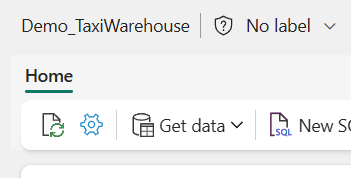
To make the app work, we further need to add a Data Connection to the Fabric Data Warehouse. To do this, first find the SQL Connection String in your Fabric Warehouse settings:

Then create a new SQL Connection in your app:
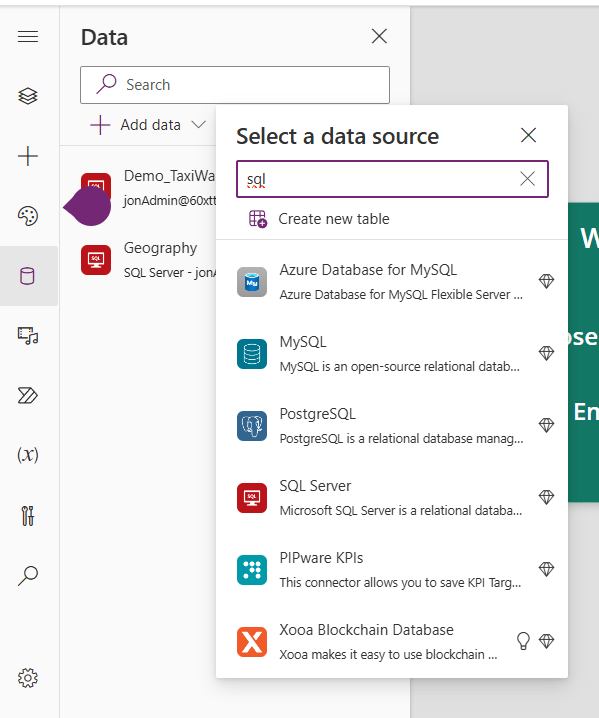
And input your copied Connection String as well as the actual name of the Warehouse as the database name:
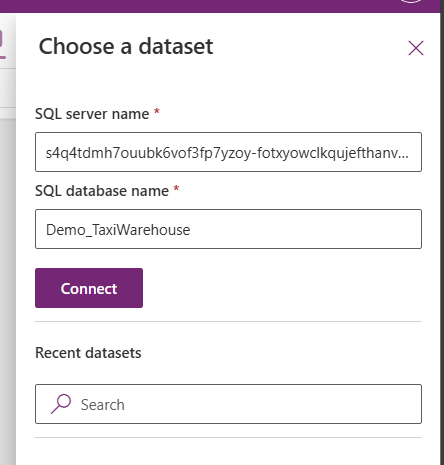
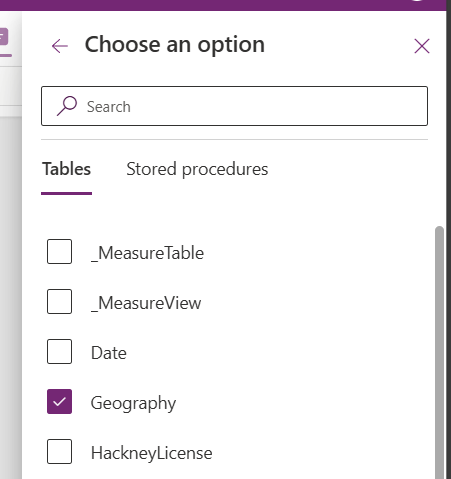
For this app I will connect to my Geography table, which I’ll use as a Read-Only table to populate my dropdown of States:
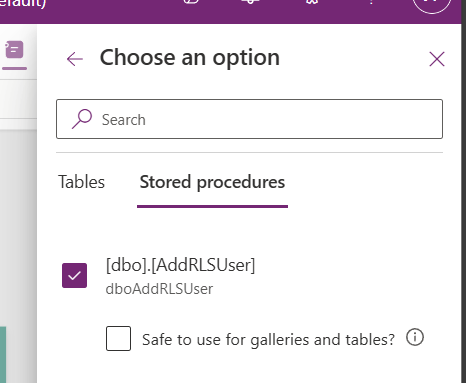
And then under the Stored Procedures tab, I’ll select the newly created SPROC:
To run the SPROC, all I need to do, is to add the line of code below, which assigns the User Inputted variables to the SPROC and runs it:
Demo_TaxiWarehouse.dboAddRLSUser({state: ddState.Selected.Value, usermail: tipEmail.Text});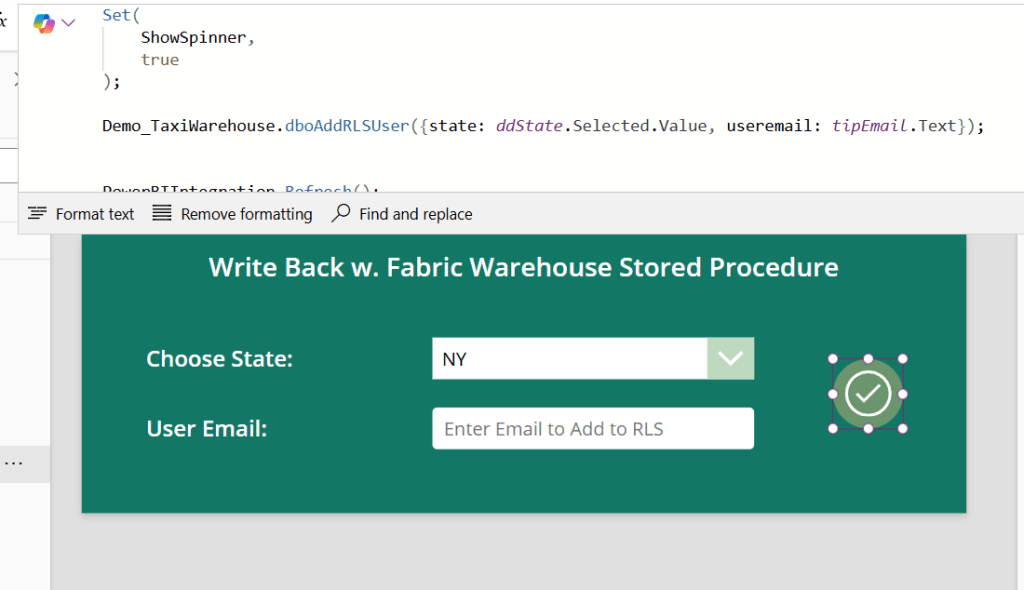
Now, If I fill out the inputs, and click the button, new rows will be added to my RLS table:
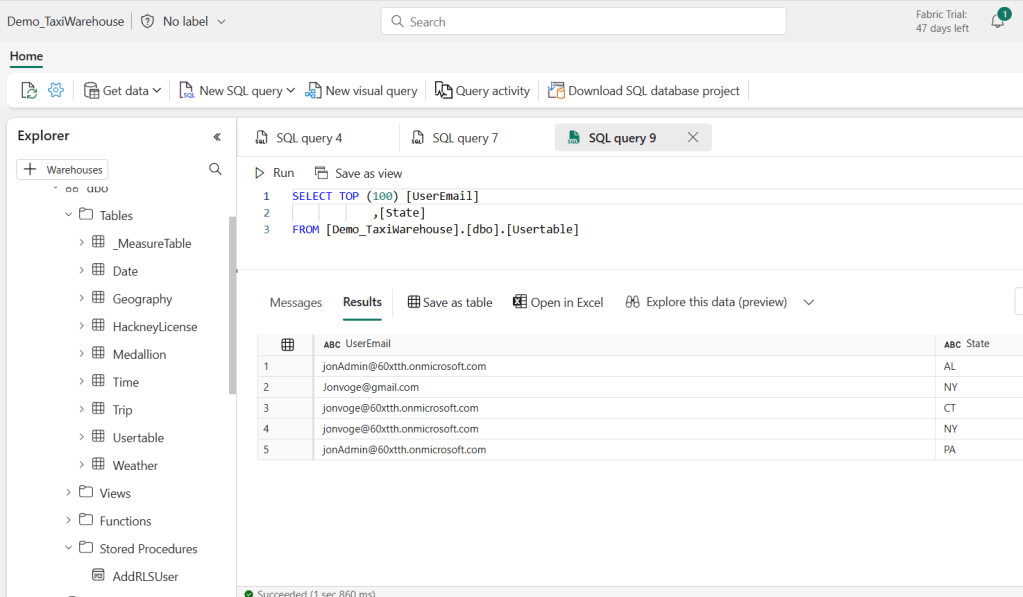
And that is actually all there is to it! You now know how to perform Write-Back to your Fabric Warehouse using Power Apps and Stored Procedures.
Advanced Implementations
There are many ways to build on this functionality.
Write Back embedded in Power BI
This app, as well as any other Power App, may be embedded inside Power BI. This allows for front end users to effectively manipulate data in your Fabric Warehouse.
You may allow them to write comments, input budget values, maintain master data and much more from within an interface they easily understand, but which is fully under your control. This functionality may even be embedded inside Power Point!
Bulk Record CRUD operations from Power Apps
You may also choose to Create, Update or Delete records in Bulk from your Fabric Warehouse w. Power Apps. Either loop through a list of records in your App, executing the SPROC once for each record, or even better, pass a table of records as a JSON Object to your SPROC, and handle the parsing and CRUD operations in the SPROC itself.
Your Idea here?
Perhaps you have another idea for building on top of the outlined Write-Back with Stored Procedure functionality? Please let me know – I am curious to hear…




 Downhill Data
Leave a comment