Introduction
In Microsoft Fabric, whenever we create a new Lakehouse or Warehouse, a Default Semantic Model is created. However, we can also choose to create a Custom Semantic Model on top of our Lakehouses and Warehouses. A dual-concept which is confusing to many.
This blog will try to explain:
- What is the difference between the Default and Custom Semantic Model?
- Why are there even two different options?
- Are there any reason to pick Default Semantic Models over Custom Semantic Models?
The TL;DR of this blog: It’s all about Model Ownership.
Default Semantic Models are great when you want the Semantic Models to be owned and maintained by your backend team, and want to minimize model development by your Power BI Report authors.
Custom Semantic Models are great when you want Power BI developers to own, and maintain the semantic model including security options themselves.
For the full explanation, read on below.
Making changes to the Default Semantic Model
Default Semantic Models are meant to be modified and owned by your Lakehouse / Warehouse developers. If they have spent time carefully engineering a backend and made conscious choices about columns, data types, constraints and table designs, it makes sense that those choices are automatically reflected in a data model that is ready to use for Power BI developers, and that Power BI developers can’t edit this model.
Hence, you will quickly experience that the Default Semantic Models are to be maintained quite differently than what you might be used to from Power BI.
When you create a new Warehouse or Lakehouse in Fabric, a popup will alert you that a Default Semantic Model has been created, and that you can sync it automatically from your Warehouse, or manually add objects from its settings:

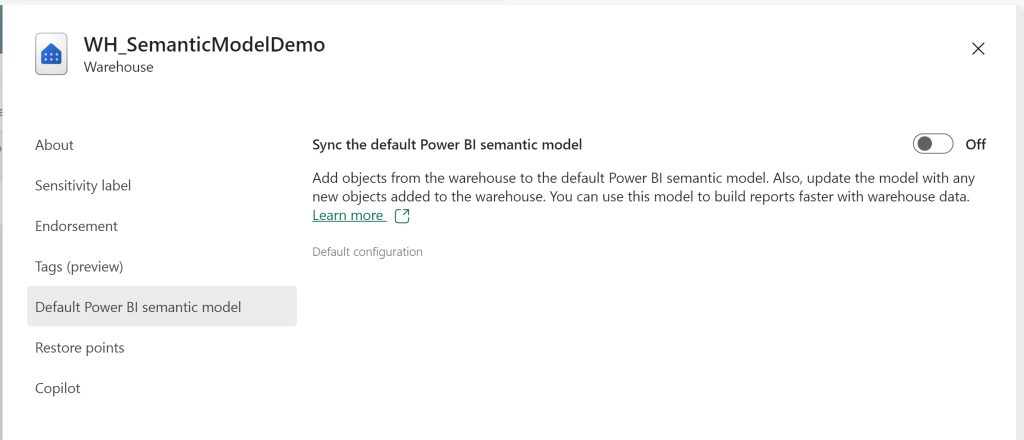
If you choose to Sync, all of your Tables will propagate into the Semantic Model:
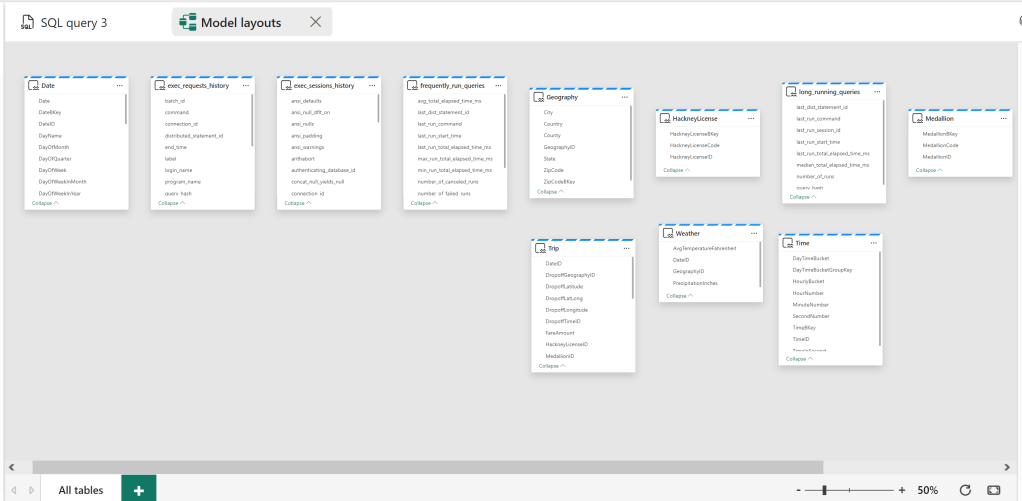
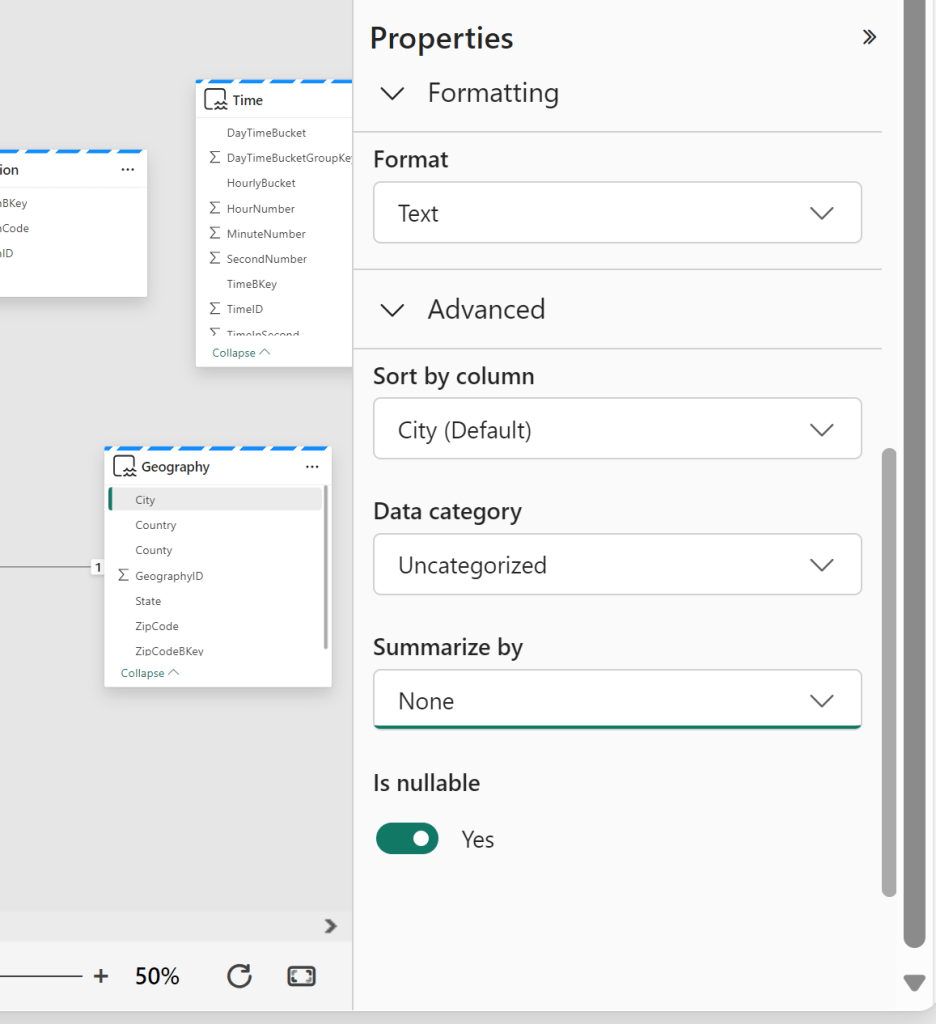
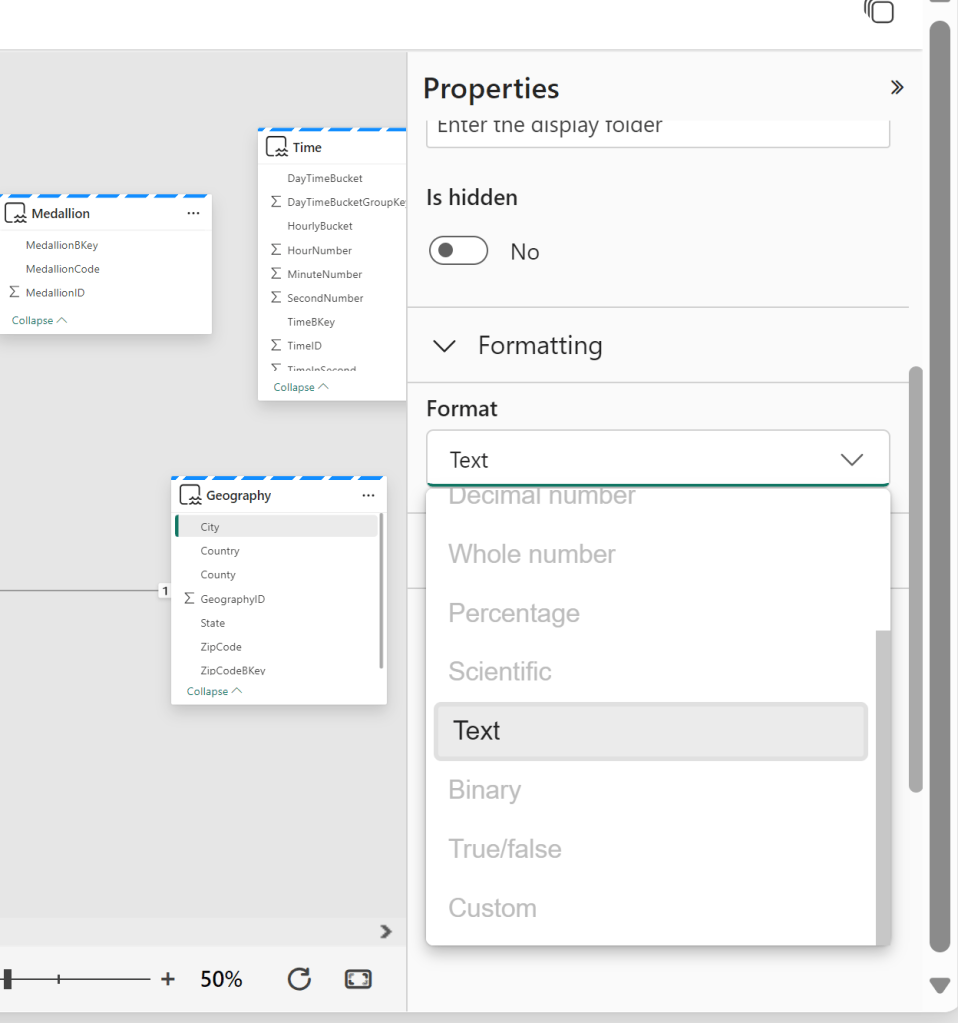
While it in the Model Layout for Default Semantic Model is possible to change data types, add display folders, hide columns, add sort by columns, data categories and default aggregations, it is for example not possible to change data types from the layout (outside of altering number formatting):
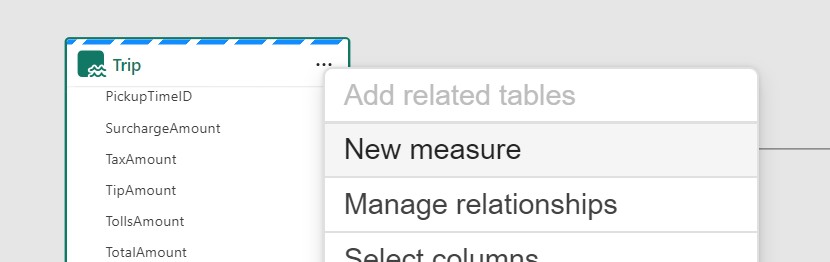
It is possible to create Calculated Measures:
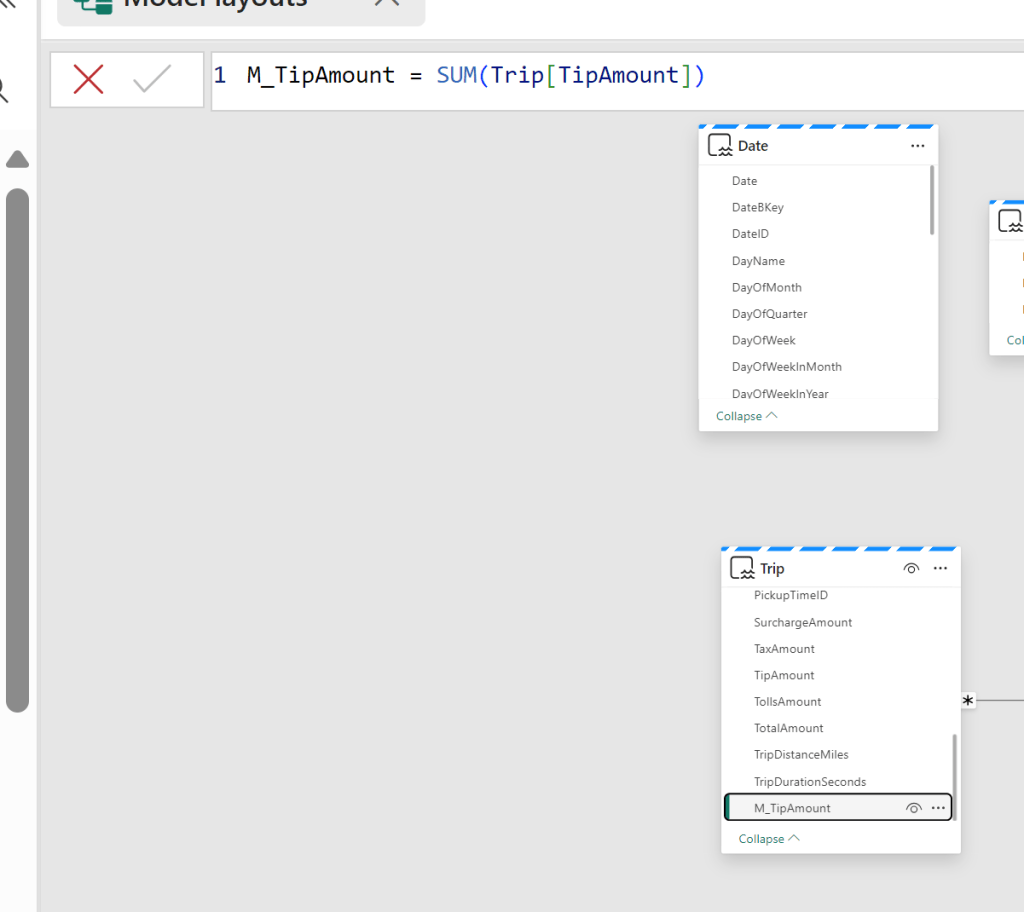
But it is not possible to create Calculated Columns or tables with DAX.
You’ll also notice that the Storage Mode for your tables will forever be locked to DirectLake.
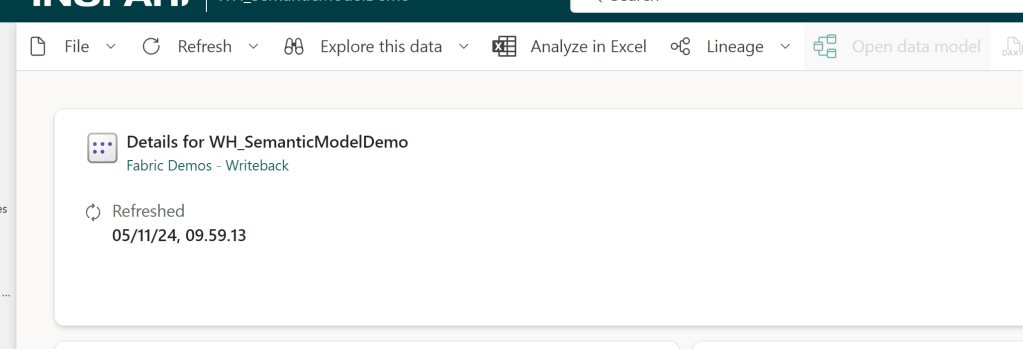
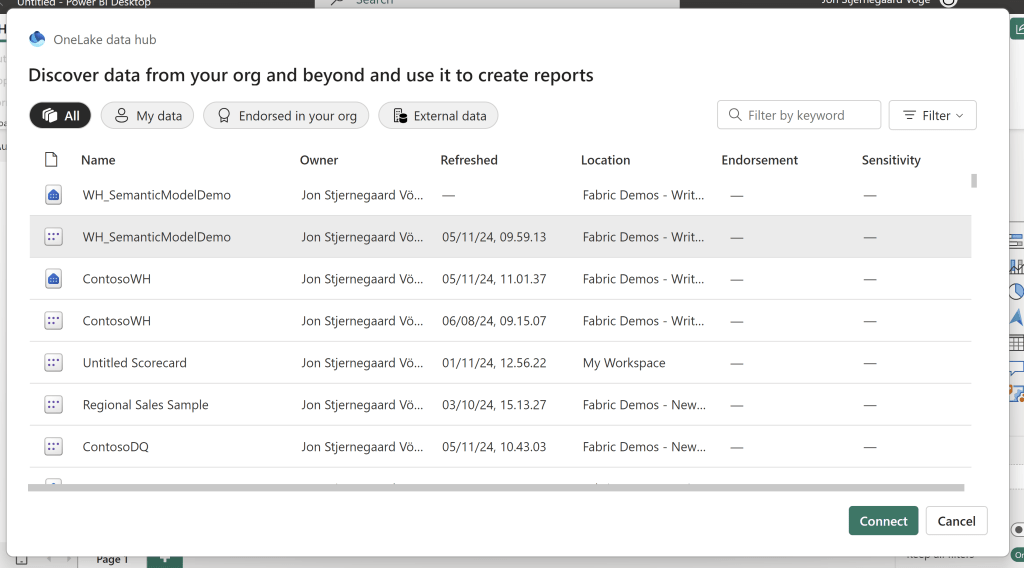
If you think, maybe I can bypass these limitations by editing the data model directly in the Service, or in Power BI desktop, you will unfortunately be proven wrong. It is only possible to edit the Default Semantic Model from inside the Warehouse and Lakehouse Fabric items:
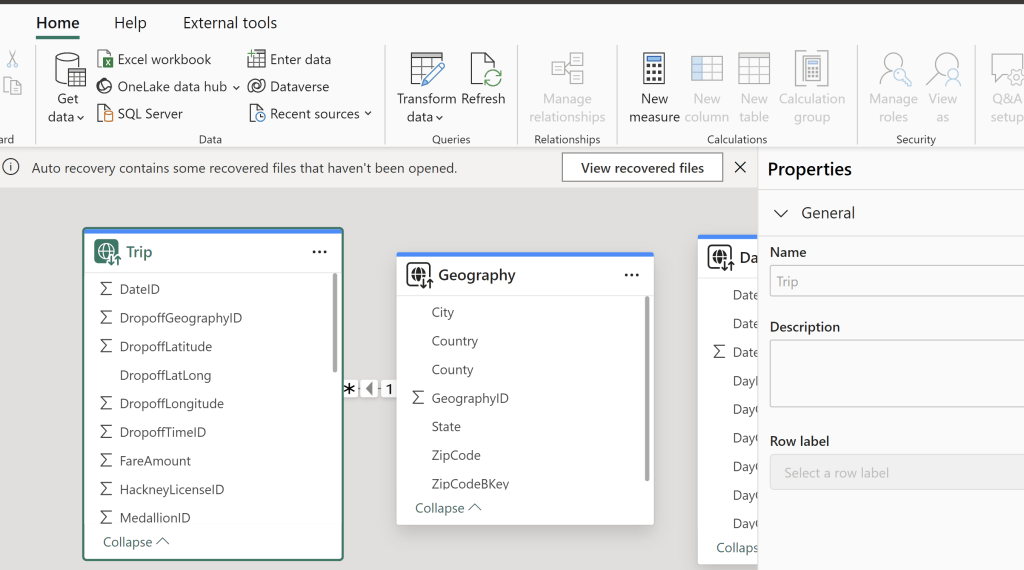
And if you connect to the Default Model in Power BI Desktop, you will not have any more luck:
Maintaining Logical & Physical Relationships in the Default Semantic Model
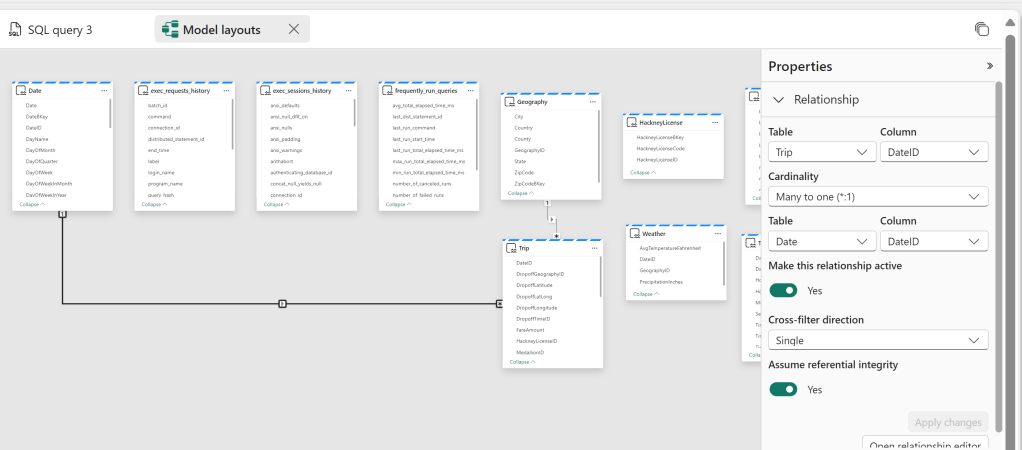
From the Model Layout, you can configure Logical relationships between tables in the Default Semantic Model through an interface similar to Power BI:
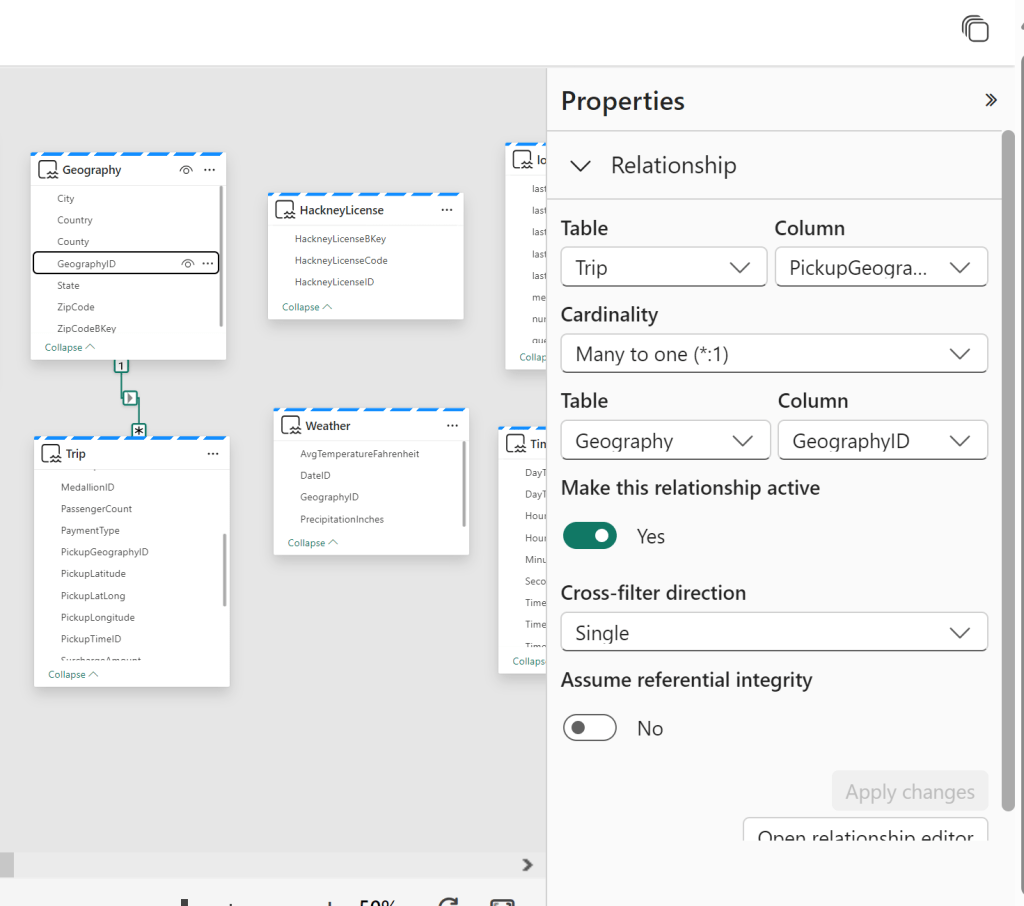
And what’s really interesting, is that when these Logical Relationships are created, it will automatically create a physical relationship in the shape of Primary and Foreign Key constraints on the respective table in the Warehouse or Lakehouse.
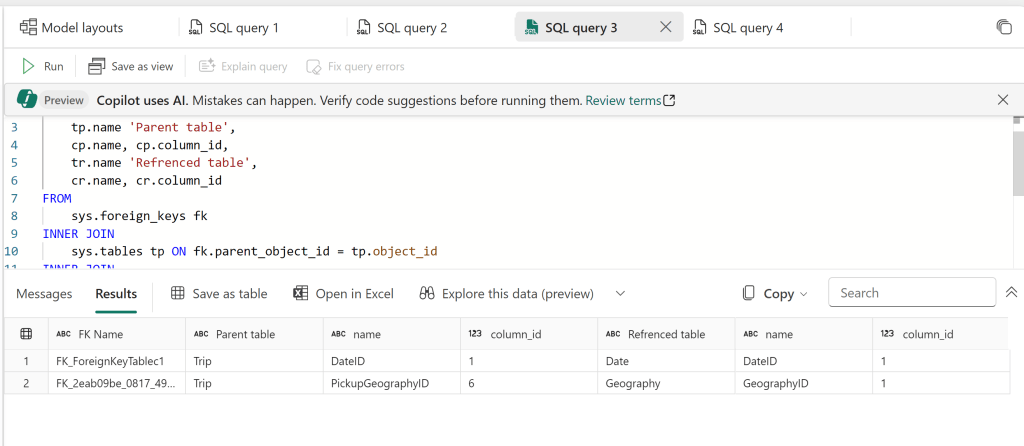
I stole a small piece of code posted by Andy Cutler on the Fabric Community forums for retrieving all active Foreign Keys in a Warehouse: (Solved: Re: Building relationship in Fabric Datawarehouse … – Microsoft Fabric Community)), which clearly shows a Foreign Key constraint mimicking the many-side of the relationship I just created:
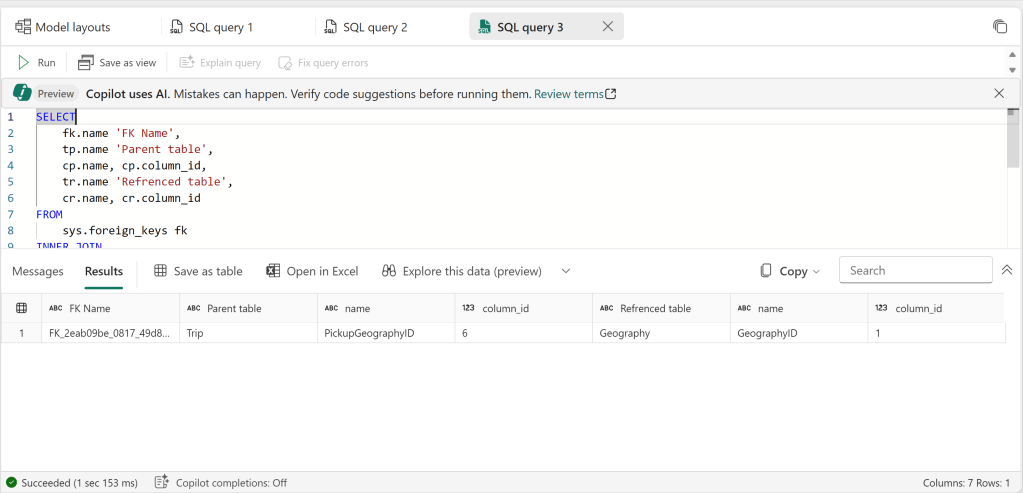
SELECT
    fk.name 'FK Name',
    tp.name 'Parent table',
    cp.name, cp.column_id,
    tr.name 'Refrenced table',
    cr.name, cr.column_id
FROM
    sys.foreign_keys fk
INNER JOIN
    sys.tables tp ON fk.parent_object_id = tp.object_id
INNER JOIN
    sys.tables tr ON fk.referenced_object_id = tr.object_id
INNER JOIN
    sys.foreign_key_columns fkc ON fkc.constraint_object_id = fk.object_id
INNER JOIN
    sys.columns cp ON fkc.parent_column_id = cp.column_id AND fkc.parent_object_id = cp.object_id
INNER JOIN
    sys.columns cr ON fkc.referenced_column_id = cr.column_id AND fkc.referenced_object_id = cr.object_id
ORDER BY
    tp.name, cp.column_id
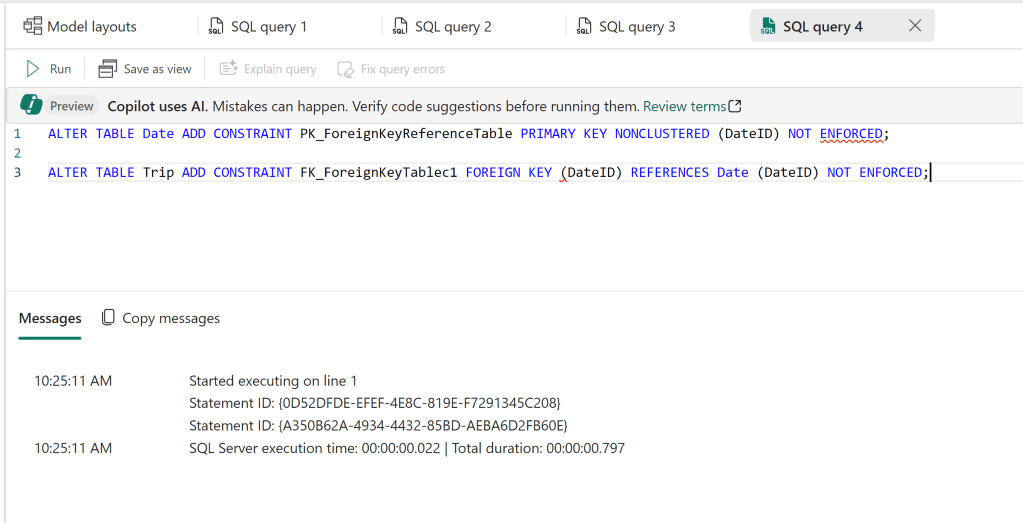
I can also create my constraints and physical relationships with SQL. Here I use two ALTER TABLE statements to add a Primary Key constraint to the Date Table, and a Foreign Key constraint to the Trip Table:
The Foreign Key Constraint shows up in my query from before:
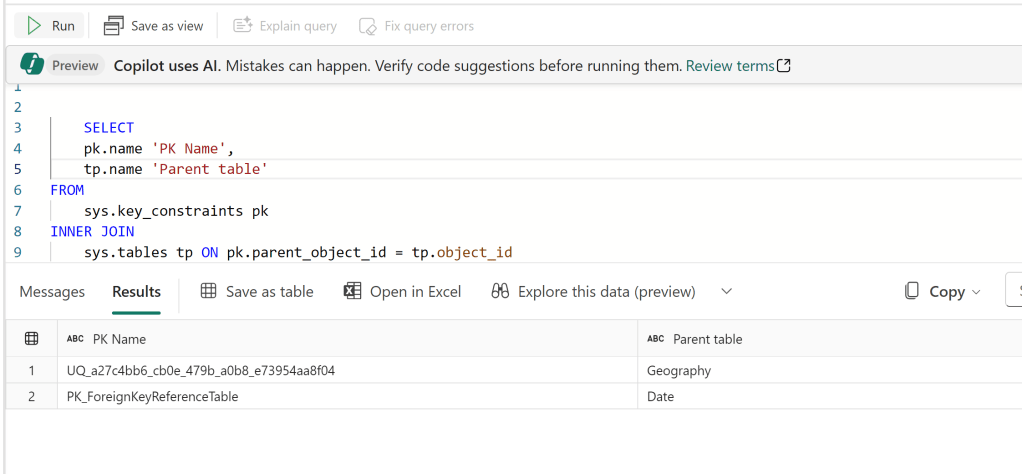
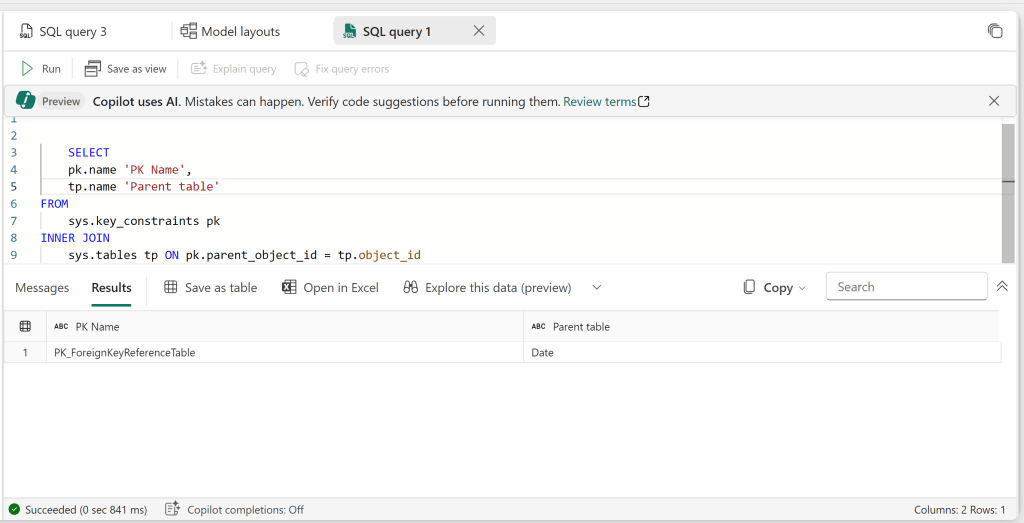
And I can also find my newly created Primary Key constraint, as well as the one created automatically from the Model Layout by querying the sys.key_constraints table:
This physical relationship will also automatically manifest as a Logical Relationship in the Default Semantic Model:
Now finally, if I delete the logical relationships from the Model Layout:
The Foreign Key Constraints from both of the created relationships are deleted:
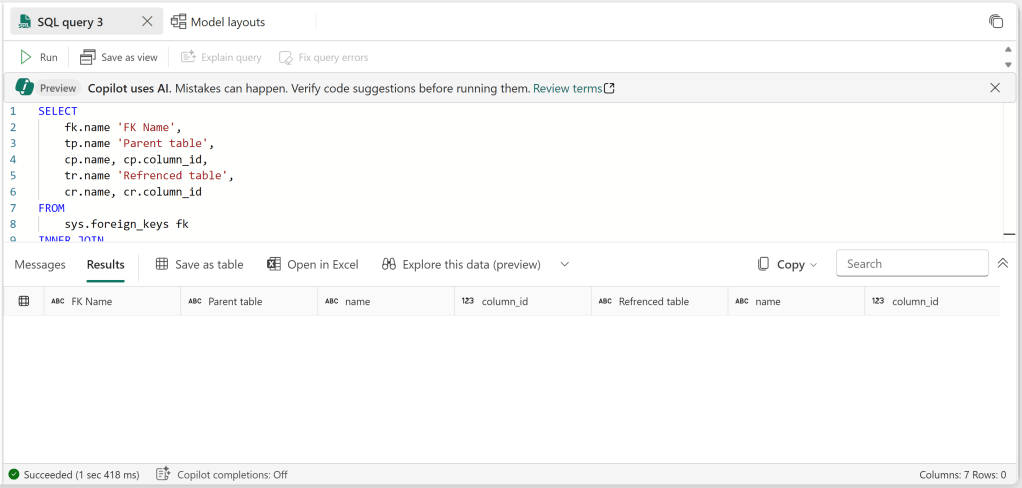
But the Primary Key constraint on the Date table remains, while the Geography Key was deleted:
Maintaining security in the Default Semantic Model
As we can’t open the normal Semantic Model editing experience in neither the service nor Power BI desktop, and are left with the Warehouse/Lakehouse interface, you’ll also notice that we have no way of accessing the “Manage Roles” feature that most Power BI developers rely on for configuring Row Level security.
(If you are working with custom semantic models, and struggling with RLS, have a look at this blog: How to setup RLS in Microsoft Fabric / Power BI without breaking DirectLake functionality – Downhill Data)
Instead, you will need to configure Security the good old way with SQL. You can configure object-level security, row-level security, column-level security, and dynamic data masking. Microsoft already has good documentation on these topics:
SQL granular permissions – Microsoft Fabric | Microsoft Learn
Row-level security in Fabric data warehousing – Microsoft Fabric | Microsoft Learn
Column-level security in Fabric data warehousing – Microsoft Fabric | Microsoft Learn
Dynamic data masking in Synapse Data Warehouse – Microsoft Fabric | Microsoft Learn
In this way, you can completely remove the need for your Power BI developers to rely on Manage Roles and custom RLS rules in the semantic model. Instead you will define the rules on the Warehouse/Lakehouse.
Conclusion: Default Semantic Models are good for pushing model ownership upstream
All in all, Default Semantic Models provide your Warehouse/Lakehouse developers with the option to provide a Semantic Model to your end users, and defining most things in code (aside from Calculated Measures). New tables and relationships will also appear automatically to your end users as you add them in the backend.
This makes for both a quite scalable and maintainable solution, and may be quite useful in scenarios in which you want to minimize model development downstream from the Warehouse/Lakehouse to ensure consistency in your metrics and analytics definitions.
The downside is of course a huge loss of possible customization options for your Power BI developers, who will be limited to creating new Calculated Measures.
Data Sources, Tables, Columns, Data Types, Relationships, Calculation Groups and Security will all need to be managed centrally by the Warehouse/Lakehouse team, and I bet you that you will have hungry Power BI developers breathing down your neck in no time, asking for changes, or to make changes themselves.
What do you make of Default Semantic Models in Fabric?




 Downhill Data
Leave a comment