
Introduction
So your old Power BI Premium Capacity has run/is running out, and your organization is acquiring a new Fabric Capacity to replace it.
Perhaps the organization even decided to take the chance to move the capacity region to something a little closer to home?
If you find yourself in this situation, how do you best migrate your contents of one Capacity to another?
In this blog, I’ll try to shed some light on some of your options, including what to do when things go wrong.
Migrating from Power BI Premium to Fabric within the same region
If your new Fabric Capacity is in the same region as your old Power BI Premium capacity, you’re in luck, as the process will not be difficult at all!
Manual Approach:
Do you only have a small amount of content on your old Power BI Premium Capacity?
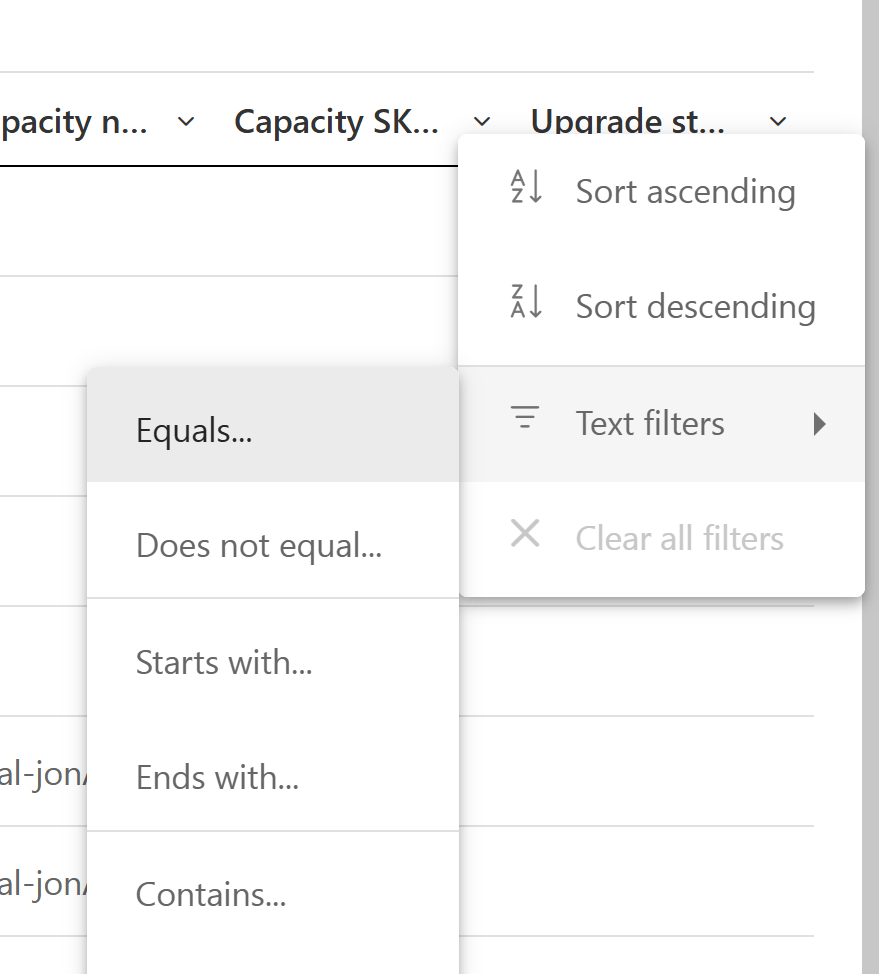
I find the easiest solution to simply be booting up your Admin Portal, finding your Workspaces inventory, and adding a Text Filter to the Capacity SKU Tier column, searching for any workspaces assigned to your old P-SKUs:

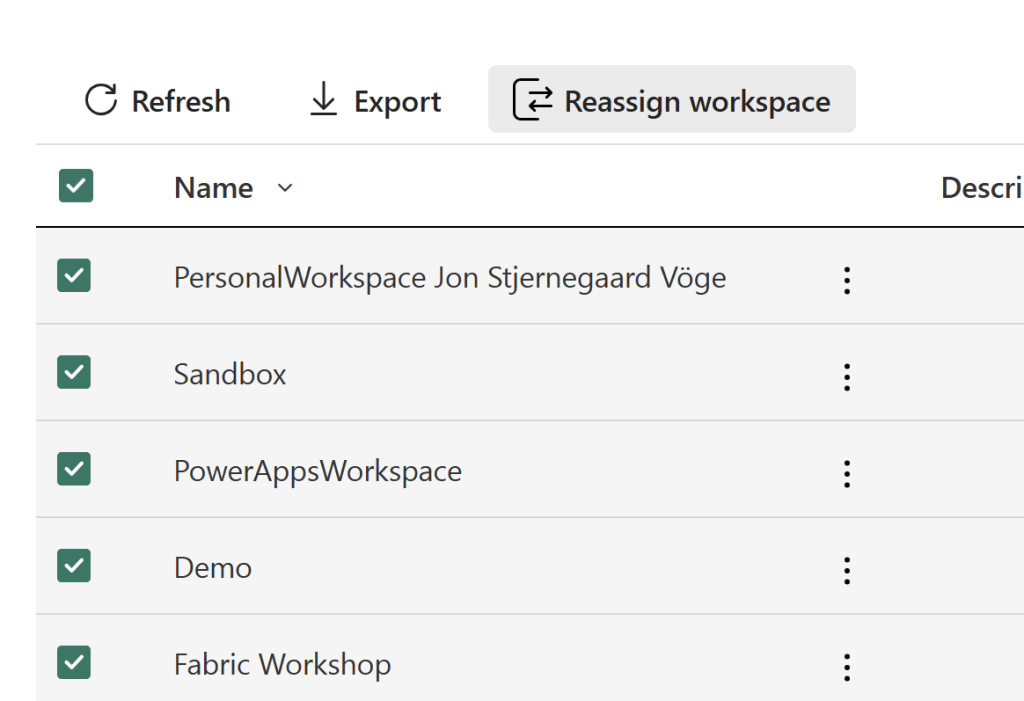
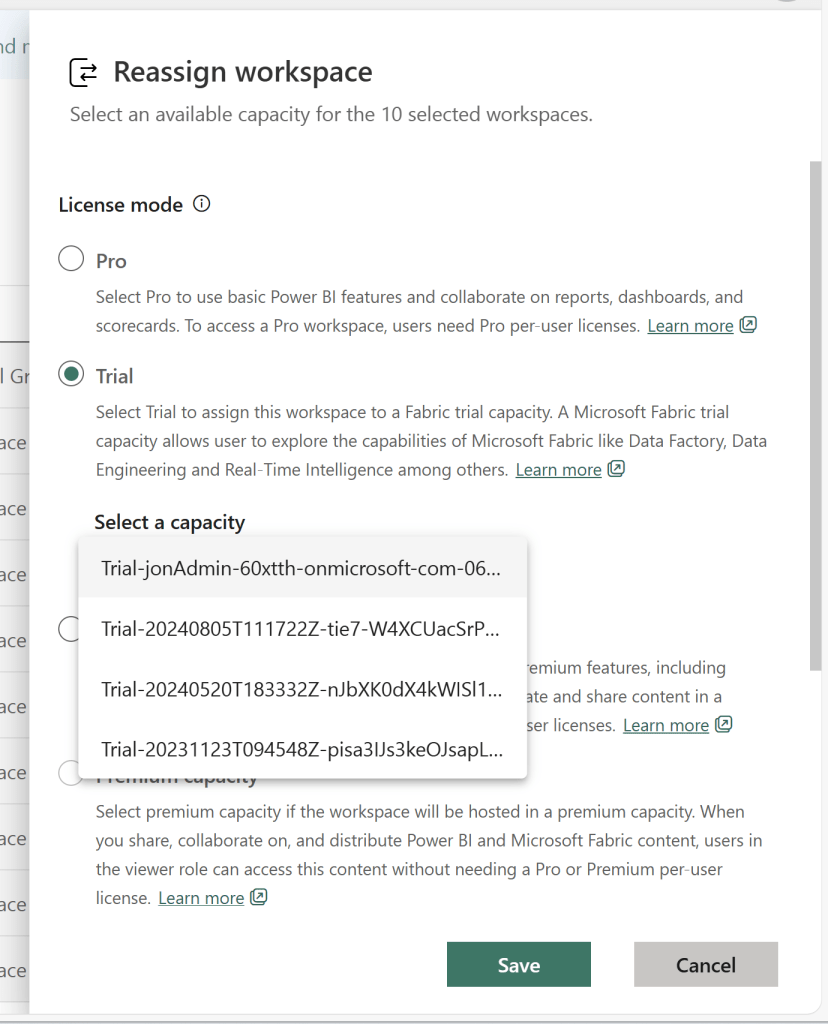
And if you hit the little “select all” checkbox (You can even change the view to list 100 Workspaces at a time, and select all 100!), you can select the Reassign Workspace button, and bulk reassign all the selected Workspaces.
Note, that the Reassign button disappears if you select a Workspace ineligible for reassignment (e.g. Personal Workspaces):
Now I only have Trial Capacities on this tenant, but you will just scroll down to Fabric Capacity, in a real production scenario:
Automated Approach:
Do you have way too many workspaces to even migrate workspaces in bulks of 10s or 100s? Then luckily the good folks working on Semantic Link Labs have developed an automated approach that you can use for free: semantic-link-labs/notebooks/Capacity Migration.ipynb at main · microsoft/semantic-link-labs
The following blog goes through the process in better detail than I could’ve explained myself:
Transitioning from Power BI Premium to Fabric Capacities – Mitch’s Dev Blog
Migrating from Power BI Premium to Fabric in a different Region
If your new Fabric Capacity is in a different Region from your Power BI Premium capacity… Well, there are a few things you need to be aware of.
- You can’t automate the process… Currently. Semantic Link Labs are said to be working on a solution that allows cross-region migrations, but it does not exist at the time of writing this.
- Fabric Items that have been created in workspaces allocated to your Power BI Premium capacity, can’t be moved cross region.
- Semantic Models using Large Storage Format will break when reassigned to a capacity in a different region.
While the first point is annoying, we can still do the manual bulk-migration mentioned above. And the process of reassigning the workspaces are exactly the same when going cross region. However, before you attempt to do so, the latter two points deserves further elaboration, as you might want to do some prep work and clean up before migrating:
Dealing with Fabric Items
So… Power BI Premium perfectly supports the creation of Fabric Items, right? So chances are that your users are already happily creating Dataflow Gen2s, Lakehouses, Notebooks etc. on your Power BI Premium backed workspaces.
Well, isn’t it great then that if you wish to migrate said workspaces to a new Fabric Capacity in a different region, you’ll be hit by this wonderful error?

Workspaces cannot be reassigned if they include Fabric Items and you are trying to move cross region. What’s the solution? Well, there are only two feasible options:
Manual approach to dealing with Fabric Items:
- Manually back up items to be saved from the workspace
- Delete the Fabric items from the Workspace
- Migrate the workspace to the new capacity
- Manually recreate your items.
Obviously this does not work equally well for all artifact types. We can easily export code from Notebooks or Dataflows, but its not so easy to manually backup data in a Lakehouse.
In some cases you might also simply be lucky that your users have been using Fabric for sandbox purposes only, and that they don’t really mind having their old test items deleted without backing up….
Automated Approach to dealing Fabric Items
- Synchronize your entire Workspace to a GIT repo in ADO or Github (Overview of Fabric Git integration – Microsoft Fabric | Microsoft Learn)
- Detach your workspace from the Repo
- Delete all Items from the Workspace and migrate your Workspace to the new Capacity (alternatively, create a new empty workspace on the new capacity)
- Reconnect your workspace to the GIT repo and sync the contents of your GIT repo into your workspace.
Note that you can’t just backup the Fabric Items, and leave the Power BI items be. When syncing a workspace with a GIT branch, items which are not present in the branch will get deleted. Hence, you need to backup and sync all of your contents both ways, even though only the Fabric Items were a problem in the first place.
Dealing with Large Storage Format
A commonly used Premium Feature in Power BI, is the Large Storage Format. What is not commonly known, is that Large Storage Formats are tied to the region of your Capacity.
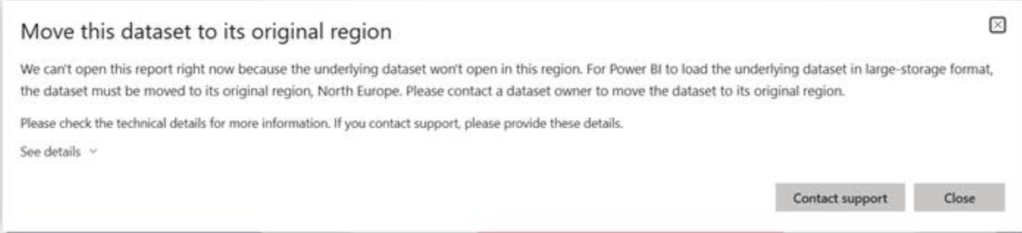
However, instead of the helpful error message given when you attempt to migrate a Workspace containing Fabric Items, nothing is going to stop you when you try to migrate a Workspace full of Large Semantic Format semantic models (guess how I learned that).
The consequence is that any report relying on said Large Format semantic models, will throw the following error when you try to open it:
“Could you just toggle Large Format off and on again” asked the clever reader.
The answer is no. You will receive an error stating that the change to Small Storage Format failed.
“Could you just download the Large Format semantic model, delete it from the workspace, republish it to the workspace, and reenable Large Storage Format” asked again the clever reader?
The answer is no. While it was made possible not too long ago to download Large Storage Format models from the Service (something that used to be difficult/impossible in the past), a model which has been moved cross region will throw an error when you try to download it.
Instead, your only hope is to:
- Reassign your Workspace BACK to your old capacity (or another capacity in the region that your model was originally created in)
- Change the Storage Format of your Semantic Models to Small
- If your model actually exceeds 10GB in size this will fail, and you will first need to empty out some/all of the data in your model, before it will allow you to change to Small format. Some tips on doing this is available here: Migrating from Premium (P*) to Fabric (F*) capacity across regions | by Riccardo Perico | Rik in a Data Journey | Medium
- Reassign your Workspace to your new Fabric Capacity Again
- Reapply Large Storage Format
- Refresh your Data Model (which of course might take some time, if your model is large…).
And that needs to be done for all of your Large Storage Format models.
Fun times!
Conclusion
Moving capacities cross region is no joke.
Especially if you have many Fabric Items existing on your capacities already and/or many semantic models using Large Storage Format.
While the first might actually stop you before you do anything stupid, the latter will not show as an error until your users start complaining.
In order to better mitigate the problem, consider scanning your tenant for Large Semantic Format models before attempting a migration. These can be identified by means such as Powershell: Large semantic models in Power BI Premium – Power BI | Microsoft Learn





 Downhill Data
Leave a reply to Romain Casteres Cancel reply