Introduction
In a previous blog we covered how to perform write-back to SQL Databases in Fabric with Translytical Task Flows: Guide: Native Power BI Write-Back in Fabric with Translytical Task Flows (How to build a Comment/Annotation solution for Power BI) – Downhill Data
In that article, we took advantage of some of the built-in sample code from the User Data Function editor, as well as some great code examples from Sujata: Example User data functions for Translytical task flows · GitHub
The problem? All of these samples use SQL Databases in Fabric as the backend item.
SQL Databases in Fabric work great for write-back, but some use cases might demand using a Fabric Data Warehouse as a backend. And while the Translytical Task Flow documentation lists writing to Warehouses as a possibility, it is almost impossible to find any examples or documentation on how to do this.
I set out to figure it out.
Hence, in this blog post: How to write-back to Fabric Data Warehouse with Translytical Task Flows and User Data Functions from Power BI.
Setting up the Fabric Warehouse
For this exercise, I created a new Fabric Warehouse, and ingested the same Adventure Works data that was used in the SQL Database in my previous posts.
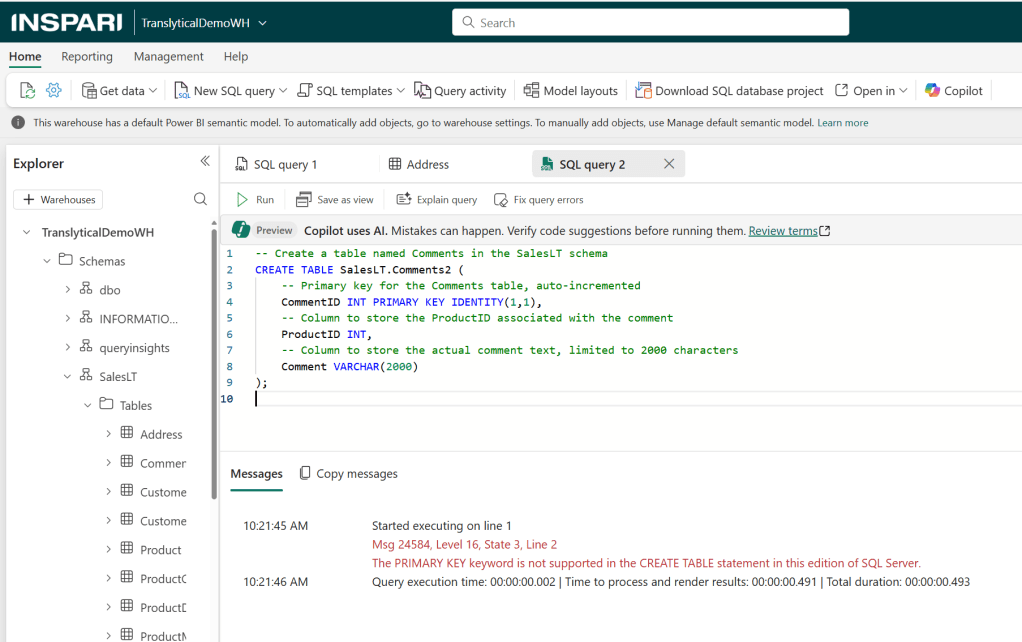
In addition, I recreated the additional “Comments” table, like we did in the previous solution as well.
A simple 5 column table to store CommentID, ProductID, LevelOfDetail, Comment and Score as determined by a user in a Power BI report.
Note however, that Fabric Warehouses do not support PRIMARY KEY and IDENTITY columns as seen below (more about that later), and also that certain data types are used slightly different (e.g. nvarchar -> varchar):
Figuring out how to create the User Data Function
Now I want to create a User Data Function, which can take my user input from Power BI, and write it into the table created before.
For the SQL Database I found a lot of help in simply using the samples from the User Data Function editor. Let’s try the same here:
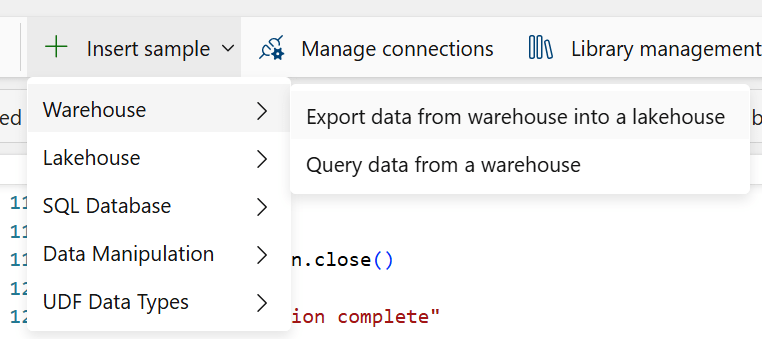
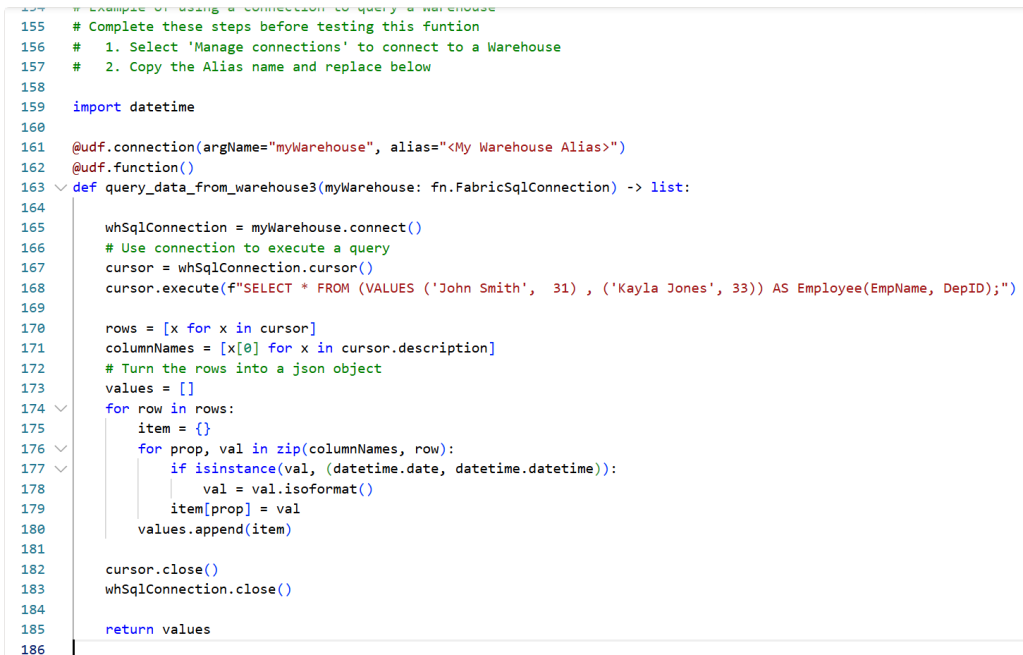
Unfortunately, there are only examples of querying/exporting data from a Warehouse, and nothing about inserting data into one.
However, the sample gives a good general idea that the syntax is close to the same for Warehouses as for SQL Databases. We need to:
- Import the fn.UserDataFunctions() library
- Not seen on the screenshot, but my code starts with
“import fabric.functions as fn
udf = fn.UserDataFunctions()”
- Not seen on the screenshot, but my code starts with
- Define a connection to the Warehouse, using the alias from our Connection Management menu with the udf.connection() function, as well as set up a connection object in the code (lines 161 and 165 above)
- Define the actual Function with a name and parameters to be set, using the “def” keyword (line 168 above)
- Use the cursor() and connect() functions to execute, commit and close our commands to the Warehouse (lines 167, 168 and 182 above).
My first attempt at a piece of code modified for my use case, looked like the below:
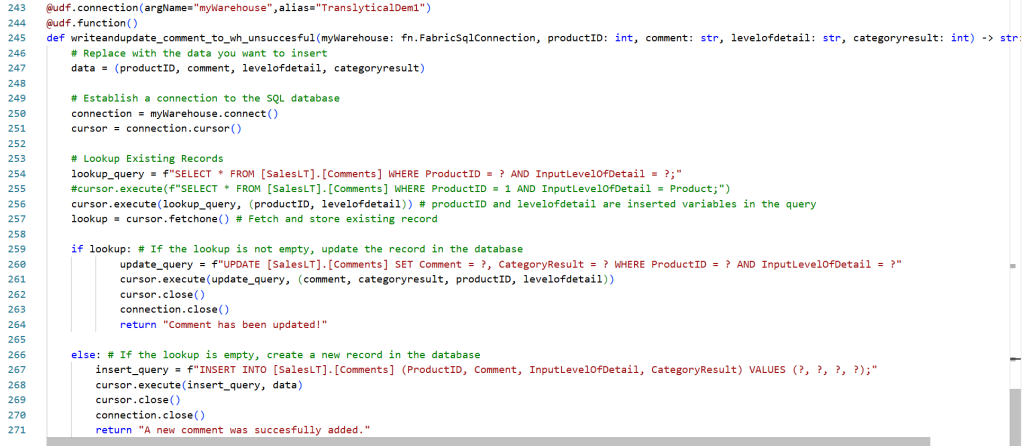
Triggering the User Data Function as a Translytical Task Flow from Power BI gives the excellent error message: “An internal execution error occured during function execution”
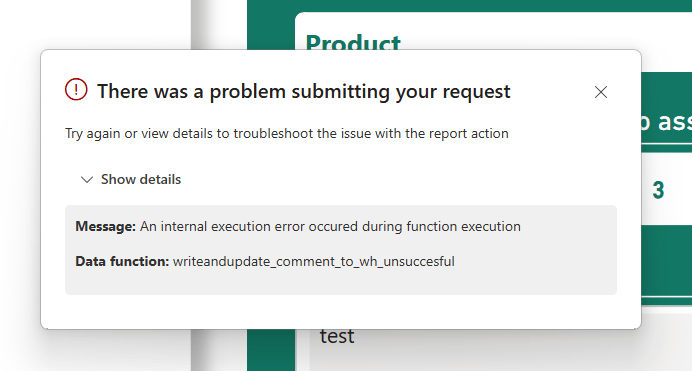
Turns out, there were two key pieces of information needed for writing to a Warehouse which was missing from the samples that I was inspired by, and which caused problems with the code above:
- To submit the data to the Data Destination, you need to add a commit() function after your execute() function (this is the same as when writing to a Fabric SQL Database, so I guess I should have known this)
- To correctly identify the table to write to, you need to use the three part naming convention which includes the name of the Warehouse itself in the query (no idea why it can’t figure this out from the connection details, when it was not a problem for the SQL Database).
How did I troubleshoot and identify the issues above? Mostly trial and error and a bit of LLM assistance. But also by applying a bit of Error Handling logic to my code. But more about that in next weeks blog.
Anyway – The revised, working piece of code, is seen below:
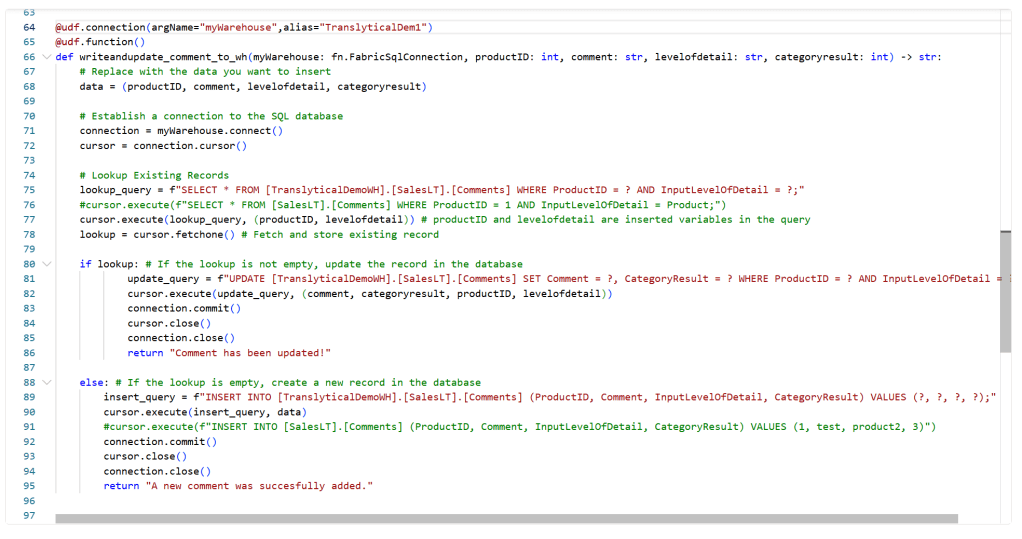
@udf.connection(argName="myWarehouse",alias="TranslyticalDem1")
@udf.function()
def writeandupdate_comment_to_wh(myWarehouse: fn.FabricSqlConnection, productID: int, comment: str, levelofdetail: str, categoryresult: int) -> str:
    # Replace with the data you want to insert
    data = (productID, comment, levelofdetail, categoryresult)

    # Establish a connection to the SQL database
    connection = myWarehouse.connect()
    cursor = connection.cursor()

    # Lookup Existing Records
    lookup_query = f"SELECT * FROM [TranslyticalDemoWH].[SalesLT].[Comments] WHERE ProductID = ? AND InputLevelOfDetail = ?;"
    cursor.execute(lookup_query, (productID, levelofdetail)) # productID and levelofdetail are inserted variables in the query
    lookup = cursor.fetchone() # Fetch and store existing record

    if lookup: # If the lookup is not empty, update the record in the database
            update_query = f"UPDATE [TranslyticalDemoWH].[SalesLT].[Comments] SET Comment = ?, CategoryResult = ? WHERE ProductID = ? AND InputLevelOfDetail = ?"
            cursor.execute(update_query, (comment, categoryresult, productID, levelofdetail))
            connection.commit()
            cursor.close()
            connection.close()
            return "Comment has been updated!"

    else: # If the lookup is empty, create a new record in the database
        insert_query = f"INSERT INTO [TranslyticalDemoWH].[SalesLT].[Comments] (ProductID, Comment, InputLevelOfDetail, CategoryResult) VALUES (?, ?, ?, ?);"
        cursor.execute(insert_query, data)
        connection.commit()
        cursor.close()
        connection.close()
        return "A new comment was succesfully added."
And the result in the Warehouse table after triggering from Power BI:
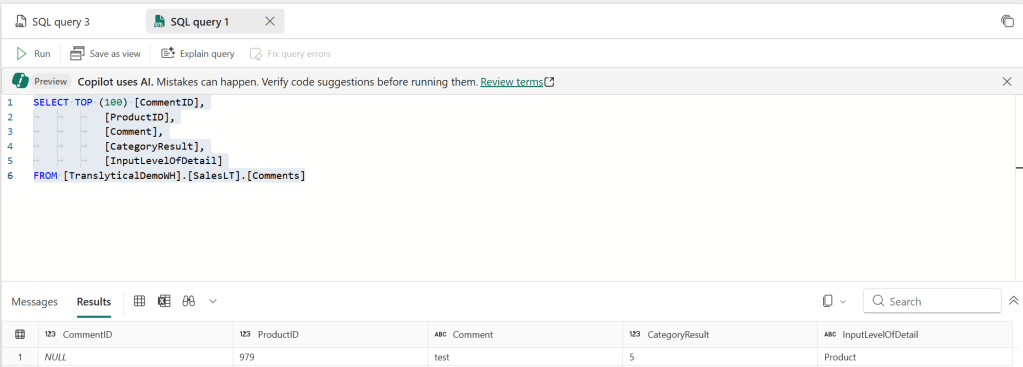
Do you notice any problems still present? … The CommentID column is blank. Something which was handled automatically by the IDENTITY column in the SQL Database, but obviously not in the Fabric Warehouse where this column is not supported…
Working around Primary Keys in Fabric Data Warehouses
A well known limitation of Fabric Data Warehouses are the limitations in the T-SQL layer of the item. One of which, is the absence of IDENTITY columns and enforced Primary Keys, as mentioned above.
Nikola Ilic has a great article on the subject, as well as details on multiple workarounds: How to overcome the Identity column limitation in Microsoft Fabric – Data Mozart
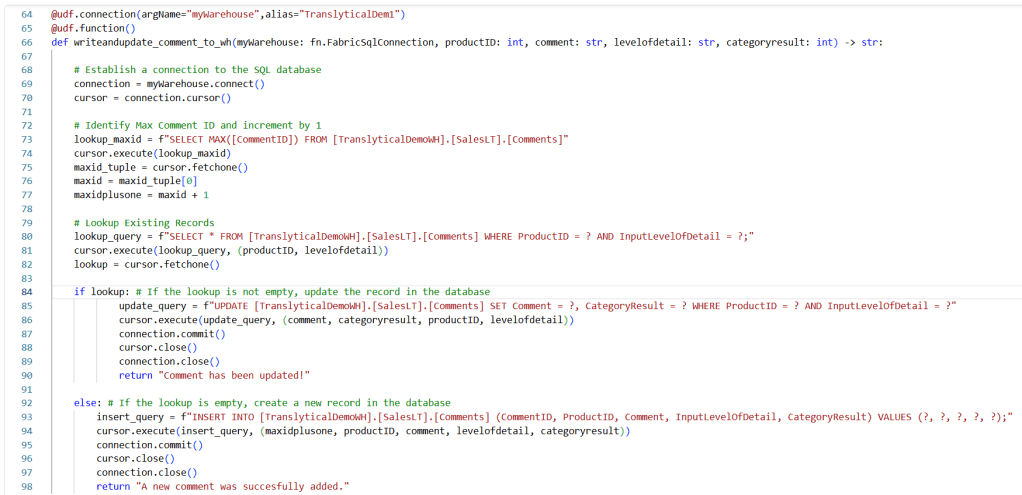
In my example here, I decided to populate my CommentID column with a simple T-SQL solution inspired by Nikolas blog, where I grab the Max value of the column and increment by one:

This incremented value can now be used in my Insert statement (note that I don’t need it in my Update statement, as the CommentID does not change after creation):

Quick final remark on this matter: Rumour has it (check this Reddit AMA from the Warehouse team: Feedback opportunity: T-SQL data ingestion in Fabric Data Warehouse : r/MicrosoftFabric) that IDENTITY columns will soon be supported. Let’s cross our fingers, and in the meantime do the above workarounds.
Final Result: A working Translytical Task Flow / User Data Function for write-back to Fabric Data Warehouse
The final code which I ended up using can be seen and copied below:
import fabric.functions as fn

udf = fn.UserDataFunctions()

@udf.connection(argName="myWarehouse",alias="TranslyticalDem1")
@udf.function()
def writeandupdate_comment_to_wh(myWarehouse: fn.FabricSqlConnection, productID: int, comment: str, levelofdetail: str, categoryresult: int) -> str:

    # Establish a connection to the SQL database
    connection = myWarehouse.connect()
    cursor = connection.cursor()

    # Identify Max Comment ID and increment by 1
    lookup_maxid = f"SELECT MAX([CommentID]) FROM [TranslyticalDemoWH].[SalesLT].[Comments]"
    cursor.execute(lookup_maxid)
    maxid_tuple = cursor.fetchone()
    maxid = maxid_tuple[0]
    maxidplusone = maxid + 1

    # Lookup Existing Records
    lookup_query = f"SELECT * FROM [TranslyticalDemoWH].[SalesLT].[Comments] WHERE ProductID = ? AND InputLevelOfDetail = ?;"
    cursor.execute(lookup_query, (productID, levelofdetail))
    lookup = cursor.fetchone()

    if lookup: # If the lookup is not empty, update the record in the database
            update_query = f"UPDATE [TranslyticalDemoWH].[SalesLT].[Comments] SET Comment = ?, CategoryResult = ? WHERE ProductID = ? AND InputLevelOfDetail = ?"
            cursor.execute(update_query, (comment, categoryresult, productID, levelofdetail))
            connection.commit()
            cursor.close()
            connection.close()
            return "Comment has been updated!"

    else: # If the lookup is empty, create a new record in the database
        insert_query = f"INSERT INTO [TranslyticalDemoWH].[SalesLT].[Comments] (CommentID, ProductID, Comment, InputLevelOfDetail, CategoryResult) VALUES (?, ?, ?, ?, ?);"
        cursor.execute(insert_query, (maxidplusone, productID, comment, levelofdetail, categoryresult))
        connection.commit()
        cursor.close()
        connection.close()
        return "A new comment was succesfully added."
Connecting the User Data Function to a button action in Power BI let’s me complete the Translytical Task Flow – note that I am simply mapping my values exactly like in my previous blog post:
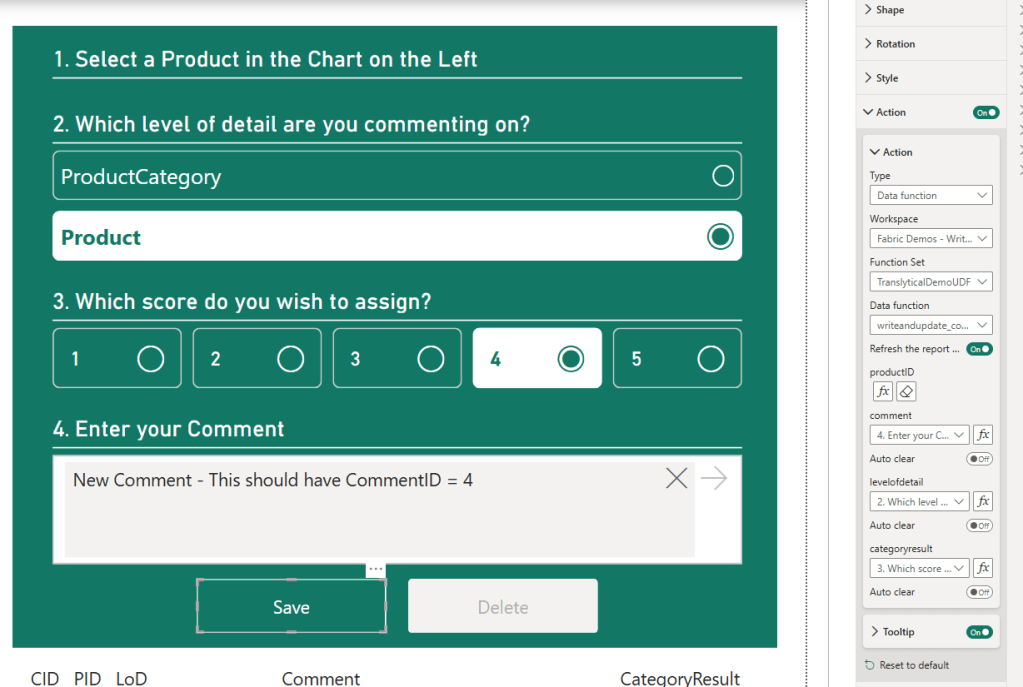
And testing out the flow, now finally writes the correct data back to my DataWarehouse Backend:
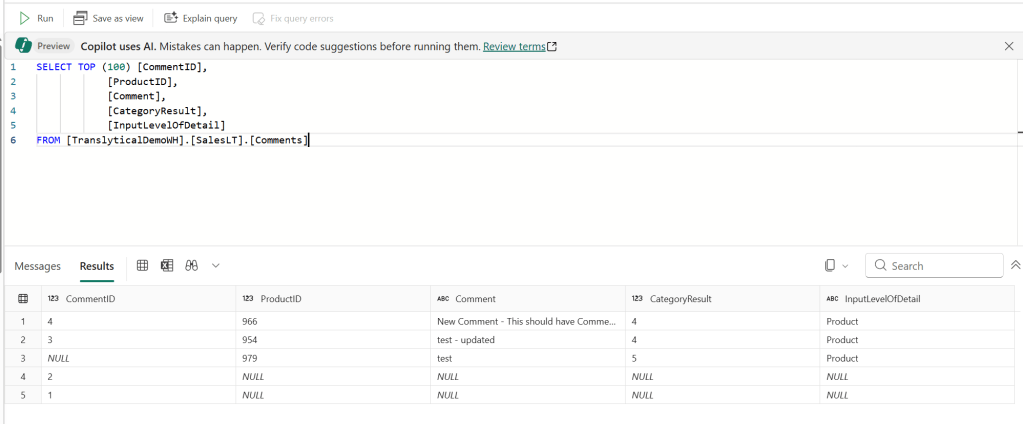
So there you have it!
Write-back to Warehouses is not really harder to do than to SQL Databases – there is just not a lot reference material for how to construct your User Data Function.
If you make sure to use three part naming convention for your queries, and implement a workaround for your Primary Keys, I’m sure you can make your case work as well.





Leave a Reply