Introduction
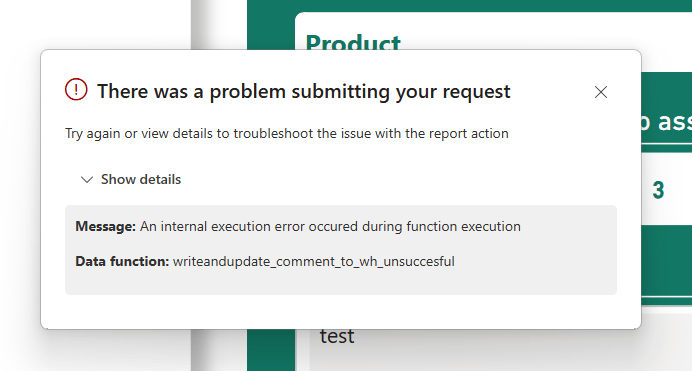
In my pursuit of testing out Translytical Task Flows and User Data Functions as a write-back alternative to Power Apps, I’ve come to spent a good amount of time trying to debug those features as well. Especially since they have a tendency to throw pretty non-descriptive error messages your way.
For this week’s blog post, I’ve made a small write-up of tips and tricks for troubleshooting and debugging translytical task flows, as this was something I struggled a little with myself.
If you’re curious about getting started with Translytical Task Flows, below are three articles to get you going, which you may check out before this week’s blog:
- How to build your first Translytical Task Flow: Guide: Native Power BI Write-Back in Fabric with Translytical Task Flows (How to build a Comment/Annotation solution for Power BI) – Downhill Data
- Exploring User Input options for Translytical Task Flows: Exploring User Input Options for Translytical Task Flows (Write-back in Fabric & Power BI) – Downhill Data
- Using Fabric Warehouse as destination for Translytical Task Flows / User Data Functions: https://downhill-data.com/2025/07/08/native-write-back-to-fabric-data-warehouse-with-translytical-task-flows-user-data-functions/
Don’t make the same mistakes as me
For the longest time, I thought the only way to trigger User Data Functions were through other items – e.g. running it in the context of a Pipeline, or as the translytical task flow action from a button in Power BI.
This resulted in an incredibly awkward development flow of making changes in the UDF, waiting for the publishing action, triggering and waiting for the action in Power BI Desktop, and waiting for a metadata refresh before finally getting a response back.
The response I would get in Power BI? Also horrible.
Any time my flow failed, I would get the same useless error message: “An internal execution error occured during function execution”.
Don’t be like me. Learn from my mistakes, and implement the two changes to your workflow mentioned below:
- Test your User Data Functions in the Browser, not in Power BI Desktop
- Implement Error Handling / Logging in your User Data Functions, in order to get better error messages.
Testing from the User Data Functions interface instead of Power BI Desktop
So, instead of running the User Data Function from Power BI Desktop to test your task flow.. How do you do it from the browser, to make development more efficient?
Turns out it is incredibly easy.
All you need to do, is right click your function in the Explorer, select “Run”, and provide inputs for your parameters (the values you want your Users to set in your Power BI report) in the fly out menu:
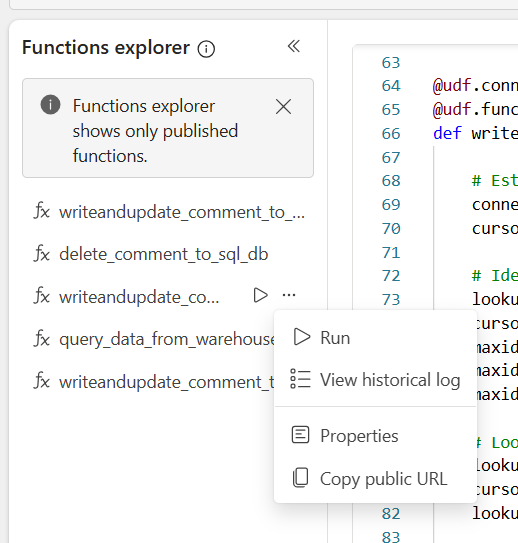
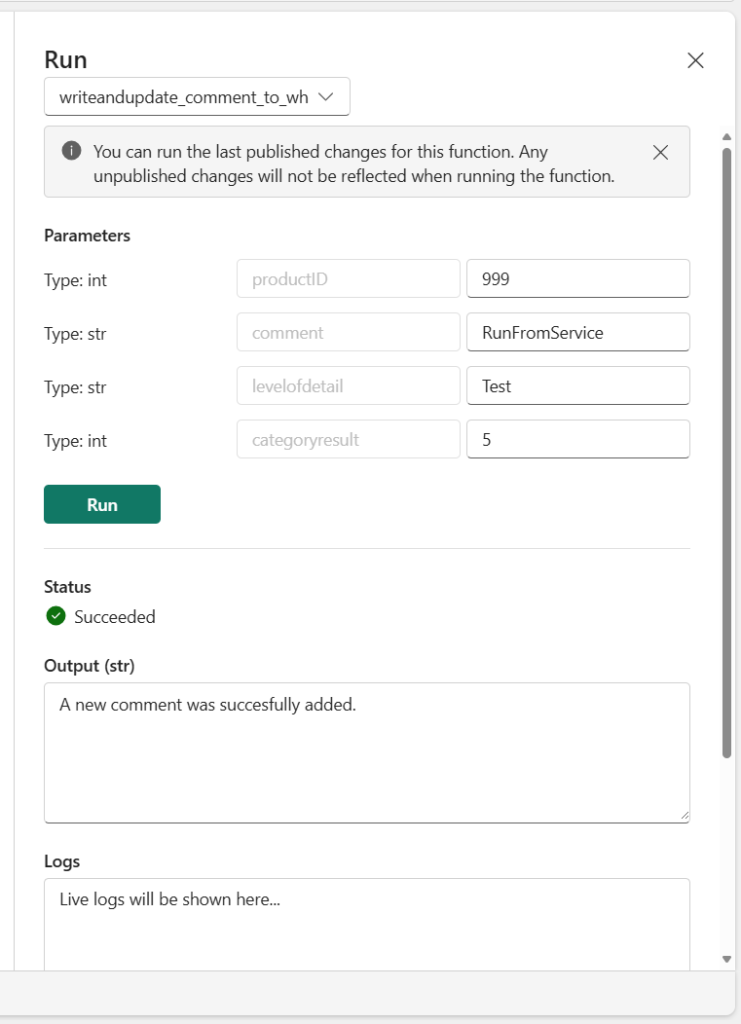
This way you can easily run even parameterized UDFs straight from the editor in your browser, and swiftly moving between development and testing, avoiding the awkward process of moving between applications all the time.
Implementing Logging and Error Handling
To further improve your development experience, I’ll highly recommend implementing Logging in your User Data Functions.
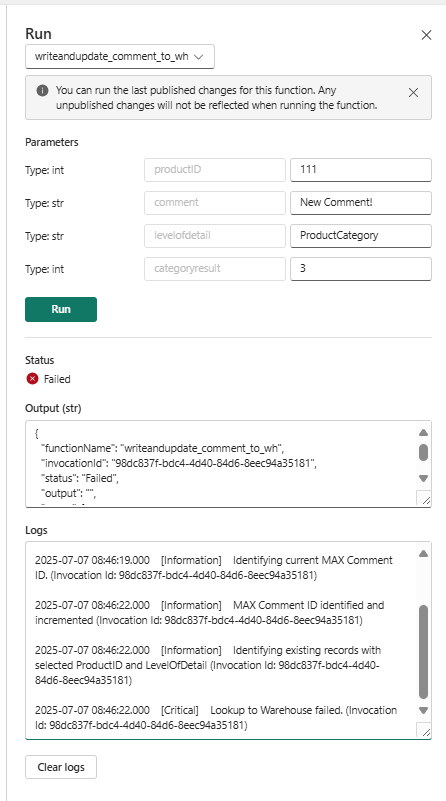
If you import the ‘logging’ library to your code, you can strategically place logging functions throughout your code, to generate logs which will become visible to you within the Live Logs and Historical Logs of your User Data Functions:

However to make the most of the logging functions, you’ll also need to implement some conditional error handling logic. I’ve had the most luck so far with the “Try, Except, Finally” pattern.
To exemplify with my flow, I modified my code from my article on “How to write data to Fabric Warehouse from Translytical Task Flows/User Data Functions”:

@udf.connection(argName="myWarehouse",alias="TranslyticalDem1")
@udf.function()
def writeandupdate_comment_to_wh(myWarehouse: fn.FabricSqlConnection, productID: int, comment: str, levelofdetail: str, categoryresult: int) -> str:
    # Establish a connection to the SQL database
    lg.info('Attempting to connec to Warehouse.')
    try:
        connection = myWarehouse.connect()
        cursor = connection.cursor()
        lg.info('Connection established.')
    except:
        lg.critical('Connection to Warehouse failed.')

    # Identify Max Comment ID and increment by 1
    lg.info('Identifying current MAX Comment ID.')
    try:
        lookup_maxid = f"SELECT MAX([CommentID]) FROM [TranslyticalDemoWH].[SalesLT].[Comments]"
        cursor.execute(lookup_maxid)
        maxid_tuple = cursor.fetchone()
        maxid = maxid_tuple[0]
        maxidplusone = maxid + 1
        lg.info('MAX Comment ID identified and incremented')
    except:
        lg.critical('Identifying MAX Comment ID failed.')

    # Lookup Existing Records
    lg.info('Identifying existing records with selected ProductID and LevelOfDetail')
    try:
        lookup_query = f"SELECT * FROM [TranslyticalDemoW].[SalesLT].[Comments] WHERE ProductID = ? AND InputLevelOfDetail = ?;"
        cursor.execute(lookup_query, (productID, levelofdetail))
        lookup = cursor.fetchone()
    except:
        lg.critical('Lookup to Warehouse failed.')

    if lookup: # If the lookup is not empty, update the record in the database
        lg.info('Existing Record was found. Attempting to update record.')
        try:
            update_query = f"UPDATE [TranslyticalDemoWH].[SalesLT].[Comments] SET Comment = ?, CategoryResult = ? WHERE ProductID = ? AND InputLevelOfDetail = ?"
            cursor.execute(update_query, (comment, categoryresult, productID, levelofdetail))
            connection.commit()
            lg.info('Record was updated succesfully.')
            return "Comment has been updated!"
        except:
            lg.critical('Update of existing record failed.')
            return "Record update failed."
        finally:
            cursor.close()
            connection.close()
    else: # If the lookup is empty, create a new record in the database
        lg.info('No matching record was found. Attempting to create new record.')
        try:
            insert_query = f"INSERT INTO [TranslyticalDemoWH].[SalesLT].[Comments] (CommentID, ProductID, Comment, InputLevelOfDetail, CategoryResult) VALUES (?, ?, ?, ?, ?);"
            cursor.execute(insert_query, (maxidplusone, productID, comment, levelofdetail, categoryresult))
            connection.commit()
            lg.info('New Record was created succesfully.')
            return "A new comment was succesfully added."
        except:
            lg.critical('Creation of new record failed.')
            return "Record creation failed."
        finally:
            cursor.close()
            connection.close()
A few pointers which may not be completely obvious if you are new to this (like me!):
- Make sure to keep general “Info” logs outside the Try/Except blocks, as any logs inside a Try block will only show if it actually succeeds.
- Remember also to then add logs inside your Try/Except blocks to make it clear what is actually happening!
- Avoid nesting Try/Except if you can, as your code quickly becomes very difficult to read.
Below are some sample logging output examples.
Successful update of existing record as seen from the historical logs interface:

Failure to lookup record as seen from the Live Logs:
Implementing better error messages for debugging
While the above method give you better insight into how your User Data Function is running, it is still not excellent at helping your troubleshooting process.
The problem? The error messages currently just describe at which stage the problem is happening. Not what the problem actually is.
To fix this, we can access the actual Exceptions thrown, and implement those in our Error Messages. We do this, by accessing the actual Exception, and outputting them inside our Logs by using f-strings as string interpolation technique. Simply by prefacing our strings with ‘f’, we can reference variables inside our strings:
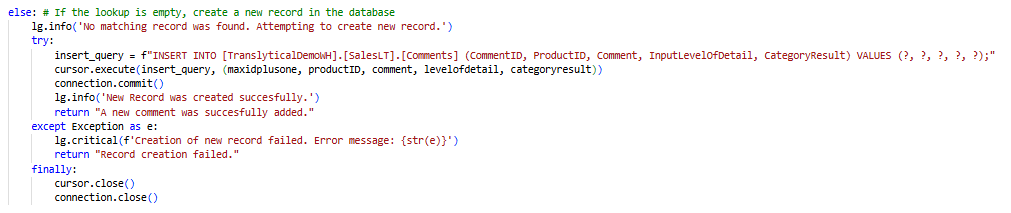
An example output now looks like:

Communicating with your user
Finally, we need to consider how we alert the user of what is happening.
This is what we previously used the “Return” messages for – and we still need to that.
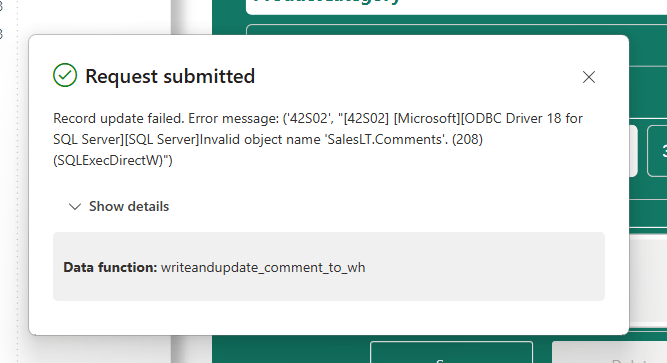
The return message is what shows up in the pop-up after the flow completes, and is essentially our only way of communicating with the end user. The challenge is to figure out exactly what you want to tell them.
I’m personally a fan of simply embedding the error message in the Return statement, similarly as with the logs, to both allow myself a better troubleshooting experience when triggering the flow from inside Power BI, and also to invite my users into the troubleshooting process. They will be able to reach out to me with the error that they are facing, instead of me having to find the logs for their flow to start digging:

Conclusion
If you like me come from a Power BI / Power Platform background, debugging practices and error handling is done much differently as compared to code-first applications.
I found that the techniques of Try/Except/Finally, as well as using string interpolation to deliver the actual underlying error messages to replace the generic non-descriptive error message, works wonders for troubleshooting and communication with users.
What are your thoughts on this topic? I’m very curious to hear from you.





 Downhill Data
Leave a reply to Comparing write-back options for Power BI/Fabric: Translytical Task Flows vs Power Apps – Downhill Data Cancel reply