Introduction
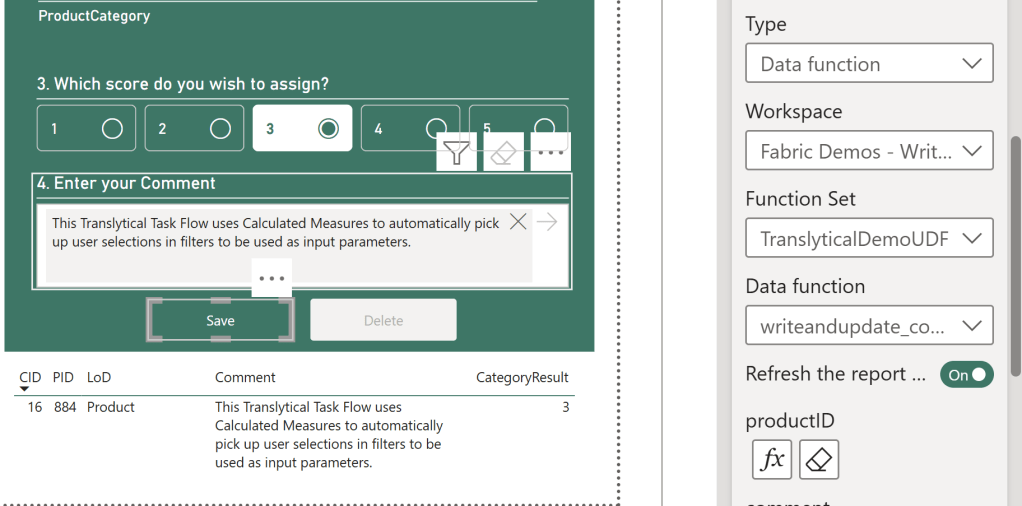
A common misconception about Translytical Task Flows is that the only way for you to parameterize and pass user inputs to the User Data Function, is through Slicers in Power BI.
That is not true at all.
In fact, one of the most powerful ways of integrating Task Flows into your Power BI reports, is by allowing user selections made in visualisations in your report, flow through to your task flow.
In today’s article, we take a look at how DAX and Calculated Measures can help you pickup the existing context of your user, to dynamically affect your Translytical Task Flows.
This blog is the sixth in a series on Translytical Task Flows. Check out the other ones below:
- Guide: Native Power BI Write-Back in Fabric with Translytical Task Flows (How to build a Comment/Annotation solution for Power BI) – Downhill Data
- Fabric Data Warehouse as write-back destination for Translytical Task Flows & User Data Functions – Downhill Data
- Exploring User Input Options for Translytical Task Flows (Write-back in Fabric & Power BI) – Downhill Data
- https://downhill-data.com/2025/07/15/troubleshooting-debugging-and-error-handling-in-user-data-functions-translytical-task-flows/
- https://downhill-data.com/2025/08/19/using-dropdown-for-user-input-in-translytical-task-flows/
Converting User Selections to Task Flow inputs with DAX
Basic Method
The general idea of this technique, is to use DAX expressions to return whatever value(s) the User has currently selected in their Power BI report.
To do this, we can take advantage of the fact that User Selections in Power BI applies filters on the underlying Semantic Model. This means, that we can extract the currently filtered values, by calling DAX expressions such as SELECTEDVALUE().
SELECTEDVALUE(‘columnname’) returns the value selected by the user on the defined column, given that there is indeed only one distinct value available in the filtered context.
As an example, I can use the below measure to pick up the context of the Product being selected by the user:

In my Translytical Task Flow action, I can now map this Measure to my parameters by using the Conditional Formatting option (as long as the data type matches the type expected by the parameter, just like is the case with mapping slicers to parameters):

Advanced Method
To take things a step further, I wanted to show that you can of course build in additional logic in your DAX measures, by combining SELECTEDVALUE() with other DAX functions.
In my example below, I would like to automatically register if the user is on the Top or Bottom level of the hierarchy in my Bar Chart, so that I can use that information as a parameter in my Task Flow, without the user having to manually select anything.
To accomplish this, I constructed a simple measure combining SELECTEDVALUE() with HASONEVALUE() in a conditional measure.
When the User is at the ProductCategory level, the measure returns “ProductCategory”:

And when the user is as Product level, the measure returns “Product”:
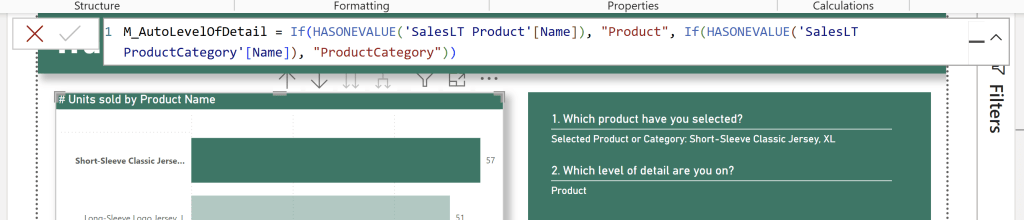
Again, I can map this to my Task Flow exactly like before:


Closing Remarks
The sky is the limit here.
There is absolutely nothing stopping you from using any other DAX function and advanced filtering technique you can think of. All that matters is that the Value(s) that you return with your Measure, has to match the data type of the parameter in your Translytical Task Flow.
You could use ConcatenateX to pass a list of values as a single record to your Task Flow, to be parsed out later. Perhaps even VALUES() works for sending an entire table or column, but I have not yet tested this.
You could use ISFILTERED() and ISINSCOPE() as detailed in my blog post last year, to extract the correct information from Hierarchies, in case the HASONEVALUE() technique above wasn’t enough.
I find SELECTEDVALUE() sufficient for most of my use cases, but I would love to hear about other use cases for DAX in Translytical Task Flows.




 Downhill Data
Leave a comment