Introduction
We’ve arrived at the final level of detail in our series on Organizing your Microsoft Fabric Data Platform. So far we’ve covered, from broadest to narrowest scope:
This time we go all the way down to the Item level on our platform, and describe strategies for labeling and categorising individual items by using Tags and Task Flows.
Task Flows – A brief assessment

Task Flows (not to be confused with Translytical Task Flows, which fittingly will appear in some of my screenshots in this blog) allow you to visualize the role each item in your workspace plays, as well as their relation with each other.
You select from a predefined list of “Tasks”, and assign workspace items to each tasks.
You may create multiple independent task flows in the same workspace, an Item can however only be added to one task at once.
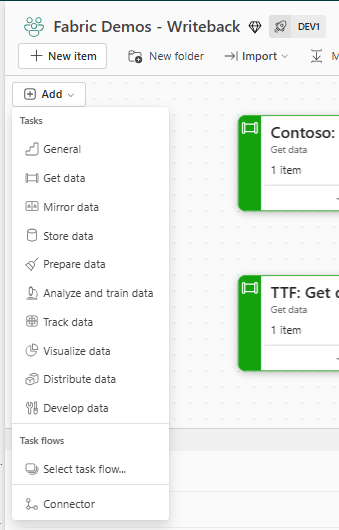
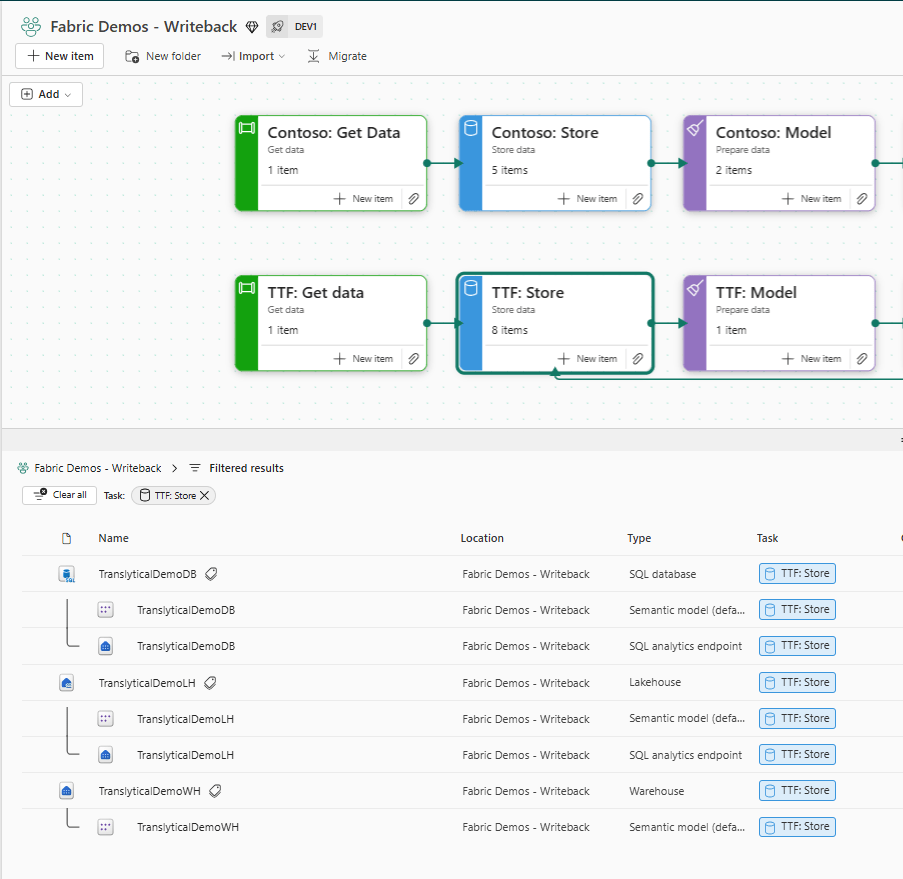
Once assigned, items are easily distinguished by their assigned tasks in the Workspace Details view:

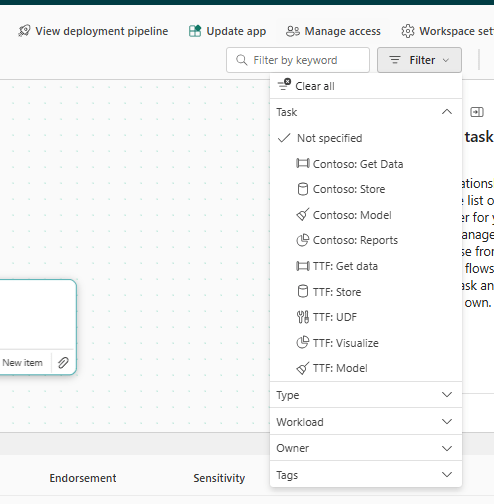
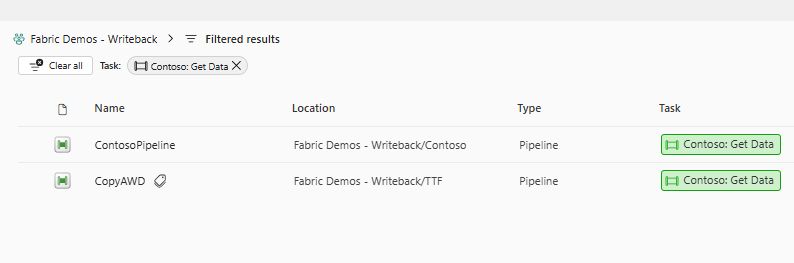
Even better: If you select a Task in the Task Flow, your Item List filters down to only those assigned to the task (this may also be achieved from the Item Filtering panel:
Now does this work better than a folder? Well, yes and no.
It is awesome that I can easily identify, and even select, items related to a specific task. But a minor nuisance about Task Flows is my inability to easily multi-select multiple tasks at once, or say an entire Task Flow, in those cases where I might have multiple separate streams like in my case here.
In the previous article on Workspace Folders I outlined one possible Folder strategy to be that of grouping Items by Item Category or function. When you do that, you don’t get a nice visual indicator on each item, but you get the ability to select entire groups of items at once. Something that would be impossible with Task Flows alone.
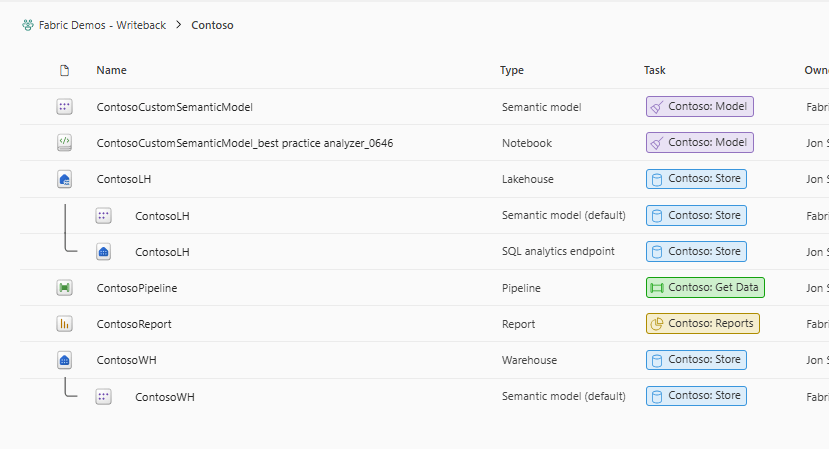
A bigger issue for me however is the inability to make cross-workspace Task Flows. As argued in my Workspace Strategy article, it often makes sense to compartmentalize work in several separate workspaces to better control access and segregation of duties. But as Task Flows are currently not able to span multiple workspaces, you will lose the ability to track and identify all items related to the task flow, if you do any kind of workspace splitting.
All in all though, Task Flows represent an excellent idea, and I’d argue that you have nothing to lose in terms of starting to implement them as a visual and functional aid in grouping and identifying items. And if you’ve adopted a monolithic workspace approach, well then they’re freaking awesome!
Tags – A brief assessment

Tags represent another way of adding metadata information to individual items.
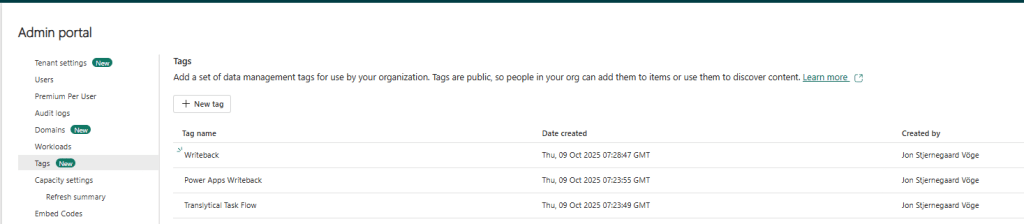
Tags are created from the Tags menu in the Admin Settings of your Fabric Platform. They are defined on a global level for subsequent use by all users on any item.
Tags will also appear on Item Details pages, flyout menus, in the Workspace Lineage View, in the Scanner API and maybe most importantly, in the Global Search results and OneLake Catalog, both of which let you search for and filter by Tags as well.
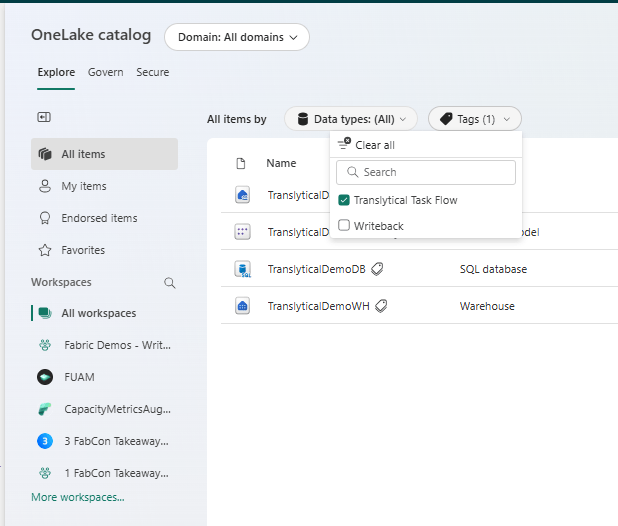
As I see it , the one big advantage of Tags is that you are able to search and find related items cross-workspace if they’ve been tagged with at least one common label. The only comparable search feature is relying on Global Search for hitting common words in Item Names and Descriptions (besides maybe Copilot search, whose chance of success depends intensely on other factors), but how many people name and describe their items consistently? Not many… Not many people for sure.
I think Tags have immense potential for the above reason, but I do wish we’d see a few improvements:
Overall, I find the implementation of Tags a little too invisible for my taste. Compared to Task Flows, it often requires an additional click or hover to get the information about Tags applied to an item. Again only the Global Search let’s you see the tags themselves as part of the list view – even in your Workspace you need to hover.
Where are tag hierarchies? Where are key:value tagging? Where is the option to set default tags for Workspaces? Where is the ability to define audiences for each tag, so that they are not all simply globally available in a flat list?
All of these and more suggested features as highlighted in a recent discussion on reddit.com/r/microsoftfabric instigated by the always observant Frithjof Vassbø (who is known to occasionally visit this blog too :wave:), are valid and would be welcome additions to the Tags feature.
When that is said though – I stand by that Tags even in their current shape represent one of the only current ways for you to improve cross-workspace search and discovery of items.
Strategies for implementing Task Flows and Tags in practice
With the above assessments of Task Flows and Tags in mind – How could we go about implementing these different solutions to item labeling in practice today?
The answer? It depends on your Domain, Workspace and Workspace Folder strategy.
Task Flows, Tags and Domains
Considering the purpose of Domains, and your choice of Domain strategy Tags especially may actually play a somewhat crucial role.
As mentioned, Tags allow you to tag related items cross-workspace. This is equally. if not more powerful, when we also consider cross-domain tagging.
If you have adopted a Domain strategy with Consumer-aligned domains, you could tag Items based on the Data Sources involved in your Data Products, giving you perhaps the only Fabric-native way of identifying e.g all solutions using your Finance Cube.
If you have adopted a Domain Strategy with Source-aligned domains, you could tag Items based on the business context or data product relation of your items, giving you a way to search tenant wide on those dimensions.
And Task Flows for Domains you ask? Well, truly, Task Flows don’t really offer much in the interplay with Domains.
Task Flows, Tags and Workspaces
Now consider the Item labeling options in relation to your Workspace Strategy, and we are faced with slightly similar arguments as the Domain discussion above.
Tags give you cross-workspace discovery potential unlike most other features on the platform. If your platform is segregated into Workspace Types, Tags may allow you to discover related items across those. And the same story of course goes for strategies that involve multiple Workspaces by Environment, Layer, Department or any other segregation you can imagine.
Again, Task Flows won’t offer you much in terms of going cross-workspace, but once you’re in a specific workspace. Well, then its Task Flows’ time to shine.
No matter how you segregate your Workspaces, you should use Task Flows in every single workspace (maybe the exception is workspaces which literally only hold one Item type… But you get the point). Running Monolithic platform workspaces? Use Task Flows to distinguish between Bronze, Silver and Gold. Using Workspaces to segregate front-end and back-end items? Use Task Flows to visualize relations between storage and transformation artifacts, or models, reports and activators.
Task Flows, Tags and Workspace Folders
On Workspace Folder level things are coversely not very interesting from a Tags point of view. They are sparsely visible for users when you navigate your folders, although you can of course still use them as a filtering tool.
Workspace Folders are really much more interesting from a Task Flow point of view. In my initial assessment I presented how I see Task Flows and Folders as kinda similar features, but with each their strengths and weaknesses. Well.
What if we combined the power of the two?
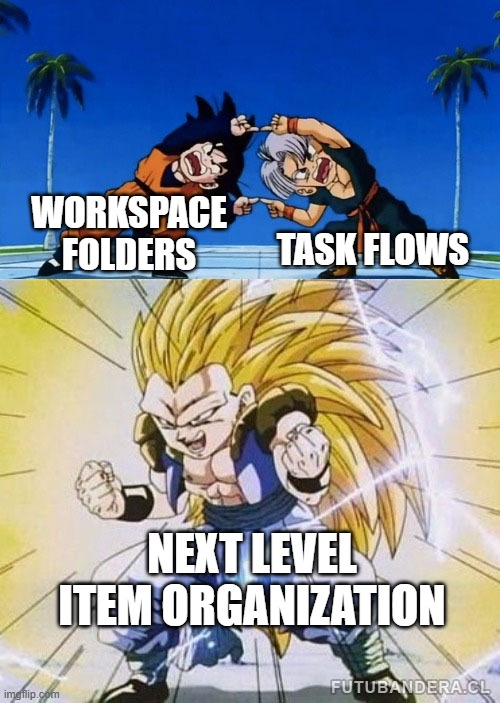
To me, combining folders and Task Flows represent the ultimate solution for workspace item categorization and discovery solution, as the two combined give you a matrix-like set of labeling to work with. In essense, you get to use two different labeling mechanisms together.
Below are a few examples.
- In a Folders by Platform Layer strategy (bronze, silver, gold), use Task Flows to group and identify similar items across your Folders (e.g. assign all Pipelines, Notebooks, Lakehouses, Models to their respective stages for easy cross-folder searching)
2. On the other hand, and slightly less intuitively, in a Folders by Item Category folder strategy (Orchestration, Storage, Reporting), you could use Task Flows to assign Platform Stages to your items.
3. In Folders by Role/Department/Solution strategies, use Task Flows to again assign tasks to items and identify e.g. all Report artifacts across all of your folders.
Conclusion
In summary:
Use Tags to establish cross-domain and cross-workspace item discovery, by labeling related items with the same tags – although we hope for more additions to the feature in the future.
Use Task Flows especially in monolithic workspaces, workspaces with many item types, or workspaces with multiple folders, to give yourself both an excellent visual aid in relating the different items, and a great way to filter and search for items depending on your grouping.
I hope you enjoyed my take on Tags and Task Flows, and find a good way to incorporate these features in your Fabric platform.



 Downhill Data
Leave a comment