Introduction
RLS in Microsoft Fabric is a convoluted topic which at the time of writing, is not very clearly spelled out for users.
Most documentation refers to setting up RLS on Data Warehouses or Data Lakehouses by applying permissions directly on the tables: Row-level security in Fabric data warehousing – Microsoft Fabric | Microsoft Learn
However, to the frustration of many Power BI developers, this breaks the coveted DirectLake functionality, making the storage mode fallback to DirectQuery, leaving us unable to leverage those sweet performance gains.
However, what if I told you that there is a way to implement RLS without breaking DirectLake? Actually, you just need to do it the old fashioned way: Apply RLS directly on the Semantic Model, but with a twist involving fixed identities. A process which can only be done using external tools.
Read on to learn how!
Creating a Semantic Model with an RLS Table
The first step is to create a new Semantic Model on top of your Data Lakehouse or Data Warehouse, in order to have a Semantic Model that uses Direct Lake.
Below I have done just that, on top of some dummy Taxi data. First I created a Data Warehouse, then I imported the Taxi Data Sample, and finally I created a Usertable with a SQL statement, populating it with a few rows of data to use in RLS:

Subsequently, I created a new Semantic Model, including all the tables:
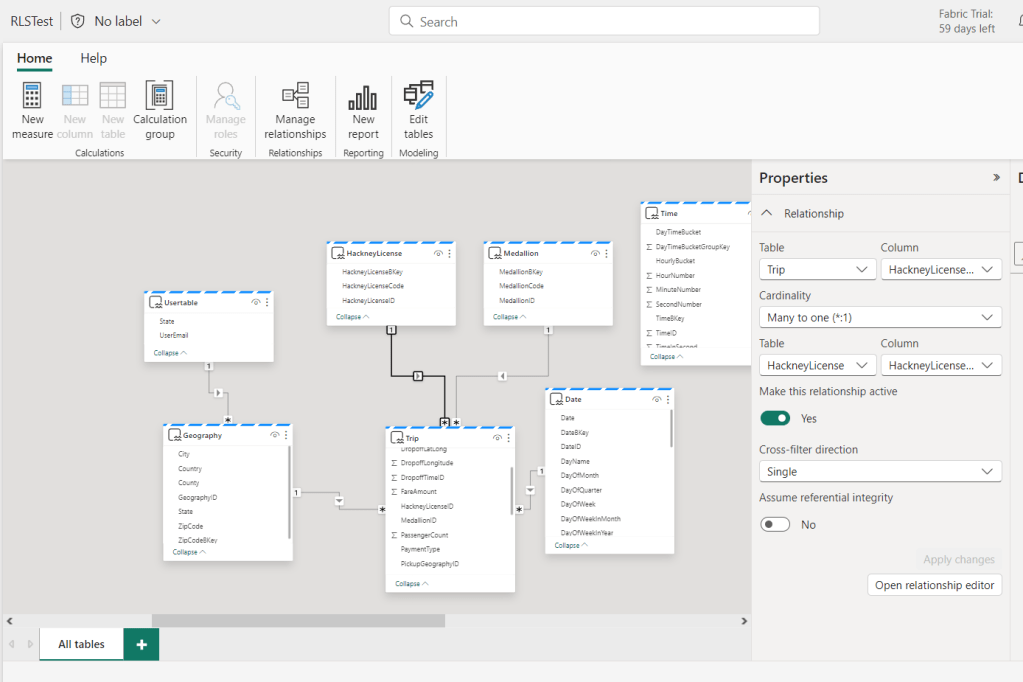
Notice how the “Manage Roles” button is greyed out at the top? That is the cardinal issue that most people face when setting RLS up on Semantic Models in Fabric.. They simply get to this point and then stop.
But there is a way!
Setting up the Fixed Identity
The first thing we need to do, is to set up a Fixed Identity to be used instead of the end-users credentials, when authenticating against the data model.
Open the settings of your newly created Semantic Model:

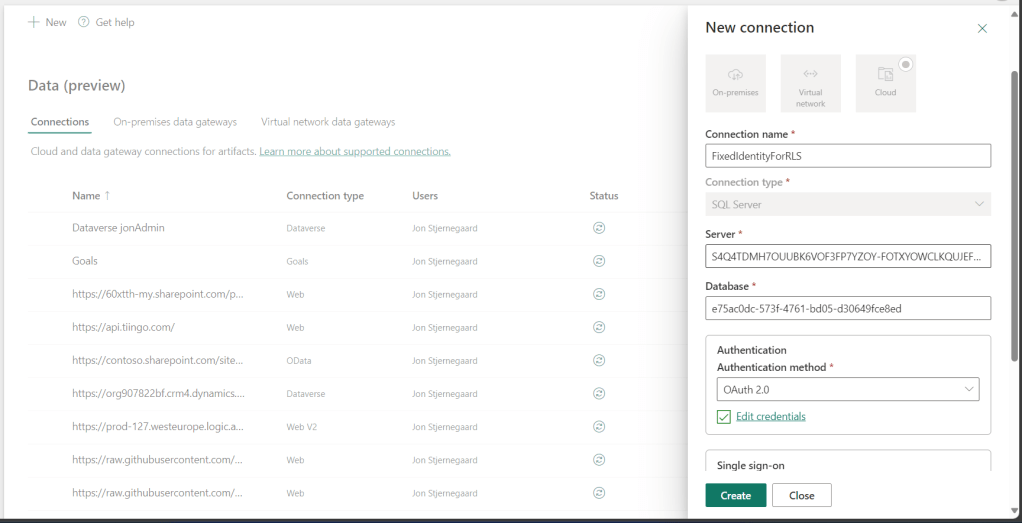
Find the Gateway and cloud connections tab, and create a new connection for your data source:

Create the cloud connection (the Server and Database should be filled out automatically), and select OAuth 2.0 as authentication method:
Back in the semantic model settings, map the data source to the newly created connection:

Congratulations! You have mapped your semantic model to a fixed identity, which will now be used when users access reports built on your model!
However… This Fixed Identity, using your OAuth credentials, will have access to all of the data in your model that you have access to. Hence, we need to setup our RLS rules.
Setting up RLS on the Semantic Model
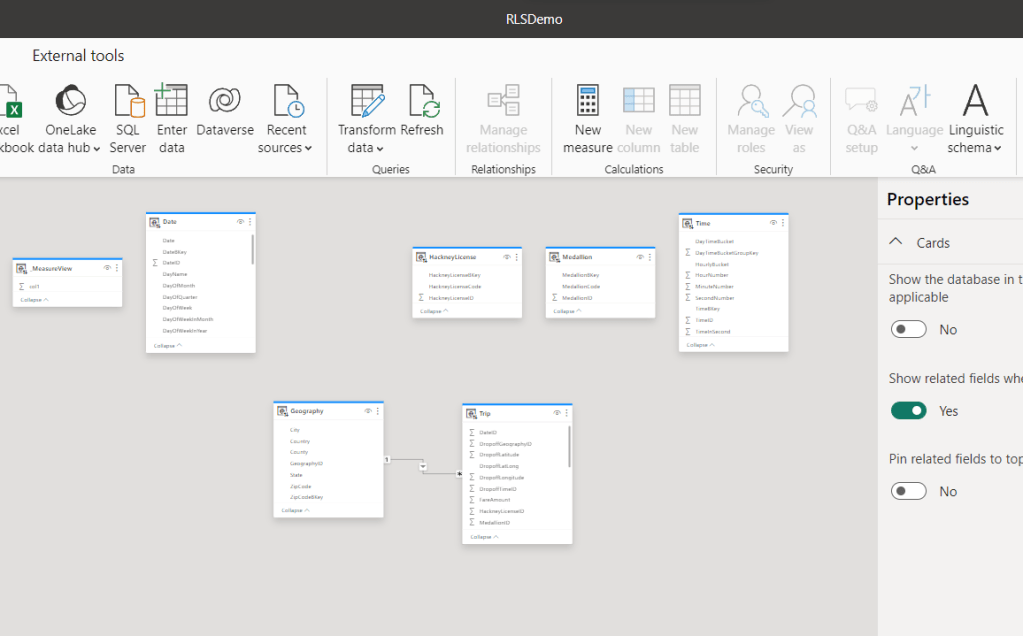
As you saw previously, we are unable to create security roles directly in the browser. And unfortunately, creating a report in the browser based on the semantic model, downloading the .pbix and trying to setup roles in there, does not offer better results:
Instead, what we need to do is use External Tools against the XMLA endpoint of the workspace, to manipulate the semantic model. In this case, we will use the free external tool, Tabular Editor 2: Tabular Editor 2.x | TabularEditor
Go to the Premium tab of your workspace settings, and retrieve the connection string shown there. This is your XMLA endpoint for the workspace in question:
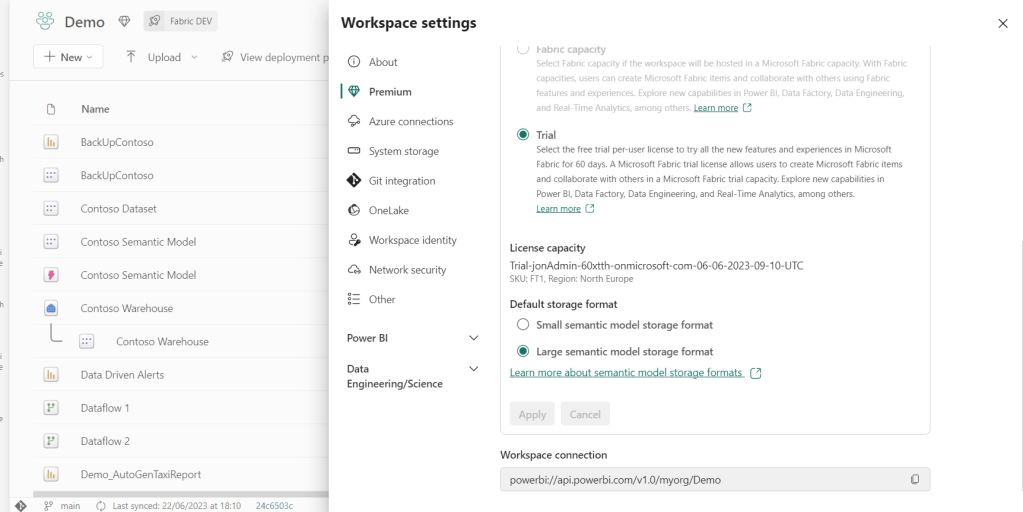
Next, Open Tabular Editor, and connect to a tabular server, providing the copied workspace connection as the server:

After authenticating, select your semantic model:

And finally, we can set up our RLS roles. Right click the Roles folder, and create a new role. Scroll down to Row Level Security, and apply your RLS rule of choice. In this case, I am implementing a simple DAX filter on my Geography dimension:

After setting up your rules, scroll further down and make sure to change the Model Permission value from None to Read. Else, you will not be able to publish your changes to the semantic model.
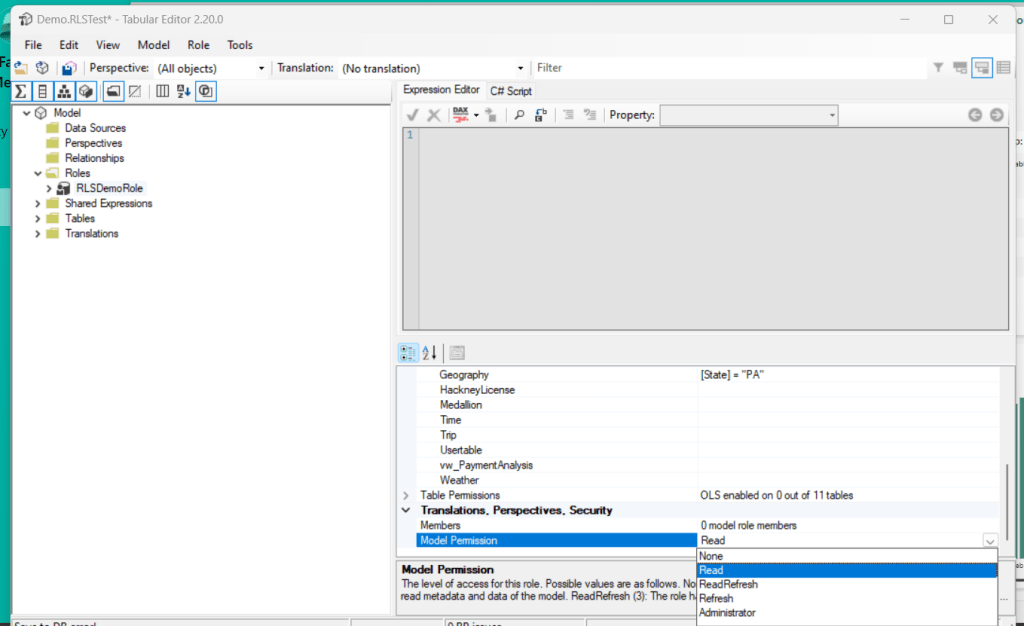
Another issue you may encounter when saving your changes, is that it complaints about Read/Write permissions on your tenant. In order to save and publish the changes to the model, you need to ensure that your Capacity Settings in your Fabric Tenant Settings allow both Read AND Write to XMLA Endpoints. In my case, I had to go and make this adjustment:

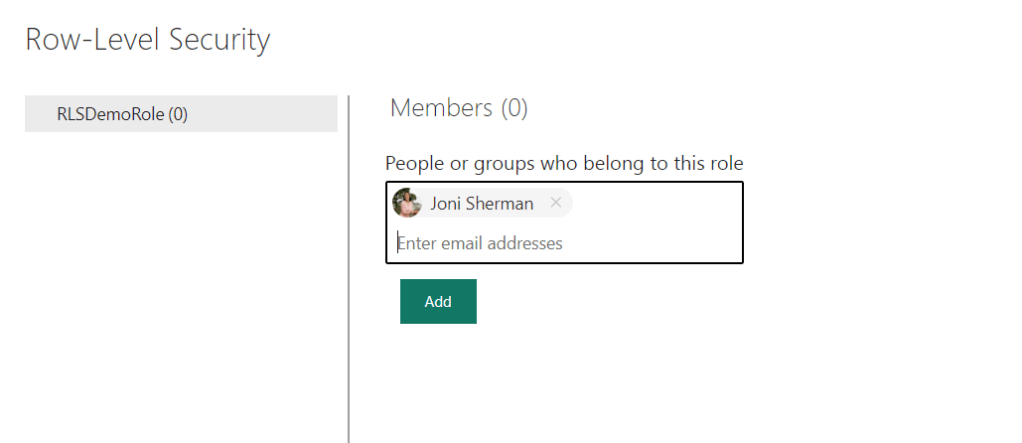
Now you can finally save and publish your model changes to the service. The next step is to open the Security Settings of your semantic model, and add members to your newly created roles:
Right click on the role in the menu, and select Test As Role, to test if you set up everything correctly:
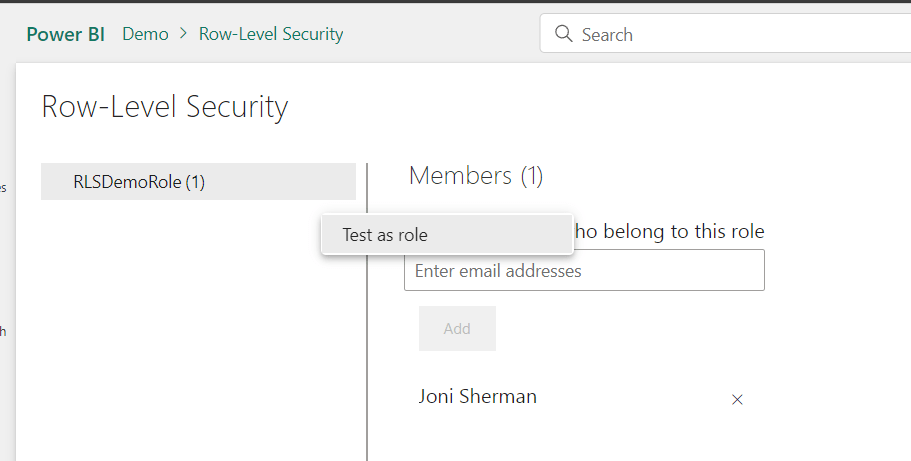
And in my case, my report went from this:

To a filter only showing data for Pennsylvania:

And that’s all there is to it!
With this RLS setup, your report will always use your credentials as a fixed identity for accessing the Lakehouse/Warehouse underneath your semantic model. This in turn warrants you to set up RLS via Tabular Editor, to ensure that no security issues occur, but has the added benefit that DirectLake functionality is intact when consuming the report.





 Downhill Data
Leave a reply to Fabric Governance: Access & Permission scenarios for sharing Data and Models (+ Security) with End Users – Downhill Data Cancel reply